


Virtual machine (VM) software for Windows is an indispensable tool for modern computing, enabling users to create and operate multiple isolated operating systems on a single physical computer. These virtual environments, or VMs, meticulously emulate a complete computer system, encompassing everything from the CPU and memory to network interfaces and storage. This capability is crucial for a wide array of applications, from software development and testing to running legacy applications and enhancing cybersecurity protocols. The ability to take snapshots, which effectively saves the current state of a VM, and revert to it later, is a particularly valuable feature for iterative development and disaster recovery planning. ServerWatch has rigorously evaluated numerous VM software options to identify the top contenders for various use cases, ensuring users can make informed decisions based on their specific needs.
Top Virtual Machine Software for Windows: A Comparative Overview
The selection of appropriate VM software is paramount, whether for personal projects or the management of multiple VMs on enterprise-level servers. Each solution offers a unique blend of features, performance characteristics, and pricing structures. Here’s a comparative snapshot of the six leading VM software solutions for Windows:
| Software Category | Performance & Resource Management | Compatibility & System Requirements | Security & Isolation | Networking Capabilities | Starting Pricing |
|---|---|---|---|---|---|
| Cloud-Based | Efficient scaling, robust resource allocation | Wide OS support; requires reliable internet | Strong cloud-native security and isolation | Extensive, complex configurations | Varies (e.g., Azure VM starts around $7.59/mo.) |
| Hybrid Cloud | Optimized for hybrid environments, balanced resource utilization | Integrates with Windows, requires specific hardware for on-premises | Tailored for hybrid cloud security | Optimized for hybrid networking, Azure integration | Varies (e.g., Azure Stack HCI starts around $10/mo. per physical core) |
| Desktop/Workstation | High performance, advanced resource management | Broad OS support | Advanced security measures, robust isolation | Comprehensive networking features | Varies (e.g., VMware Workstation Pro $199 one-time) |
| Enterprise/Server | Ideal for large-scale, high-density environments | Wide hardware compatibility | High-level security for enterprise needs | Strong in enterprise-level network configurations | Contact vendor for pricing |
| Container & VM Integration | Designed for cloud-native environments, runs both containers and VMs | Primarily Linux-centric but adaptable to Windows | Container-based isolation and security | Advanced Kubernetes networking | Varies (contact vendor) |
| Mac-Centric Desktop | Optimized for Windows on Mac | Specifically for macOS running Windows VMs | Good security for desktop virtualization | Solid networking for desktop virtualization | Varies (e.g., Parallels Desktop $99.99/yr) |
Azure Virtual Machines: Scalability and Cloud Power
Best for scalable, cloud-based computing
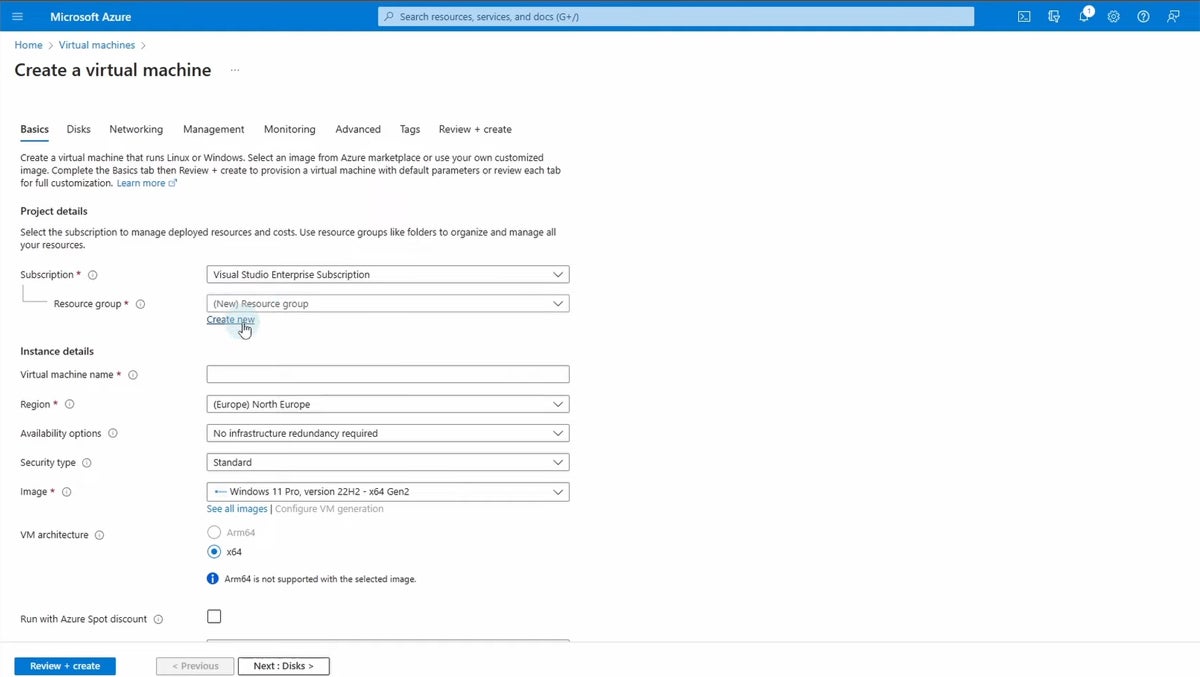
Microsoft Azure Virtual Machines (VM) is a core component of Microsoft’s expansive Azure cloud computing service, offering highly scalable computing resources within Azure’s global cloud infrastructure. This platform empowers users to deploy a diverse range of virtual machines tailored for applications such as web servers, databases, and gaming servers. Azure VMs provide exceptional flexibility, allowing users to select from a wide spectrum of operating systems, including Windows, Linux, and others, and to configure VMs precisely to meet specific performance demands. This makes Azure VMs a versatile solution for businesses aiming to extend their IT infrastructure into the cloud for development, testing, application hosting, or intensive data processing.
Overall Rating: 4.5/5
Pricing: Azure VM pricing is consumption-based, with various plans and VM sizes available. The starting price of approximately $7.59 per month is for a basic configuration and can vary significantly based on instance type, region, and usage.

Pros:
- Offers a high degree of scalability and the flexibility to choose from a wide range of VM sizes and types.
- Seamless integration with other Azure services like Azure Active Directory and Azure SQL Database enhances workflow efficiency.
- Benefits from Microsoft Azure’s extensive global infrastructure, ensuring high availability and redundancy.
Cons:
- Depending on the configuration and usage, Azure VMs can become expensive, particularly for high-performance setups.
- The sheer volume of options and settings within the Microsoft Azure ecosystem can be overwhelming for beginners or smaller organizations without dedicated IT support.
Features:
- Extensive VM Sizes: A vast catalog of VM sizes optimized for different workloads, from general-purpose to compute-intensive, memory-optimized, and GPU-enabled instances.
- Hybrid Cloud Integration: Seamlessly connects on-premises environments with Azure cloud services.
- Global Reach: Deploys VMs across a worldwide network of Microsoft-managed datacenters.
- Advanced Security: Leverages Azure’s robust security features, including network security groups, Azure Firewall, and identity management.
Azure Stack HCI: Bridging Cloud and On-Premises
Best for hybrid cloud environments needing on-premises control
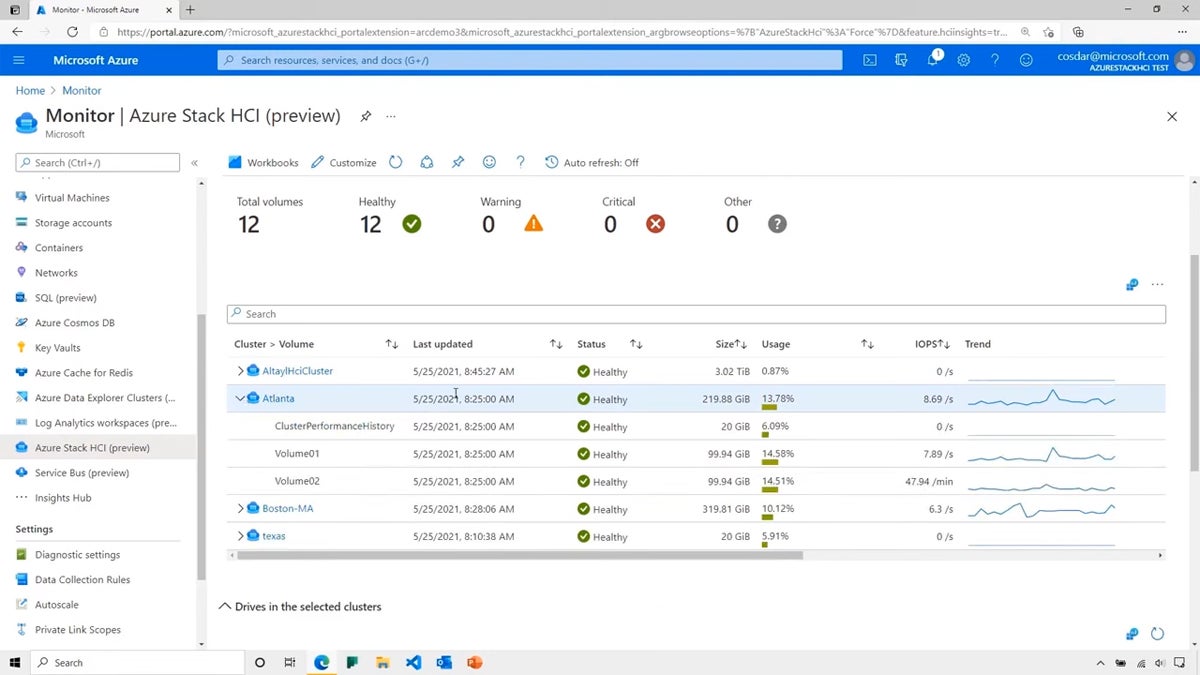
Azure Stack HCI is a hyper-converged infrastructure solution from Microsoft that harmoniously integrates virtualization, storage, and networking into a cohesive, on-premises system. Designed to efficiently run modernized virtualized workloads, Azure Stack HCI acts as an extension of Azure, extending many of its cloud capabilities directly into the user’s data center. This makes it an ideal choice for organizations seeking to modernize their infrastructure while maintaining strict control over sensitive workloads on-premises. It is particularly well-suited for enterprises requiring hybrid solutions that blend the agility of the cloud with the security and regulatory compliance of on-premises infrastructure. The solution streamlines resource management and scaling and is optimized for both Windows and Linux VMs.
Overall Rating: 4.25/5
Pricing: Azure Stack HCI is priced on a per-physical-core basis, starting at approximately $10 per month per core. This model provides flexibility for organizations to scale their on-premises infrastructure according to their needs.

Pros:
- Seamlessly integrates with Azure for cloud services while maintaining on-premises workloads, offering a true hybrid experience.
- Offers excellent scalability and flexibility in configuring storage, compute, and networking to meet specific enterprise needs.
- Provides a unified management experience through Windows Admin Center and Azure Arc, simplifying administration.
Cons:
- The initial setup and configuration can be complex, potentially requiring a deep understanding of both Azure and on-premises infrastructures.
- While offering a flexible pricing model, the overall costs can be significant, especially for larger deployments.
- Small and growing organizations without dedicated IT teams may find the Microsoft product suite and Azure integration complex.
Features:
- Hyper-Converged Infrastructure: Integrates compute, storage, and networking into a single, efficient solution.
- Azure Arc Integration: Enables centralized management and governance of hybrid environments.
- Software-Defined Storage and Networking: Leverages technologies like Storage Spaces Direct and Software-Defined Networking for enhanced performance and flexibility.
- Windows Admin Center: Provides a modern, browser-based management tool for the infrastructure.
VMware Workstation Pro: Powerhouse for Developers and IT Professionals
Best for advanced and complex networking environments
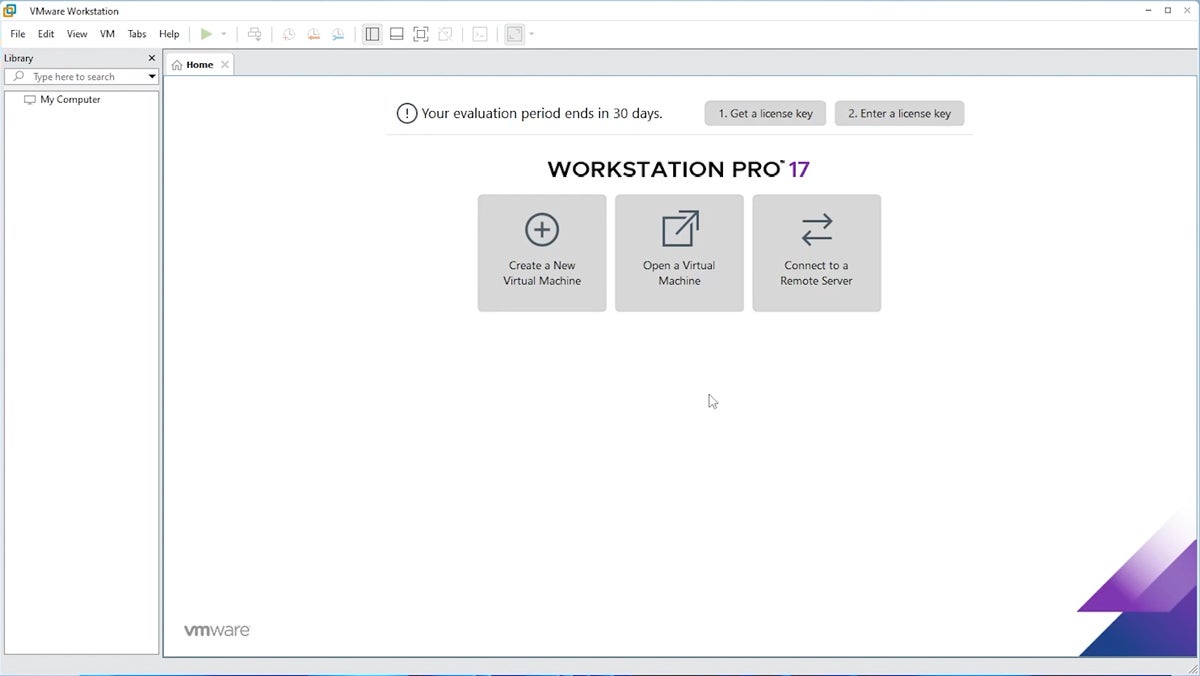
VMware Workstation Pro is a highly regarded virtualization software developed by VMware, Inc., renowned for its robust performance and comprehensive feature set. It empowers users to create and run multiple virtual machines on a single physical machine, with each VM capable of hosting its own operating system, including various versions of Windows, Linux, and other platforms. This makes it an indispensable tool for developers, IT professionals, and businesses engaged in complex testing, development, or simulation scenarios. VMware Workstation Pro is particularly lauded for its ability to support intricate networking configurations, allowing users to simulate complex networked systems for thorough testing and development purposes, making it an ideal choice for those requiring deep control and advanced capabilities.
Overall Rating: 4.25/5
Pricing: VMware Workstation Pro is available for a one-time purchase, typically priced around $199 for the perpetual license, offering excellent value for its extensive capabilities.
Pros:
- Supports a wide range of operating systems, offering exceptional flexibility for users with diverse software needs.
- Includes powerful features like snapshot and clone capabilities, enabling users to easily save, revert, and duplicate VM states.
- Offers advanced networking features, allowing users to simulate complex network environments for detailed testing and development.
Cons:
- Can be demanding on system resources, particularly when running multiple or resource-intensive VMs simultaneously.
- The extensive feature set and advanced capabilities might present a steeper learning curve for novice users.
Features:
- Snapshot and Cloning: Allows users to capture the state of a VM at any point and revert to it, or create identical copies.
- Advanced Virtual Networking: Provides virtual network editors for creating complex network topologies, including custom virtual networks, NAT configurations, and bridged networking.
- Unity Mode: Enables Windows applications to run seamlessly alongside macOS applications, appearing as if they are native to the host OS.
- 3D Graphics Support: Offers robust support for 3D graphics acceleration, crucial for graphics-intensive applications and testing.
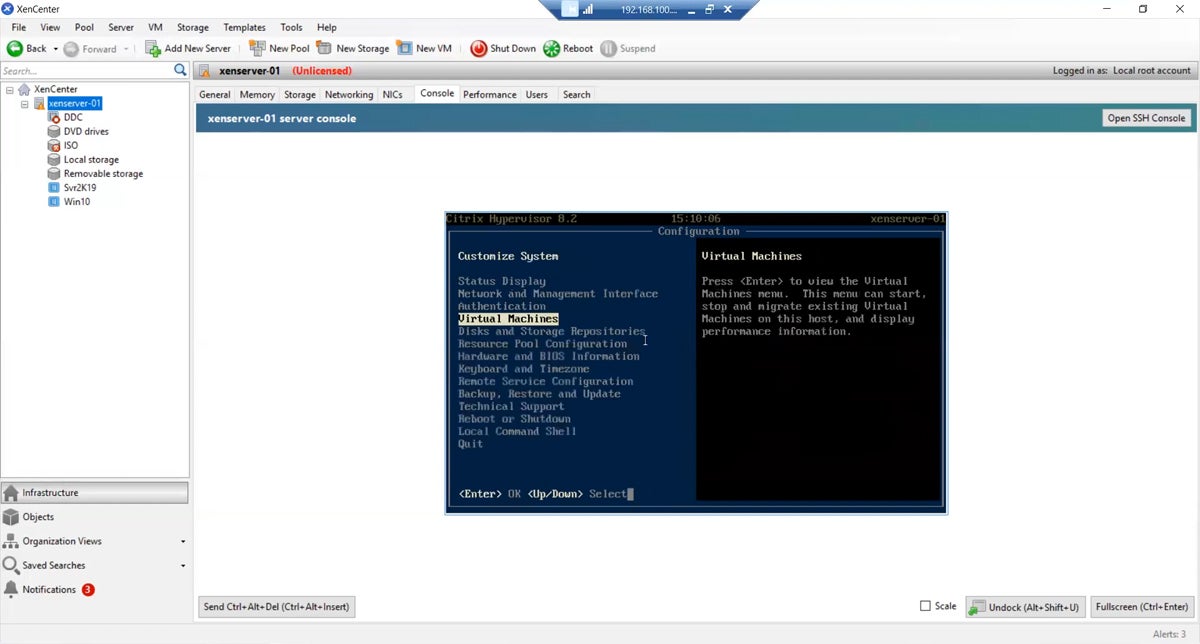
Citrix Hypervisor: Enterprise-Grade Open-Source Virtualization
Best open-source virtualization solution
Citrix Hypervisor, formerly known as XenServer, stands as an industry-leading, open-source virtualization management platform. It is meticulously engineered for the efficient management of both Windows and Linux virtual servers, making it a popular choice within demanding enterprise environments. Citrix Hypervisor distinguishes itself through its impressive scalability, robust performance, and a strong emphasis on server virtualization. It is particularly well-suited for cloud computing infrastructures and large-scale virtualized deployments where reliability and efficiency are paramount. Known for its high performance, comprehensive feature set, and broad compatibility with a wide array of hardware and network configurations, it is a preferred solution for businesses aiming to optimize their virtualization strategies.
Overall Rating: 3/5
Pricing: Citrix Hypervisor pricing is typically provided upon request, as it is geared towards enterprise solutions and often involves custom licensing agreements based on the scale of deployment and required support levels.
Pros:
- Excellently suited for large-scale deployments, offering significant scalability options for enterprise needs.
- Known for robust performance, particularly in handling large numbers of virtual servers efficiently.
- Being open-source, it offers considerable flexibility and customization options for specific enterprise requirements.
Cons:
- Can be complex to set up and manage, especially for smaller businesses or those with limited IT resources.
- More focused on server virtualization, which may not make it the optimal choice for desktop virtualization needs.
Features:
- Live Migration: Allows VMs to be moved between hosts without downtime, crucial for maintenance and load balancing.
- High Availability: Ensures continuous operation of critical VMs by automatically restarting them on alternate hosts in case of hardware failure.
- Centralized Management: Provides a unified console for managing virtual infrastructure.
- Storage and Network Optimization: Offers advanced features for optimizing storage I/O and network performance.
Red Hat OpenShift Virtualization: Unifying Containers and VMs
Best for running both Kubernetes containers and VMs
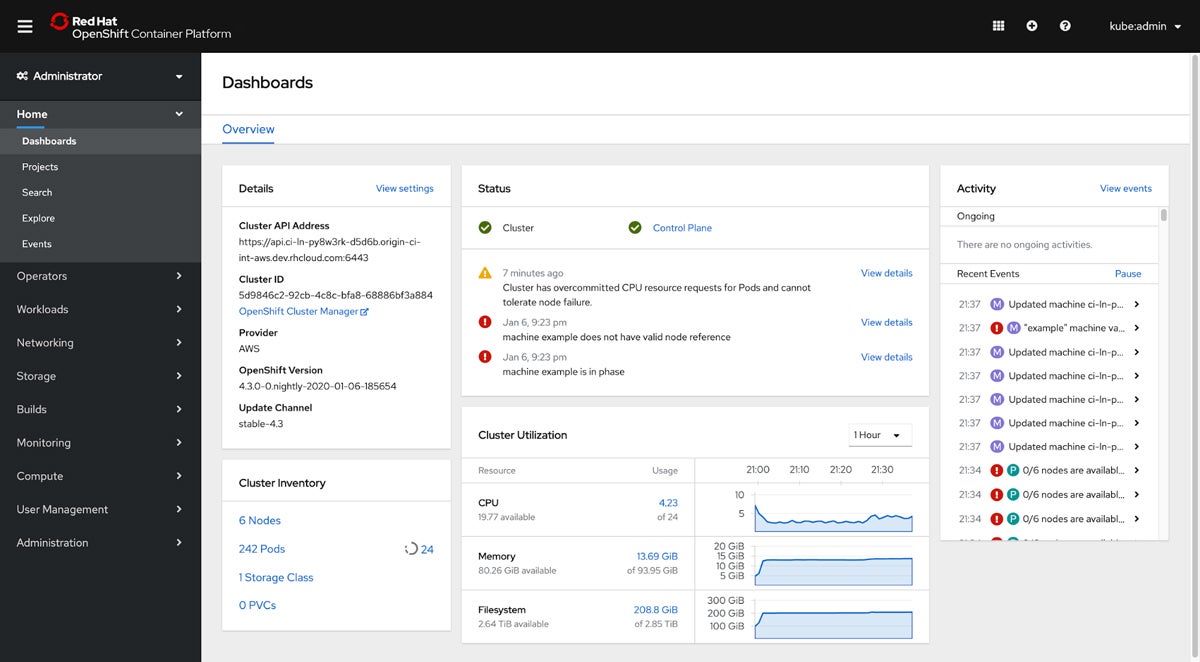
Red Hat OpenShift Virtualization is an integral feature of Red Hat OpenShift, a premier enterprise Kubernetes platform. It empowers users to run and manage both containerized and virtualized applications on a single, unified platform. This integration is instrumental in modernizing traditional applications alongside cloud-native services, offering a cohesive approach to application deployment and management. Designed with hybrid cloud environments in mind, it provides a flexible, efficient, and unified platform for diverse workloads. Red Hat OpenShift Virtualization is particularly attractive to businesses seeking to streamline their application infrastructure, enhance agility, and transition towards a cloud-native strategy without abandoning their existing virtualized applications.
Overall Rating: 3/5
Pricing: Red Hat OpenShift Virtualization’s pricing is tied to the Red Hat OpenShift platform subscriptions. Specific costs depend on the chosen server editions and support levels, and customers are advised to contact Red Hat for detailed pricing information.
Pros:
- Seamlessly integrates VMs and containers, offering a consistent platform for all types of workloads.
- Ideal for hybrid cloud strategies, supporting both on-premises and cloud environments with a unified management approach.
- Benefits from the robust Red Hat and Kubernetes ecosystems, including extensive community and enterprise support.
Cons:
- Can be complex to set up and manage, requiring a good understanding of both Kubernetes and traditional virtualization concepts.
- May require substantial computing resources for optimal performance, especially in larger, more demanding deployments.
Features:
- Kubernetes-Native Virtualization: Manages VMs through Kubernetes APIs, providing a consistent operational model.
- Multi-tenancy and Isolation: Leverages Kubernetes namespaces for secure multi-tenancy.
- Live Migration: Supports live migration of VMs within the OpenShift environment.
- Unified Observability: Provides a single pane of glass for monitoring both container and VM workloads.
Parallels Desktop: Seamless Windows on Mac
Best for running Windows on Mac computers
Parallels Desktop is a specialized virtualization software meticulously crafted for macOS, enabling users to run Windows, Linux, and other operating systems concurrently with macOS without the need for rebooting. Renowned for its user-friendly interface and seamless integration with the Mac ecosystem, Parallels Desktop is especially popular among Mac users who require access to Windows-specific applications or wish to test cross-platform compatibility. It excels in delivering high performance, particularly when running Windows applications, and features like Coherence mode allow Windows applications to operate as if they were native macOS applications. This makes it an ideal solution for professionals, developers, and casual users who need a dependable virtualization solution on their Macs.
Overall Rating: 3.5/5
Pricing: Parallels Desktop offers tiered pricing, with the Standard Edition typically starting at $99.99 per year, providing a cost-effective solution for Mac users needing Windows capabilities.
Pros:
- Offers features like shared folders and clipboard, and support for Mac gestures in Windows apps for enhanced usability.
- Known for its user-friendly interface, simplifying the installation and management of different operating systems for all user levels.
- Especially effective in running Windows applications on Mac, providing a smooth and integrated user experience.
Cons:
- While it handles business applications well, it may not be the best choice for running high-end games or graphics-intensive applications.
Features:
- Coherence Mode: Integrates Windows applications directly into the macOS desktop.
- Shared Folders and Clipboard: Allows seamless file sharing and copy-pasting between macOS and Windows.
- Optimized Performance: Designed for efficient performance on Apple hardware, including support for Apple M-series chips.
- Snapshots: Enables users to save the state of a VM and revert to it, similar to other VM software.
Key Features of Virtual Machine Software for Windows
Virtual machine software for Windows is fundamental to modern computing, offering unparalleled flexibility, efficiency, and a suite of advanced capabilities. It provides a dynamic and efficient method for running multiple operating systems, rigorously testing software, and effectively managing servers. The following key features are crucial for both personal and professional use:
Performance and Resource Management
This aspect of VM software focuses on maximizing operational efficiency while minimizing the strain on the host system. Advanced VM software can dynamically allocate more resources to VMs during peak usage periods and scale back during idle times. This adaptive resource allocation is critical for maintaining system stability and optimal performance. Performance monitoring tools are also indispensable, offering deep insights into resource utilization, which aids in identifying performance bottlenecks and fine-tuning VM settings for superior performance and efficient server virtualization.
Compatibility and System Requirements
The versatility of VM software is significantly enhanced by its broad compatibility with various Windows versions and diverse hardware configurations. High-end VM software typically supports both legacy and the latest Windows versions, ensuring extensive usability. Compatibility with different CPU architectures, such as x86 and ARM, along with support for Direct X and OpenGL for graphics processing, are significant considerations. The software should also adeptly handle a variety of networking and storage devices and be optimized for SSDs to achieve faster operational speeds.
Usability and Management
The most effective VM software for Windows features an intuitive and user-friendly interface, making it accessible to users of all skill levels, from novices to seasoned professionals. Key functionalities include simplified VM creation wizards, easily navigable settings menus, and quick access to common tasks such as cloning VMs, configuring networks, and managing storage. Efficient management tools for handling backups, snapshots, and system restores are also vital for maintaining data integrity and ensuring swift recovery from system failures or data corruption.

Security and Isolation
Security is a non-negotiable attribute of VM software. Robust isolation mechanisms are essential to ensure that activities within a virtual machine do not compromise the integrity or security of the host system. Features such as VM encryption, secure boot options, and hardware-assisted security measures significantly enhance protection against malware and other cyber threats. Integration with enterprise-grade antivirus solutions and support for network security features like firewalls and isolated networks further bolster the security posture.
Networking Capabilities
The networking capabilities within VM software enable the creation of complex network configurations and facilitate seamless interaction between VMs and the external network environment. Support for various network modes is critical: bridged mode, where the VM appears as a distinct entity on the network; NAT (Network Address Translation), allowing VMs to share the host’s IP address; and host-only mode, which isolates VMs from external networks. Advanced features like VLAN support, network condition simulation, and bandwidth throttling are also highly beneficial for development and testing environments.
Scalability and Flexibility
Scalability refers to the software’s ability to gracefully handle an increasing workload. VM software should allow users to effortlessly add or remove VMs and scale resources dynamically according to evolving demand. Flexibility encompasses the capacity to run a diverse range of operating systems, including various Windows versions, Linux distributions, and, where legally permissible, even macOS. Features such as cloning, snapshots, and the use of templates streamline the deployment and management of multiple VMs.
Reliability and Uptime
Reliability and uptime are paramount, particularly in business contexts where downtime can result in significant financial losses. Features that contribute to high reliability include automated backups, which safeguard data against loss, and failover capabilities, which ensure operational continuity in the event of hardware failure. High-availability configurations, which allow VMs to operate on multiple host machines, guarantee that if one host fails, the VM can swiftly resume operation on another, minimizing disruption.
Integration and Compatibility with Existing Infrastructure
For businesses, the ability to integrate VM software with their existing IT infrastructure is a critical factor. This includes seamless compatibility with cloud platforms, facilitating the effortless migration of VMs to and from the cloud. Support for APIs and scripting languages is essential for automation and integration with other IT management tools. The capacity to migrate VMs across different hosts, cloud environments, and even between disparate VM software platforms ensures flexibility and adaptability, effectively future-proofing the investment.
How to Choose the Best Virtual Machine Software for Windows
Selecting the right VM software for a Windows environment requires a strategic approach, focusing on aligning the software’s capabilities with specific business needs.
Understanding Your Business Requirements
The initial step involves clearly identifying the specific use cases for VM software within your business. Determine whether the primary need is for testing software across different operating systems, running essential legacy applications, or establishing a secure, isolated environment for sensitive operations. A thorough understanding of these requirements will guide the selection process towards software that offers the most relevant features. Subsequently, consider the scalability of the VM software. It must not only meet current operational demands but also possess the capacity to accommodate future growth, including the addition of more VMs, integration with new hardware, or scaling up for more intensive workloads.
Evaluating Key Features
Leveraging the insights from the previous section on key features, meticulously assess which capabilities are most critical for your business requirements. It is highly recommended to explore solutions that offer trial versions or demo installations, allowing for hands-on testing of core functionalities. Key capabilities to evaluate include:
- Performance Benchmarks: Assess speed and responsiveness under various load conditions.
- OS Support: Verify compatibility with all necessary operating systems, both host and guest.
- Resource Allocation Controls: Examine the granularity and ease of managing CPU, RAM, and storage for VMs.
- Networking Options: Evaluate the flexibility and complexity of network configurations supported.
- Security Features: Review built-in security measures, isolation capabilities, and encryption options.
- Snapshot and Rollback Capabilities: Assess the ease and reliability of saving and restoring VM states.
- Integration APIs: Check for support of automation and integration with existing IT management tools.
Support and Reliability
Reliable and accessible technical support is crucial, especially in situations where rapid troubleshooting is necessary to prevent or mitigate downtime. Businesses should prioritize vendors that offer comprehensive support through multiple channels, including phone, email, live chat, and extensive online knowledge bases and forums. Furthermore, the inherent reliability and uptime of the VM software are paramount. A software’s track record for stability can often be gleaned from user reviews and industry reports. Features that enhance reliability include automated backup solutions, ensuring data is not lost in the event of a system failure, and robust failover capabilities, which provide operational continuity even if a system component fails.
How We Evaluated Virtual Machine Software for Windows
Our evaluation process for VM software for Windows was rigorous and comprehensive, prioritizing aspects critical to business operations. Each feature was assigned a specific score based on its importance and impact on overall performance, usability, and security.
Features – 50%
Performance and Resource Management – 10%
This critical aspect, carrying the highest weight, was evaluated based on the software’s efficiency in allocating and managing system resources like CPU, memory, and storage. The ability to optimize these resources for peak performance, especially under varied load conditions, was scrutinized. Features like dynamic resource scaling and load balancing were also considered. Software demonstrating superior performance, minimal latency, and the capacity to handle intensive tasks seamlessly received high scores.
- Criterion Winner: VMware Workstation Pro
Compatibility and System Requirements – 7.5%
We assessed the VM software’s compatibility with different Windows versions and the range of hardware configurations it supports. This included checking for compatibility with various peripherals and ensuring the software runs efficiently across diverse hardware setups. Software exhibiting broader compatibility and lower hardware resource requirements scored higher, reflecting its versatility and ease of integration.
- Criterion Winner: VMware Workstation Pro
Usability and Management – 7.5%
The ease of installation, the intuitiveness of the user interface, and the simplicity of routine management tasks like taking snapshots or reverting to previous VM states were evaluated. Software offering a more intuitive experience, comprehensive management tools, and straightforward integration into daily operations received higher scores.
- Criterion Winners: VMware Workstation Pro, Parallels Desktop
Security and Isolation – 7.5%
Given the paramount importance of data security and integrity, we meticulously examined built-in security features, such as encryption and firewall options, and the level of isolation between VMs. Software demonstrating robust security measures and strong isolation capabilities, minimizing the risk of cross-contamination or breaches, received higher scores.

- Criterion Winners: VMware Workstation Pro, Citrix Hypervisor, Azure VM
Networking Capabilities – 5%
Our evaluation in this area encompassed the software’s ability to configure and manage different network types (NAT, bridged, host-only) and its efficiency in handling network traffic. VM software offering flexible and high-performance networking options scored better, facilitating smoother communication and data transfer.
- Criterion Winner: VMware Workstation Pro
Scalability and Flexibility – 5%
We assessed how well the VM software scales with growing business needs and its flexibility in terms of customizable configurations. Software that efficiently handles an increasing number of VMs without significant performance degradation and offers a high degree of customization received higher scores.
- Criterion Winner: Azure VM, Citrix Hypervisor
Reliability and Uptime – 5%
Reliability was evaluated by examining the software’s overall stability, frequency of crashes or downtime, and any provided uptime guarantees. VM software demonstrating high reliability and consistent performance, with minimal downtime, scored higher.
- Criterion Winner: VMware Workstation Pro, Azure VM
Integration and Compatibility with Existing Infrastructure – 2.5%
We assessed how seamlessly the VM software integrates with existing IT infrastructure and its compatibility with other systems and applications. Software that easily integrated with a broad range of existing systems and supported various third-party integrations received higher scores.
- Criterion Winner: Azure VM
Cost – 25%
Assessing the costs of complex, scalable offerings like VM software can be intricate. We paid close attention to price transparency, clarity of pricing information, sales contact channels, and bundle customizability, in addition to the raw numbers.
- Criterion Winners: Azure VM, Azure Stack HCI
Support – 25%
When technical issues arise, readily accessible support is crucial. We assessed the availability of support for each solution, ranging from phone, email, and chat to internal knowledge bases and forums.
- Criterion Winners: Azure VM, Azure Stack HCI, Red Hat OpenShift
Frequently Asked Questions (FAQs)
What is Virtual Machine Software, and Why Would I Need It for Windows?
Virtual machine (VM) software is a tool that allows the creation and operation of multiple isolated operating systems on a single physical hardware system. In a Windows environment, this capability is particularly useful for:
- Software Testing and Development: Running applications in diverse operating system environments without dedicated hardware.
- Running Legacy Applications: Accessing older software that is incompatible with modern Windows versions.
- Enhanced Security: Isolating potentially risky applications or browsing in a sandboxed environment.
- System Consolidation: Reducing the number of physical servers required by running multiple server instances on one machine.
- Education and Training: Providing hands-on experience with different operating systems and configurations.
Is Virtual Machine Software Compatible with All Versions of Windows?
Modern VM solutions, such as VMware Workstation, Microsoft Azure VM, and Citrix Hypervisor, generally support the latest Windows versions, including Windows 10, Windows 11, and various Windows Server editions. However, compatibility with older Windows versions might be limited. It is essential to verify the specific system requirements of each VM software, as some may necessitate Windows Server or Windows Professional editions.
What is Microsoft Hyper-V and Why Wasn’t It Included?
Microsoft Hyper-V is a virtualization platform that enables users to create and manage VMs on x86-64 systems running Windows. It is available on Windows 10 and 11 Pro, Enterprise, and Education editions, as well as Windows Server. Hyper-V is known for its deep integration with the Windows ecosystem, offering features like dynamic memory and live migrations. However, Microsoft has announced significant changes regarding its future. Mainstream support for Hyper-V Server 2019, its last standalone version, ended in January 2024, with extended support concluding in January 2029. Microsoft is now directing customers towards Azure Stack HCI as its modern, integrated solution for hybrid cloud environments. Given this strategic shift and the impending end-of-support for its standalone server product, Hyper-V was not included as a primary recommendation in this review focused on currently supported and forward-looking solutions.
Bottom Line: Making an Informed Choice in Virtual Machine Software for Windows
Whether for professional development, cross-operating system application testing, hardware resource consolidation, or educational purposes, VM software offers an essential toolkit for maximizing efficiency and productivity. The key to successfully leveraging this technology lies in selecting the right software that precisely aligns with your specific requirements. Critical factors such as compatibility with your Windows version, the intended application, system resource demands, desired features, and budgetary constraints must be carefully evaluated to ensure the chosen solution meets current needs and accommodates potential future growth. Ultimately, understanding the interplay between usability, performance, security, and integration capabilities will pave the way for a seamless and productive virtualization experience.
For any virtualization solution chosen, ensuring that your VMs are fully backed up against data loss, theft, or damage is imperative. ServerWatch also provides reviews of the best VM backup software to help maintain business continuity.
