

The rapid advancement and ubiquitous integration of smartphones into daily life have profoundly reshaped how individuals of all ages interact with information and maintain social connections. While diagonal screen sizes continue to expand, the human visual system, particularly the crystalline lens, undergoes significant age-related changes that often render standard smartphone display settings suboptimal and even detrimental for older users. This physiological disparity creates a growing challenge, as device operating systems are typically calibrated for the acute vision of younger individuals, failing to adapt to the natural progression of ocular aging. The inherent incompatibility between static device settings and the dynamic nature of human vision frequently results in unnecessary eye strain and reduced digital comfort, impacting a substantial segment of the global population.
The Physiological Reality of the Aging Eye and Digital Strain
At approximately 25 years of age, the eye’s crystalline lens possesses remarkable elasticity, allowing it to rapidly adjust its curvature to shift focus between distant and near objects in as little as 200 milliseconds. This process, known as accommodation, is crucial for clear vision at varying distances. However, by the age of 50, the central nucleus of the crystalline lens stiffens considerably, a condition medically termed presbyopia. This loss of flexibility severely impedes the eye’s ability to accommodate quickly and efficiently, extending the focusing time for near tasks from milliseconds to several seconds. Consequently, simple actions like reading a notification on a smartphone screen become a laborious and fatiguing effort.
Beyond presbyopia, prolonged use of digital screens contributes to a broader phenomenon known as Digital Eye Strain (DES) or Computer Vision Syndrome (CVS). Symptoms can include headaches, blurred vision, dry eyes, neck and shoulder pain, and general eye fatigue. While DES affects all age groups, older adults, whose eyes already contend with reduced tear production, decreased pupil size (making them require more ambient light), and increased light scattering due to lens changes, are particularly vulnerable. The cumulative effect of these age-related ocular changes, combined with non-adaptive screen interfaces, exacerbates discomfort and can deter older adults from fully leveraging the benefits of smartphone technology.
The Global Rise of Senior Smartphone Adoption and Design Inconsistencies
The demographic landscape worldwide is shifting, with a steadily increasing proportion of older adults. Concurrently, smartphone adoption rates among this demographic have surged. Data from various studies, such as those by the Pew Research Center, indicate that a significant majority of adults over 65 now own smartphones, a figure that continues to climb. For instance, in 2021, approximately 75% of Americans aged 65 and older owned a smartphone, up from just 13% in 2012. Similar trends are observed across Europe, Asia, and other developed regions. This widespread adoption underscores the necessity for technology to be genuinely accessible and comfortable for all users, regardless of age.
However, the prevailing design philosophy in many modern user interfaces (UIs) often prioritizes sleek aesthetics and minimalist trends, frequently at the expense of functional accessibility for those with presbyopia or other visual impairments. Elements like "flat design," subtle color gradients, low-contrast text, and translucent menus (such as Apple’s "Liquid Glass" effect) are visually appealing to a younger demographic with uncompromised vision. Yet, for an aging eye, these design choices can transform a user interface into a visual labyrinth, where distinguishing text from background, identifying interactive elements, or navigating menus becomes an unnecessary struggle. The beautiful "frosted glass" effect, intended to convey depth, often becomes an impenetrable blur for eyes grappling with presbyopia.
The Limitations of Conventional Solutions: Why Bigger Isn’t Always Better
When confronted with difficulty reading smartphone text, the most common immediate reaction for many users, or their younger relatives assisting them, is to simply increase the font size. While seemingly intuitive, this "patch" often introduces new problems without truly solving the underlying issue of legibility. Enlarging the font size inevitably reduces the amount of content visible on the screen at any given time. This necessitates constant scrolling, fragmenting the reading experience and adding to cognitive load. Users are forced to scroll frequently, breaking their concentration and making it harder to grasp the full context of a message or webpage. Moreover, excessively large text can distort the overall layout of applications, making them appear cluttered and less user-friendly.
This approach fails to address the core problem of how characters are rendered or how the screen’s light impacts the eye. The true solution lies in optimizing the visual presentation of text and screen elements to compensate for the physiological changes of the aging eye, rather than merely scaling up an inherently problematic display. Fortunately, within the accessibility settings of most modern smartphones, there are potent yet often overlooked adjustments that offer a more effective pathway to enhanced readability and reduced eye strain.
Strategic Display Adjustments for Optimal Digital Comfort
Instead of resorting to oversized text, three specific, often "hidden," settings within smartphone operating systems can dramatically improve readability for older adults, providing a more effective and nuanced solution. These adjustments focus on enhancing contrast, refining text presentation, and managing screen luminance more intelligently.
1. Dynamic Contrast and Eliminating Transparencies
Modern user interfaces frequently employ design elements that reduce the visual separation between foreground text and background elements. Pale text on light backgrounds, subtle gradients, and translucent menus are aesthetic choices that can significantly hinder readability for presbyopic eyes. The challenge arises because aging eyes are less efficient at distinguishing subtle color differences and are more sensitive to light scattering, which is exacerbated by low-contrast designs.
To counteract this, users should configure their devices to force a higher, more discernible contrast between text and its background. Simultaneously, disabling translucent elements is crucial. These "frosted glass" effects, while visually sophisticated, introduce visual noise by allowing background imagery or elements to partially show through menus and overlays, making foreground text harder to parse. By removing these transparencies, the background behind text becomes solid and uniform, providing a clear, unambiguous canvas for reading.
- Implementation (General Guide):
- iOS: Navigate to
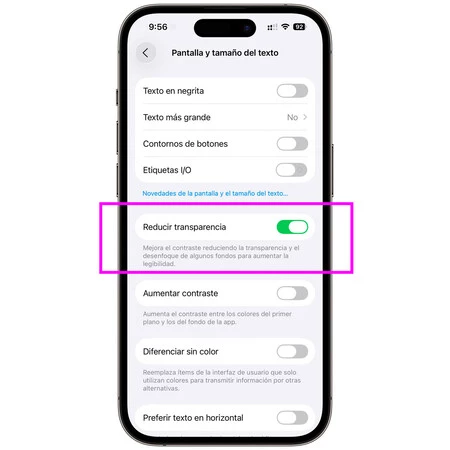
Settings > Accessibility > Display & Text Size. Here, activateIncrease ContrastandReduce Transparency. These settings will solidify translucent backgrounds, darken text, and enhance the contrast of user interface elements, making buttons and labels more distinct. - Android: The options can vary slightly by manufacturer and Android version, but generally reside under
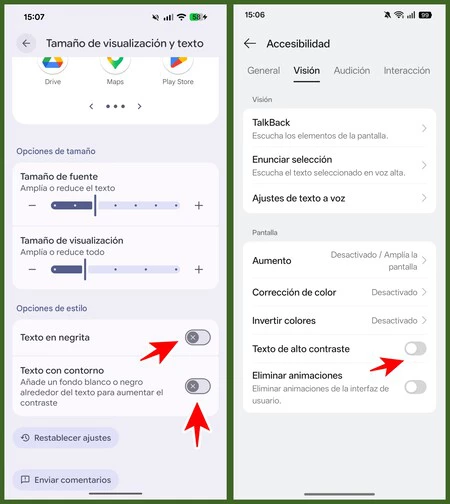
Settings > Accessibility > Display. Look for settings such asHigh contrast textorRemove animations/transparencies. Some Android interfaces might offerColor correctionorColor inversionoptions, thoughHigh contrast textis the most direct solution for this specific problem.
- iOS: Navigate to
2. Intelligent Text Highlighting: Beyond Simple Magnification
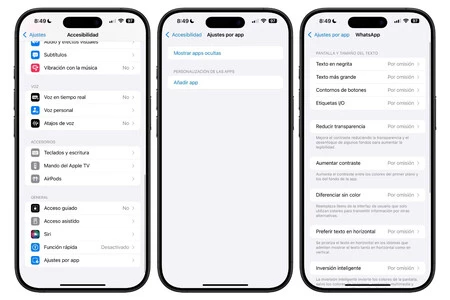
As previously discussed, merely increasing font size often leads to a diminished content view and increased scrolling. A more intelligent approach to improving text legibility without sacrificing screen real estate is to enhance the weight and definition of characters. This involves making the stroke of the letters thicker and, in some advanced cases, adding subtle outlines.
Activating system-wide bold text ensures that all textual elements, from the time displayed on the lock screen to the labels on application buttons, appear with a more pronounced stroke. This enhanced thickness significantly improves character recognition, especially for individuals whose visual acuity might be slightly diminished or whose eyes struggle with fine details. Bolder text is inherently easier to discern against various backgrounds, even those with moderate complexity, without the need for excessive scaling.
Furthermore, some recent advancements in Android operating systems (e.g., from Android 12 onwards, with variations across device manufacturers) introduce features that can add a subtle outline or shadow to text. This "text outline" effect creates a stronger visual separation between the characters and their background, making text "pop" more effectively. It’s particularly useful on screens with busy or photo-rich backgrounds, where text might otherwise blend in. The outline provides an additional layer of contrast, ensuring that characters remain distinct regardless of the underlying visual information.
- Implementation (General Guide):
- iOS: Go to
Settings > Accessibility > Display & Text Size. Toggle onBold Text. This will apply a bolder font weight across the entire iOS interface and supported applications. - Android: Within
Settings > Accessibility > Display, look forBold textorFont weightoptions. The text outline feature might be integrated intoHigh contrast textor be a separate option depending on the device’s custom UI (e.g., Samsung’s One UI, Google’s Pixel UI). Users may need to explore different display or accessibility sub-menus.
- iOS: Go to
3. Reducing White Point: Taming Screen Glare for Reduced Fatigue
This adjustment is perhaps the most powerful yet least known of the three. While ophthalmologists often note that aging eyes generally require more light to read, excessive screen brightness can paradoxically lead to greater eye fatigue and discomfort. The human eye, especially one affected by presbyopia, struggles to adapt quickly to intense variations in light. Pure whites and intensely bright colors on a screen can create a dazzling effect that forces the crystalline lens and retina to work harder to compensate, leading to rapid exhaustion.
Instead of merely lowering the overall screen brightness, which can make the entire display appear dim and potentially reduce visibility in well-lit environments, "reducing the white point" offers a targeted solution. This setting specifically diminishes the intensity of pure whites and vibrant colors, effectively toning down the most dazzling elements of the display without significantly impacting the overall luminance of darker shades or mid-tones. The result is a softer, less aggressive screen presentation that reduces glare and minimizes the strain on the eye’s accommodative system. It allows for comfortable viewing for extended periods, mitigating the harshness often associated with modern high-brightness displays.
- Implementation (General Guide):
- iOS: Access
Settings > Accessibility > Display & Text Size. Scroll down and toggle onReduce White Point. A slider will appear, allowing users to adjust the intensity reduction to their preference. - Android: Similar functionality can often be found under
Settings > Accessibility > Displayor sometimes withinSettings > Display > Advanced. Look for options likeReduce animationswhich sometimes include aspects of white point reduction, or specific settings likeColor adjustmentorEye comfort shieldwith advanced options. On some Android devices,Reduce White Pointmight be less explicit and integrated into broaderVision enhancementsorColor filtersettings.
- iOS: Access
Complementary Strategies and Holistic Digital Wellness
While these three settings are highly effective, their impact is further amplified when combined with other established practices for digital eye care. The most significant synergy is achieved when these adjustments are used in conjunction with Dark Mode. Dark mode inverts the color scheme, presenting light text on a dark background. This dramatically reduces the overall light emitted by the screen, providing a gentler viewing experience, especially in low-light environments. When dark mode is combined with increased contrast, bold text, and a reduced white point, the visual effort required to read almost disappears.

Beyond display settings, fostering holistic digital wellness for older adults includes:
- Blue Light Filters: While the evidence on long-term harm from blue light is still debated, filters (often called "Night Shift" on iOS or "Night Light" on Android) can reduce eye strain, especially in the evenings, by shifting the screen’s color temperature to warmer tones.
- Regular Breaks: Adhering to the "20-20-20 rule" (every 20 minutes, look at something 20 feet away for 20 seconds) helps relax the eye muscles and reduces the risk of digital eye strain.
- Optimal Viewing Distance: Holding the phone at a comfortable distance (typically 16-18 inches) and at eye level can minimize neck strain and optimize focus.
- Blinking Regularly: Consciously blinking more often helps keep the eyes lubricated, combating dry eye symptoms exacerbated by screen use.
- Professional Eye Care: Regular eye examinations with an ophthalmologist or optometrist are paramount. They can detect and address underlying vision issues, update prescriptions, and provide personalized advice for digital device use.
Broader Implications and the Future of Inclusive Technology Design
The emphasis on accessible display settings transcends individual comfort; it has significant broader implications for society. With a rapidly aging global population, inclusive technology design is not merely a courtesy but an economic and social imperative. Ensuring that older adults can comfortably and effectively use smartphones promotes digital inclusion, allows them to maintain independence, stay connected with family and friends, access essential services, and participate fully in the digital economy. Research suggests that technology use can also have cognitive benefits for older adults, stimulating the brain and fostering engagement.
Tech companies bear a growing responsibility to integrate accessibility features not as afterthoughts but as foundational elements of their design philosophy. The evolution towards more dynamic and adaptive interfaces, potentially driven by artificial intelligence that can learn user preferences and even detect age-related visual changes, represents the next frontier. Imagine a smartphone that automatically adjusts its display characteristics based on the user’s age, ambient light, and even eye fatigue levels, providing a truly personalized and comfortable experience.
Until such advanced systems become standard, empowering users with knowledge of existing accessibility tools is crucial. These "hidden" settings are powerful levers for customization, transforming a potentially straining digital experience into one that is comfortable, efficient, and enjoyable for everyone, regardless of age or visual capacity. By proactively adjusting these display parameters, older adults can continue to harness the immense benefits of smartphone technology without enduring unnecessary visual discomfort, thereby fostering a more inclusive and accessible digital world for all.
