
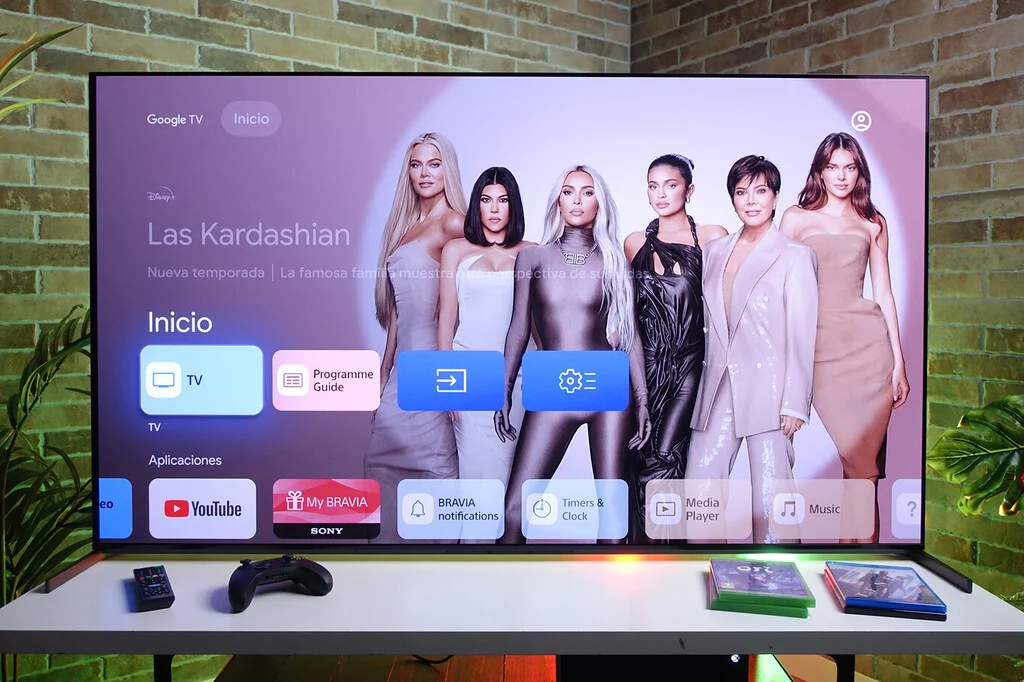

The landscape of home entertainment has been profoundly transformed by the advent of smart televisions, with Android TV and its successor, Google TV, emerging as dominant operating systems. These platforms, renowned for their vast application ecosystems and intuitive interfaces, have become central to how millions consume digital content. However, while offering unparalleled flexibility, the user experience can sometimes be hampered by performance issues, particularly on older or budget-friendly devices. This article delves into a comprehensive guide, compiled from years of practical experience, outlining crucial strategies to optimize Android TV and Google TV, ensuring a smoother, more personalized, and efficient entertainment hub.
The Evolution and Challenges of Android TV/Google TV
Android TV, first introduced in 2014, quickly gained traction by extending the familiar Android mobile experience to the big screen. Its evolution into Google TV, launched in 2020, marked a shift towards a more content-centric interface, prioritizing recommendations and personalized discovery across various streaming services. This evolution has solidified Google’s position in the smart TV market, with reports indicating a significant and growing share of smart TVs running these operating systems. The appeal lies in the open-source nature of Android, offering access to the Google Play Store with thousands of applications, integration with Google Assistant, and seamless casting capabilities.
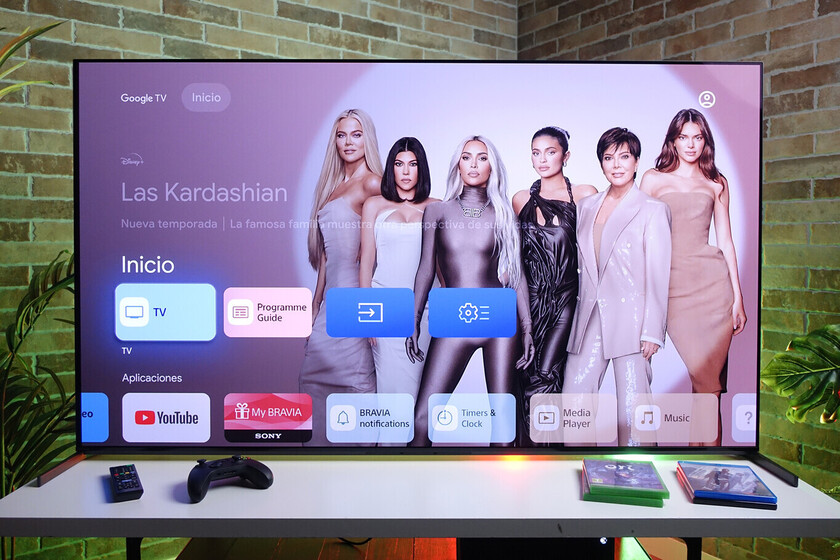
Despite these strengths, the inherent design of a feature-rich smart TV platform, coupled with the varied hardware specifications across different manufacturers, often leads to performance inconsistencies. Over time, as more applications are installed, updates are applied, and streaming services demand greater resources, devices can experience slowdowns, lag, and even application crashes. This necessitates proactive optimization from users to maintain a premium viewing experience. Addressing these common pain points, the following sections provide actionable insights and technical adjustments to revitalize any Android TV or Google TV device.
Unlocking Advanced Features: Installation and Interface Customization
A key advantage of Android-based systems is their flexibility, extending beyond the official app store. This flexibility, however, often requires navigating system settings that are not immediately obvious to the average user.
1. Installing Applications from Unknown Sources:
While the Google Play Store boasts an extensive library of applications for Android TV, certain niche or specialized apps may not be officially available. To overcome this limitation, users can install applications via APK (Android Package Kit) files, much like on Android smartphones. By default, Android TV restricts the installation of apps from unknown sources as a security measure. However, this restriction can be easily bypassed.
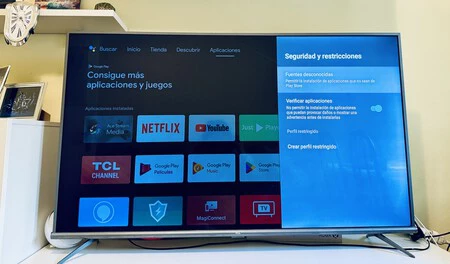
To enable this, users must navigate to the system’s settings, typically represented by a gear icon in the top-right corner of the home screen. From there, the path is usually "Settings" > "Privacy" > "Security" > "Install unknown apps." Within this menu, a list of installed applications will appear. Granting permission to a file explorer app (such as Solid Explorer) or a web browser will allow these applications to initiate APK installations. It is crucial to exercise caution and only install APKs from trusted sources to avoid potential security risks. When an APK is opened, the system might display a warning; selecting "More details" and then "Install anyway" will proceed with the installation.
For efficient APK transfer from a mobile device to the TV, a practical solution is to use applications like "Send Files to TV." By installing this free app on both the smartphone and the TV, files can be seamlessly transferred over the local Wi-Fi network, eliminating the need for physical USB drives. This method streamlines the process, allowing for quick installation without leaving the comfort of the sofa.
2. Activating the "Apps Only Mode" on Google TV:
Google TV’s interface, with its heavy emphasis on content recommendations, trailers, and promotional material, is designed to enhance content discovery. However, this visually rich experience can be resource-intensive, consuming significant processing power and memory. On devices with modest hardware or those that have aged, this can lead to noticeable lag and a diminished user experience.
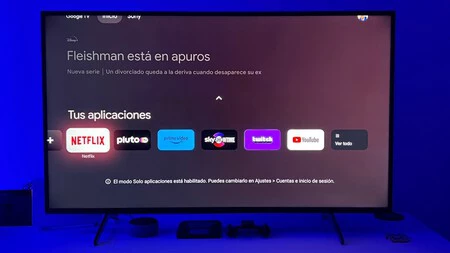
For users prioritizing performance and a minimalist interface, Google TV offers an invaluable feature: "Apps Only Mode." This mode transforms the home screen by removing all recommendations, trailers, and advertisements, presenting a clean layout focused solely on installed applications. To activate this, navigate to "Settings" > "Accounts & Sign-in," select your Google account, and then toggle on "Apps Only Mode." The immediate benefit is a significant improvement in system responsiveness and fluidity, making the navigation experience much quicker and more enjoyable. This trade-off between personalized content discovery and raw performance is a decision many users with older devices find beneficial.
Enhancing Control and Navigation
The standard remote control, while functional, often presents limitations, particularly when text input is required or when the remote itself is misplaced. Furthermore, the visual flow of the interface can sometimes feel sluggish due to default animation settings.
3. Utilizing the Smartphone as a Remote Control:
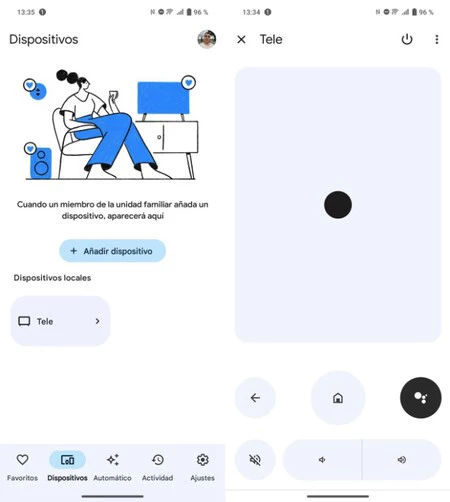
One of the most practical enhancements for any Android TV or Google TV user is the ability to control the television using a smartphone. This feature addresses common frustrations such as lost remotes, drained batteries, and the cumbersome process of typing with a traditional remote’s directional pad. The Google Home app, widely available for both Android and iOS devices, provides this functionality seamlessly.
Once the TV is linked to the user’s Google account and both devices are connected to the same Wi-Fi network, the Google Home app can detect and connect to the smart TV. After a brief pairing process, typically involving a on-screen code, the smartphone transforms into a fully functional remote. This includes navigation controls, volume adjustment, mute, home, back, Google Assistant activation, and power control. Crucially, the smartphone’s native keyboard significantly simplifies text input for searches, passwords, and other data entry, drastically improving user convenience. This eliminates the exasperation of laboriously selecting letters one by one on the TV screen.
4. Accelerating Animations for Perceived Speed:
A well-known optimization trick from the Android mobile ecosystem also applies effectively to Android TV devices: adjusting animation scales. The operating system includes default transitions and animations for opening and closing applications and menus. While aesthetically pleasing, these visual effects can contribute to a perception of sluggishness, especially on less powerful hardware.
To modify these settings, users must first activate "Developer Options." This is done by going to "Settings" > "System" > "About" > "Build" and repeatedly pressing the central button on the remote seven times until a notification confirms that developer options have been enabled. Once activated, navigate to "Settings" > "System" > "Developer Options." Within this menu, locate three key settings: "Window animation scale," "Transition animation scale," and "Animator duration scale." By default, these are usually set to "1x." Changing all three to "0.5x" will noticeably speed up the visual transitions, creating a much snappier and more responsive feel to the interface. For devices that struggle with performance, this simple adjustment can dramatically improve the perceived speed and fluidity of the system.
5. Force-Stopping Problematic Applications:
On devices with limited resources, applications can occasionally freeze, become unresponsive, or consume excessive resources in the background, leading to overall system slowdowns. Rather than resorting to a full system restart, which can be disruptive, force-stopping the problematic application is a more targeted and efficient solution.
To do this, navigate to "Settings" > "Apps." From the list of installed applications, select the one that is causing issues. Within its options, an entry for "Force stop" will be available. Tapping this will immediately terminate the application’s processes, freeing up resources and often resolving the unresponsiveness. After force-stopping, reopening the app typically allows it to restart cleanly, often without further issues. This method serves as a quick and effective troubleshooting step, preventing the need for a full device reboot and minimizing downtime.

Optimizing Performance and Storage
Limited internal storage and accumulated temporary data are common culprits behind declining performance on smart devices. Proactive management of these aspects can significantly extend the usable life and responsiveness of an Android TV.
6. Expanding Storage with a USB Drive (Adoptable Storage):
Many Android TV devices, especially budget models, come with notoriously limited internal storage, often as little as 8GB, much of which is occupied by the operating system itself. Installing a few large games or numerous streaming applications can quickly lead to "Insufficient space" warnings, hindering the ability to download new content.
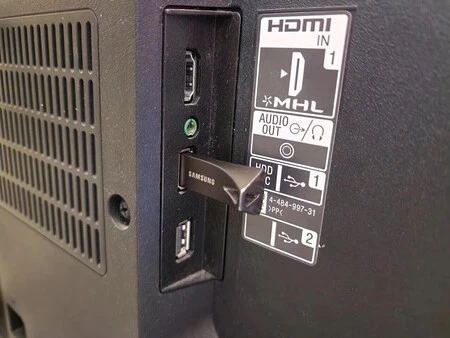
A highly effective solution is to expand the device’s storage using a USB flash drive. For optimal performance, a USB 3.0 drive is recommended. Upon inserting the USB drive into an available port on the TV or streaming device, the system will prompt the user with options for its use. Crucially, instead of selecting "Use as removable storage," choose "Format as device storage" (also known as "adoptable storage"). This process formats the USB drive to act as an extension of the internal storage, merging its capacity with the TV’s existing storage. From that point, applications and their data can be installed directly onto this expanded storage, effectively alleviating space constraints and allowing for the installation of dozens more apps without performance compromise. This transforms a device with meager storage into a much more versatile media hub.
7. Regularly Clearing Application Cache:
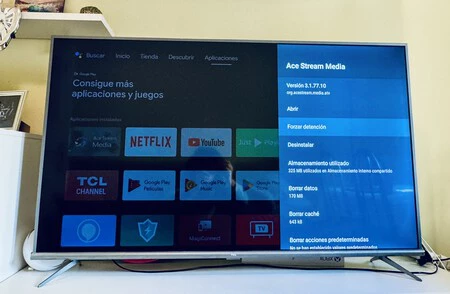
Just like on smartphones, applications on Android TV accumulate temporary data in their cache to speed up loading times and improve performance. However, over time, this cached data can grow excessively, occupying valuable storage space and sometimes becoming corrupted, leading to app malfunctions or overall system slowdowns.
Regularly clearing the cache of individual applications is a simple yet powerful maintenance step. Instead of a system-wide cache clear, Android TV allows users to manage cache on an app-by-app basis. To do this, navigate to "Settings" > "Apps." Select a specific application from the list, and within its options, locate and select "Clear cache" or "Empty cache." This action removes only the temporary data, leaving user data and application settings intact. Performing this for frequently used or problematic applications can free up significant space and resolve minor performance glitches, contributing to a smoother operating experience.
8. Limiting Background Processes:
Android’s multitasking capabilities allow multiple applications to run in the background, enabling quick switching between them. However, on devices with limited RAM, a large number of active background processes can quickly deplete system resources, leading to noticeable performance degradation and increased power consumption.
To manage this, the "Developer Options" menu (which needs to be activated as described in point 4) offers a critical setting: "Limit background processes." This option allows users to specify the maximum number of applications that can remain active in the background. Options typically range from "Standard limit" (which allows the system to manage processes dynamically) to "No background processes" or limiting to a specific number (e.g., 1, 2, 3, or 4 processes). Setting a reasonable limit, such as "At most 4 processes," provides a balance between multitasking convenience and system stability. This prevents resource-hungry apps from consuming all available memory and CPU cycles when not actively in use, ensuring that the TV remains responsive.
Personalizing the Visual and Interactive Experience
Beyond performance, optimizing an Android TV involves tailoring its visual presentation and control scheme to individual preferences, enhancing both aesthetics and usability.
9. Transforming the TV into a Giant Photo Frame (Ambient Mode):
When the TV is not actively being used for content consumption, a blank or generic screensaver can feel uninspired. Android TV and Google TV offer robust ambient modes that can turn the large display into a dynamic visual element, such as a personalized photo frame.
The Google Home app on a smartphone provides control over the TV’s "Ambient Mode." Users can configure it to display curated landscape photos from Google, or, more personally, link it to their Google Photos account. This allows the TV to cycle through specific albums of personal memories, creating a warm and engaging backdrop for any room. For those seeking even more visually striking options, third-party applications like "Aerial Views" (available on the Play Store) can be installed. This app displays stunning, high-definition aerial footage, transforming the TV into a captivating window to various global landscapes. These features provide an elegant way to utilize the TV when it’s not the primary focus, adding a personalized touch to the living space.

10. Making Recommendations Truly Recommendable:
Google TV’s content-first approach relies heavily on personalized recommendations, which are generated based on user data and viewing habits. While the intent is to offer relevant content, these recommendations can sometimes be inaccurate, overwhelming, or simply feature content from services the user doesn’t subscribe to. This can clutter the interface and, as previously noted, impact performance.
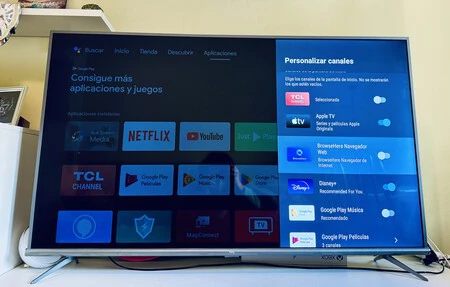
Users can actively refine their recommendation feed to make it genuinely useful. Within the TV’s settings, navigate to "Device Preferences" > "Home Screen" > "Customize Channels." Here, users can disable channels from specific streaming services or content providers they do not use or wish to see recommendations from. For instance, if a user doesn’t subscribe to a particular platform or finds a manufacturer’s promotional channel irrelevant, they can simply switch it off. Furthermore, within the "Channels" category under "Home Screen," disabling both audio and video previews for recommendations can reduce visual clutter and save system resources.
To further "train" the recommendation engine, users should invest a small amount of time in explicitly liking or disliking content. This feedback helps Google’s algorithms better understand personal preferences. This can typically be done under "Device Preferences" > "Home Screen" > "Content Preferences." By actively managing these settings, users can ensure their home screen displays genuinely interesting content, making the recommendation feature a valuable asset rather than a source of frustration.
11. Customizing Remote Buttons with Shortcuts:
Many smart TV remotes include dedicated buttons for specific streaming services or functions that users may never utilize. These unused buttons represent a missed opportunity for enhanced convenience and quick access to preferred applications or system functions.
Third-party applications like "Button Mapper" (available on the Google Play Store) provide a powerful solution for reassigning these dormant buttons. This app allows users to remap almost any physical button on their remote to perform a custom action. For example, a dedicated button for a streaming service the user doesn’t subscribe to could be remapped to launch YouTube, a file explorer, or even a specific system setting. Advanced configurations might include single-press, double-press, or long-press actions for different functions. Imagine pressing an unused color button to open a web browser, or holding down the Netflix button to take a screenshot. This level of customization significantly streamlines the user interaction, making the remote control a more efficient and personalized tool. It’s the ultimate customization for an operating system that, despite its occasional frustrations, continues to offer unmatched versatility and control.
Conclusion: Sustaining the Smart TV Experience
The journey of optimizing an Android TV or Google TV device is one of empowerment. By applying these strategic adjustments and leveraging the inherent flexibility of the Android ecosystem, users can significantly enhance their home entertainment experience. These tips not only address common performance bottlenecks but also unlock deeper customization options, transforming a generic smart TV into a highly personalized and efficient media hub.
The implications of these optimizations are far-reaching. They extend the usable lifespan of smart TV devices, reducing the need for premature upgrades due to perceived obsolescence. They foster a more engaging and less frustrating user experience, ensuring that the technology serves the user’s needs rather than dictating them. As Google continues to evolve its TV platforms, the ability to fine-tune and personalize the experience remains a cornerstone of its appeal, affirming its position as a leading choice for smart home entertainment.
