
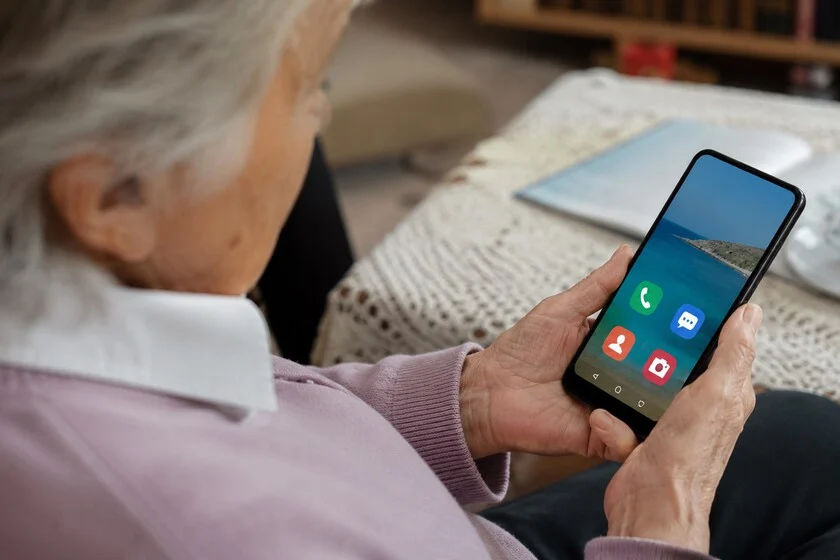

The rapid evolution of smartphone technology, while offering unprecedented connectivity and functionality, often presents a significant barrier to entry for older adults who did not grow up with these devices. What appears intuitive to a digital native can be overwhelmingly complex for a senior user, leading to frustration and underutilization of powerful tools. A common initial instinct is to download numerous third-party applications designed to simplify interfaces or add emergency features. However, as anecdotal evidence frequently demonstrates, merely adding more apps often compounds the problem, with many seniors failing to engage with these new tools after initial setup. The core challenge is not a lack of technological capability in the device itself, but rather the inherent complexity of the default user experience, which is not tailored to the cognitive and physical changes associated with aging. This realization underscores a critical shift in approach: effective smartphone configuration for older adults is not about augmenting with external solutions, but rather about strategically simplifying and leveraging the robust accessibility features already integrated into the device’s operating system.
Samsung’s One UI, the proprietary interface for its Galaxy smartphones, stands out in this regard. It contains a comprehensive suite of tools specifically designed to make a Galaxy phone comfortable, intuitive, and safe for an individual in their seventies or beyond, all without the need for external installations. The key lies in understanding where these powerful, yet often overlooked, settings reside and applying them proactively before the device is handed over to its new user. This proactive customization transforms a potentially daunting piece of technology into an empowering tool for communication, safety, and engagement, bridging the digital divide that often isolates older generations.
Bridging the Digital Divide: The Imperative for Senior-Friendly Technology
The global demographic shift towards an aging population highlights an urgent need for technology that is accessible and user-friendly for seniors. According to data from the United Nations, the number of people aged 60 years or over is projected to double by 2050, reaching nearly 2.1 billion. This growing segment of the population stands to benefit immensely from smartphone technology, which can facilitate independent living, combat social isolation, and provide crucial health management tools. However, studies, such as those published by the Pew Research Center, consistently show a gap in smartphone adoption and proficiency between older and younger adults. While smartphone ownership among seniors has been steadily increasing, many struggle with complex interfaces, small text, intricate navigation, and the fear of making errors.
This digital divide can have profound implications, limiting access to essential services, information, and social connections. Therefore, configuring a smartphone specifically for an older user is not merely a convenience but a vital step towards promoting their well-being and integration into an increasingly digital world. The emphasis shifts from expecting seniors to adapt to technology to adapting technology to their specific needs.
The Foundational Step: Activating Simple Mode for Clarity
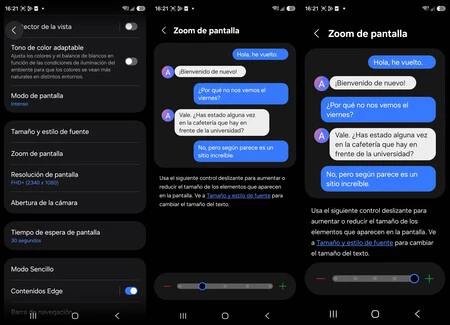
The most immediate and impactful transformation available within Samsung’s One UI is the activation of Simple Mode (Modo Sencillo). This feature is not a superficial overlay but a fundamental alteration of the user interface designed to enhance usability dramatically. Accessed via Settings > Display > Simple Mode, its activation instantly reconfigures the phone’s visual landscape. Icons become significantly larger, text size increases across the system, the home screen simplifies to a more spacious grid layout, and non-essential visual elements are removed.
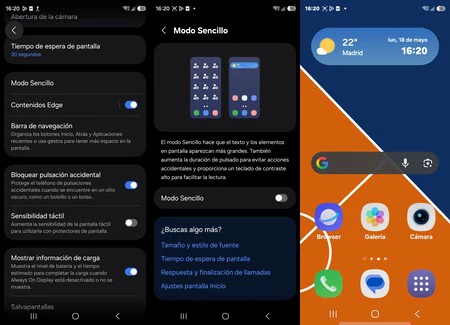
The objective of Simple Mode is not to create a "toy phone" but to cultivate a cleaner, less cluttered environment. For older adults, particularly those experiencing age-related visual impairments or cognitive processing changes, this clarity is invaluable. Larger icons are easier to identify and tap accurately, reducing frustration and mis-taps. The simplified home screen minimizes cognitive load, allowing users to quickly locate and access the applications they use most frequently without sifting through a dense array of small, similar-looking icons. This design philosophy aligns with principles of universal design, ensuring that technology is usable by the widest possible range of people, regardless of age or ability. Furthermore, the reversibility of Simple Mode offers flexibility; if the user’s proficiency or preference changes, they can revert to the standard view at any time from the same settings menu, ensuring the device adapts to their evolving needs.
Enhancing Readability: Customizing Text Size and Screen Zoom
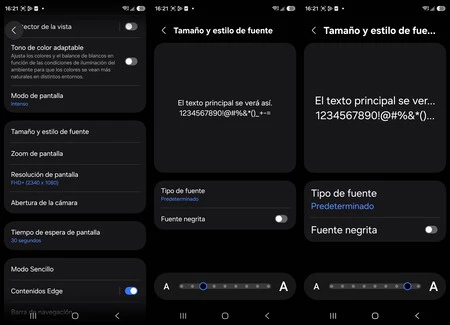
While Simple Mode provides a significant boost to visual accessibility, fine-tuning the text size and screen zoom offers an even greater degree of personalization, addressing specific visual acuity challenges. Even after enabling Simple Mode, it is highly recommended to navigate to Settings > Display > Font size and style and adjust the text size to its maximum or near-maximum setting, depending on the individual’s visual needs. One UI typically offers a five-level scale for font size, and for someone with visual difficulties, moving to the fourth or fifth level can make a tangible difference in the legibility of messages, menus, and application content. This granular control is crucial because presbyopia (age-related farsightedness) and other visual changes are common among older adults, making small text difficult to discern even with corrective lenses.
Complementing the font size adjustment is the Screen Zoom feature, found under Settings > Display > Screen Zoom. This setting operates independently of font size and scales the entire user interface, including icons, buttons, and menus. By combining maximum text size with an appropriate level of screen zoom, the entire phone interface becomes significantly more readable and interactive without resorting to any external applications. This dual approach ensures that not only the textual content but also the interactive elements of the screen are easily visible and actionable. The impact of these adjustments extends beyond mere convenience; improved readability reduces eye strain, decreases the likelihood of errors, and builds confidence in using the device.
A Pillar of Safety: The Emergency SOS Functionality
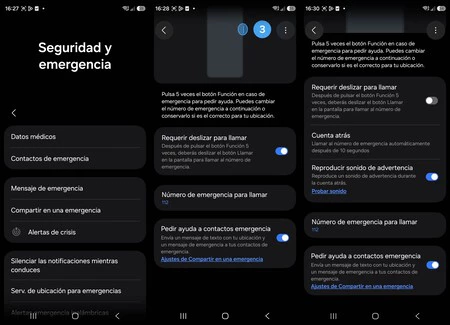
Perhaps the most critical feature for peace of mind, both for the older adult and their family, is Samsung’s Emergency SOS. This powerful tool can be a lifeline in critical situations and its configuration is paramount before handing over the device. The setup process is intuitive: navigate to Settings > Safety and Emergency > Emergency Message. During configuration, it is vital to disable the "Require slide to call" option to ensure that an emergency call can be initiated without additional steps, even with a locked screen. Furthermore, ensure that "Ask for help from emergency contacts" is fully enabled.
Once correctly configured, the Emergency SOS function activates with a simple, universally accessible gesture: pressing the power button five times in quick succession. Upon activation, the phone automatically dispatches a pre-configured message containing the user’s precise GPS location to designated emergency contacts. Crucially, it also initiates an automatic phone call to the first emergency contact on the list. For an added layer of safety, if enabled in the settings, the device can automatically record a short audio clip or capture photos of the surroundings, providing valuable context to responders.
The brilliance of this feature lies in its accessibility during moments of crisis. It does not require the user to be fully oriented, have perfect dexterity, or even remember complex sequences. If a fall occurs, if the user feels unwell, or if they are simply disoriented and cannot recall how to make a call, those five quick presses of the power button will function, even if the screen is locked. This single feature dramatically enhances the safety net around older individuals, offering a robust and simple mechanism for summoning help when it’s most needed. Explaining this feature clearly and demonstrating its use once during the initial setup is usually sufficient for the user to grasp its importance and operation.
Streamlining Communication: Direct Dial Shortcuts for Key Contacts
Reducing the number of steps required to connect with important individuals is another adjustment that profoundly impacts daily usability for older adults. Modern smartphones, with their contact lists and dialer apps, can still present an unnecessary hurdle for quick communication.
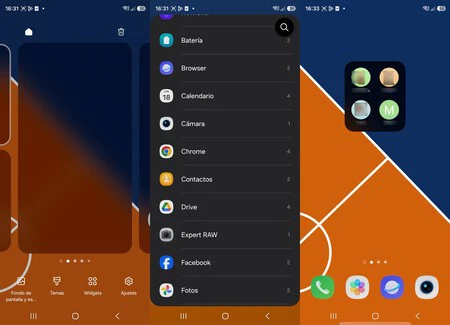
One UI offers an elegant solution: the ability to create a direct dial shortcut for any contact directly on the home screen. This is achieved by long-pressing an empty space on the home screen, selecting "Widgets," then "Contacts," and finally choosing the desired person. Once placed, tapping this icon initiates a call directly, bypassing the need to open the phone app, search for a name, and then press the call button.
For someone whose primary use of the phone is to speak with a select few family members or caregivers, having these dedicated icons prominently displayed on the main screen virtually eliminates all friction from the calling process. This simplification is not just about saving a few seconds; it’s about making communication effortless and reducing cognitive load, thereby encouraging more frequent and confident use of the phone for its most fundamental purpose: connecting people.
Unlocking Hidden Potential: The Accessibility Menu’s Advanced Settings
Beyond the more commonly known adjustments, the Accessibility menu within One UI harbors a wealth of powerful options that are often overlooked but can be incredibly beneficial for older adults. These settings are designed to address a wider range of sensory, cognitive, and motor challenges.
Among the most relevant features are:
- Magnifier: This tool allows users to zoom in on any part of the screen with a simple gesture or a triple-tap, providing a digital magnifying glass for small text, images, or details that might otherwise be missed. This is particularly useful for reading fine print on documents or product labels that might appear on screen.
- Flash Notification: For individuals with hearing impairments or those who often misplace their phone and rely on visual cues, the flash notification feature is invaluable. It causes the camera flash to blink or the screen to light up when a call or message is received, providing a clear visual alert that complements or replaces audible notifications.
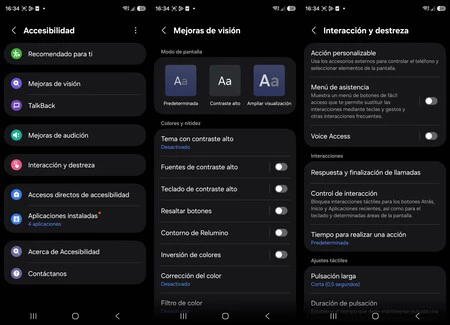
- High Visibility Mode: This mode enhances screen contrast, making text and interface elements significantly more legible, especially in challenging lighting conditions or for users with certain visual impairments. By increasing the distinction between foreground and background elements, it reduces eye strain and improves clarity.
- Increase Touch Sensitivity: As skin sensitivity can decrease with age, or if users frequently wear gloves, this option boosts the screen’s responsiveness to touch. This ensures that every tap and swipe is registered accurately, preventing frustration caused by unresponsive interactions.
- Interaction Control / Touch and Hold Delay: For users who might have tremors or less precise motor control, the "Touch and hold delay" setting within the Interaction Control menu can be crucial. It allows for an extended period for the screen to detect a press before registering it as a "long press" or dismissing it as an accidental touch. Similarly, "Tap duration" can be adjusted to allow more time between touches for multi-tap gestures. These adjustments prevent accidental actions and provide a more forgiving interface.
These advanced accessibility features demonstrate Samsung’s commitment to inclusive design, offering tailored solutions that address specific needs without requiring users to navigate complex external applications or proprietary hardware. Exploring and configuring these settings can dramatically improve the user experience for older adults, making their smartphone a truly adaptable and empowering device.
Hardware Considerations: The Samsung Galaxy A-Series Recommendation
While software configuration is paramount, the choice of hardware also plays a significant role in the overall user experience for older adults. When recommending a model, the Samsung Galaxy A-series often represents the most balanced entry point for seniors seeking a reliable and straightforward smartphone. Devices like the Galaxy A37 (or similar current generation A-series models) combine essential features with a user-friendly design.
Key hardware advantages of the A-series for older users include:
- Large Screens: Modern A-series phones typically feature ample screen sizes, which are crucial for readability and ease of interaction, especially when combined with enlarged text and zoom settings.
- Extended Battery Life: A long-lasting battery is a practical benefit, reducing the frequency of charging and alleviating anxiety about the phone dying unexpectedly, which is particularly important for safety and communication. Many A-series models offer more than a full day’s use on a single charge.
- Simple Camera Interface: While capable, the cameras on A-series phones are generally designed for straightforward point-and-shoot operation, making it easy for seniors to capture photos and videos without being overwhelmed by advanced settings.
- Guaranteed Updates: Samsung’s commitment to several years of security and operating system updates for its A-series devices ensures longevity and continued compatibility with new applications and security protocols, making it a sound long-term investment.
With the correct software configuration applied, a Galaxy A-series device transcends its basic hardware specifications to become an incredibly effective tool for an older person, fulfilling their needs for communication, safety, and engagement without introducing unnecessary complexity. The synergy between robust, accessible hardware and a thoughtfully configured One UI creates an optimal environment for digital inclusion.
Broader Impact and Future Implications
The diligent configuration of smartphones for older adults extends beyond individual convenience; it carries significant societal implications. By empowering seniors with technology, we foster greater independence, allowing them to maintain social connections, access telemedicine services, engage with online communities, and manage personal affairs with greater autonomy. This reduces reliance on caregivers for basic communication tasks and enhances their overall quality of life, potentially mitigating issues like loneliness and cognitive decline often associated with social isolation.
From an industry perspective, the focus on integrated accessibility features within operating systems like Samsung’s One UI represents a mature approach to product development. It acknowledges diverse user needs and moves beyond a "one-size-fits-all" mentality. As technology continues to advance, future innovations will likely see even more sophisticated AI-driven adaptive interfaces that learn individual preferences and needs, further simplifying interaction. Voice control, gesture recognition, and predictive assistance are areas ripe for development that will further enhance accessibility for all users, particularly older adults.
In conclusion, the journey to digital inclusion for older adults on Samsung Galaxy devices is not paved with more apps, but with fewer barriers. By strategically utilizing the powerful, built-in features of One UI—from the simplifying embrace of Simple Mode to the life-saving potential of Emergency SOS, and the nuanced adjustments within the Accessibility menu—we can transform a complex smartphone into an intuitive, empowering, and essential tool. This thoughtful approach ensures that technology serves as a bridge, connecting generations and enhancing the lives of our senior citizens in an increasingly digital world.
