
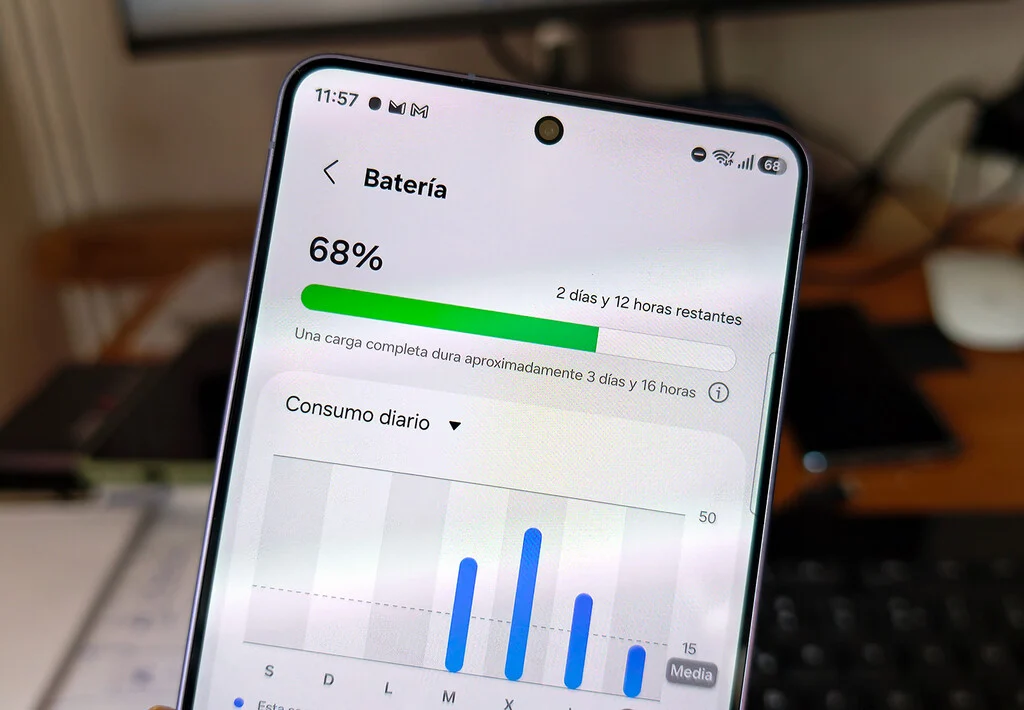

The modern smartphone user experience often begins with a fully charged device, ready to tackle a day of communication, navigation, and entertainment. However, for many, this optimism is frequently met with a familiar midday dread: a rapidly depleting battery, often plummeting to critically low levels like 30% before lunch. This common scenario is a testament to the persistent challenge of battery management, even as Android, the world’s most ubiquitous mobile operating system, has undergone profound transformations since its early iterations like Android 1.6 Donut on devices such as the HTC Magic. While contemporary Android versions boast enhanced aesthetics, superior processing power, and significantly improved energy efficiency, the ultimate arbiter of battery longevity often lies not in the operating system itself, but in the myriad applications installed and, critically, how they behave in the background. Certain applications, particularly those designed for constant connectivity and real-time updates, are notorious for their insatiable appetite for power, silently devouring energy even when the screen is off.
The Silent Battery Drain: Understanding Background Processes
The core of smartphone battery drain, especially when the device is not actively in use, stems from background processes. These are operations performed by applications when they are not the active app on the screen. While some background activity is essential for the seamless functioning of a smartphone – enabling timely notifications, synchronizing data, updating content, or tracking location for specific services – excessive or inefficient background processing can severely impact battery life.
Modern Android versions, starting significantly with Android 6.0 Marshmallow and its "Doze" mode, and further refined with "Adaptive Battery" in Android 9 Pie, have introduced sophisticated system-level optimizations to manage background app behavior. Doze mode conserves battery by deferring background CPU and network activity for apps when the device is stationary and unplugged for extended periods. Adaptive Battery, leveraging machine learning, intelligently learns user app usage patterns and prioritizes battery resources for frequently used applications, restricting less used ones. Despite these advancements, the effectiveness of these features can be undermined by apps that are either poorly optimized, inherently resource-intensive, or designed to bypass standard background restrictions for their core functionality.
The continuous operation of applications in the background leads to increased CPU cycles, memory usage, and network activity, all of which consume power. Furthermore, constant sensor usage, such as GPS for location tracking or accelerometers for activity monitoring, contributes significantly to this drain. Over time, consistent battery depletion and frequent charging cycles can also accelerate the degradation of the battery’s overall health and capacity, reducing its "real" lifespan.
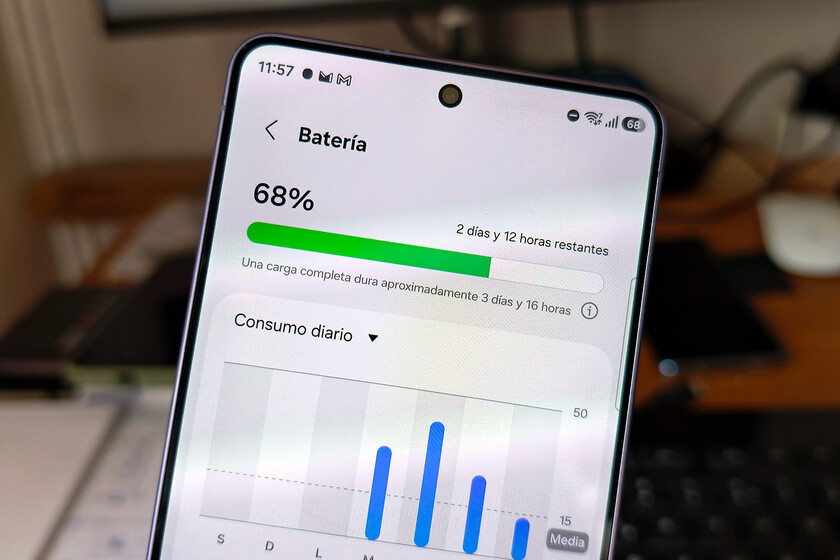
Identifying the Culprits: Top Battery-Consuming Applications
While the specific applications topping an individual user’s battery consumption list can vary based on usage patterns, a recurring set of apps consistently appears as major power consumers. These often include social media platforms, navigation tools, and even web browsers, primarily due to their intrinsic design requiring continuous connectivity and data processing.
Social Media Giants: TikTok and Instagram
Social media applications like TikTok and Instagram are frequently identified as significant battery drainers. Their high consumption stems from several design characteristics and user behaviors:
- Continuous Content Refresh: Both platforms are designed for an endless scroll of new content. Even when not actively open, they often pre-fetch videos, images, and stories in the background to ensure a smooth, instantaneous experience upon opening the app. This constant data fetching and processing demand significant network and CPU resources.
- Video Autoplay and Processing: Video content is central to both TikTok and Instagram (Reels). The decoding and rendering of high-resolution video clips are computationally intensive tasks. While most video processing occurs when the app is active, background pre-loading of video segments can contribute to battery drain.
- Location Services: These apps often request access to location data for features like geotagging posts, finding nearby friends, or delivering location-specific advertisements. Continuous location tracking, especially via GPS, is a major power consumer.
- Push Notifications: A constant stream of notifications—new messages, likes, comments, follower alerts, trending content—requires the app to periodically wake up the device and connect to servers, consuming power.
- Camera and AR Filters: The camera functionality, often readily accessible and integrated with augmented reality (AR) filters, can also contribute to power consumption, even if briefly used, as these features demand significant processing power.
Mitigation Strategies for Social Media Apps:
Users can significantly reduce the background battery consumption of these apps by implementing the following measures:
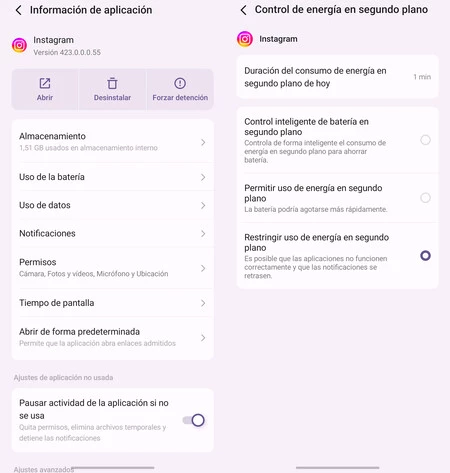
- Restrict Background Activity: Navigate to
Settings > Apps > [App Name, e.g., Instagram or TikTok] > Battery > Background activity. Select "Restricted" or "Optimize." This limits how much power the app can use when not actively in use. - Limit Location Access: Go to
Settings > Apps > [App Name] > Permissions > Location. Change the setting to "Allow only while using the app" or "Don’t allow" if location features are not critical for your use. - Disable Autoplay Videos: Within the app’s internal settings, look for options to disable video autoplay or reduce video quality on mobile data.
- Manage Notifications: Review and disable non-essential notifications from the app’s settings. While this may mean delayed alerts for direct messages or trending content, it reduces the frequency of the app waking up the device.
It is crucial to understand that restricting background activity for these apps will likely mean a delayed delivery of notifications. Updates and messages will only fully sync when the application is actively opened, a trade-off many find acceptable for extended battery life.
Navigation and Location Services: Google Maps
Google Maps is an indispensable tool for navigation and exploration, but its functionality comes at a cost to battery life, primarily due to its reliance on location services.
- GPS and Location Tracking: Maps constantly utilizes GPS, Wi-Fi, and cellular networks to pinpoint the device’s exact location, especially when actively navigating. Even when not in active navigation, the "Location History" feature (part of Google Timeline) continuously records the device’s movements, storing a detailed chronicle of places visited. This constant querying of location sensors is inherently power-intensive.
- Background Updates: Maps can also update traffic information, public transport schedules, and nearby places in the background, consuming data and processing power.
Mitigation Strategies for Google Maps:
Managing Google Maps’ battery consumption centers on controlling its access to location data:
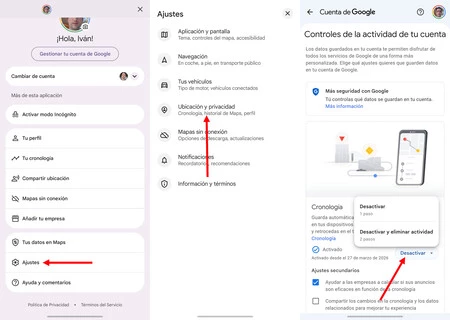
- Disable Location History (Google Timeline): Go to
Settings > Google > Google Account > Data & privacy > Location History. Turn this setting off. This prevents Google from continuously recording your movements via Maps. - Restrict Background Location Access: Navigate to
Settings > Apps > Google Maps > Permissions > Location. Set this to "Allow only while using the app." This ensures Maps only accesses your location when you are actively using the application. - Download Offline Maps: For frequent routes or areas with poor network coverage, download offline maps. This reduces the need for constant data fetching over mobile networks, which can be less power-efficient than Wi-Fi.
Disabling Location History will prevent the creation of a personal movement log in your Google account, but the core navigation and search features of Maps will remain fully functional when the app is open.
Web Browsing: Google Chrome
Even a seemingly innocuous web browser like Google Chrome can be a significant battery drainer, often consuming resources in the background even when an alternative browser is set as default.
- Background Sync and Data Pre-loading: Chrome can synchronize browsing data (bookmarks, history, open tabs) across devices in the background. It also employs mechanisms to pre-load web pages or parts of them based on anticipated user behavior, aiming for faster page loads. These operations consume CPU, memory, and network resources.
- Notifications from Websites: Many websites now request permission to send notifications. If granted, Chrome will periodically check for and deliver these notifications, waking up the device and consuming power.
- Extensions and Tabs: While more prevalent on desktop, some Android versions of Chrome allow extensions or can maintain numerous open tabs that may continue to consume resources in the background.
Mitigation Strategies for Google Chrome:
To curb Chrome’s background battery usage:
- Restrict Background Activity: Go to
Settings > Apps > Chrome > Battery > Background activity. Select "Restricted" or "Optimize." - Disable Sync Features: Within Chrome’s own settings, navigate to
Settings > Sync and Google servicesand disable synchronization for items you don’t need constantly updated across devices. - Manage Site Notifications: In Chrome, go to
Settings > Site settings > Notificationsand block notifications from websites that you do not wish to receive alerts from. - Close Unused Tabs: Regularly close tabs that are no longer needed to prevent them from consuming background resources.
The Inevitable: Google Play Services
Google Play Services is not an application in the traditional sense but a collection of background services and APIs that are fundamental to the Android ecosystem. It acts as a bridge between Google’s services and the apps on your device, handling everything from push notifications, authentication for Google accounts, location services, device security, and app updates. Its ubiquitous nature means it often appears at the top of battery consumption lists, leading many users to mistakenly believe it is "the problem."

- System-Level Functionality: Play Services facilitates numerous system-level operations that are critical for Android’s functioning. When other apps utilize features like Google Maps API, Google Cloud Messaging for notifications, or Google Sign-In, the battery usage is attributed to Google Play Services, even though the actual demand originates from the third-party app.
- Constant Activity: Due to its role in managing updates, security, and connectivity, Play Services is almost constantly active, albeit often in a highly optimized state.
Why Direct Restriction is Not Recommended:
Unlike other applications, directly restricting or disabling Google Play Services is highly inadvisable and generally impossible without rooting the device. Doing so would severely impair the functionality of virtually all Google apps (Gmail, YouTube, Photos) and many third-party applications that rely on Google APIs for core features. The device could become unstable, and crucial security updates might not be delivered.
Troubleshooting High Google Play Services Consumption:
If Google Play Services exhibits abnormally high battery consumption (e.g., disproportionately higher than the screen or other actively used apps), it might indicate an underlying issue:
- Clear Cache and Data: Go to
Settings > Apps > Google Play Services > Storage > Clear cacheandClear data. This can resolve corrupted data that might be causing excessive activity. - Restart Device: A simple reboot can often resolve temporary software glitches or runaway processes.
- Check for System Updates: Ensure your Android operating system and Google Play Services itself are updated to the latest versions. Updates often include bug fixes and performance optimizations.
- Identify the Underlying Culprit: Since Play Services often reflects the activity of other apps, review your overall battery usage to identify which other applications are consuming a lot of power. Managing those specific apps (as described above) will indirectly reduce the load on Play Services.
Beyond the Usual Suspects: General Strategies for Battery Optimization
While addressing the specific power-hungry apps is crucial, a holistic approach to battery management involves several general practices.
Monitoring Battery Usage
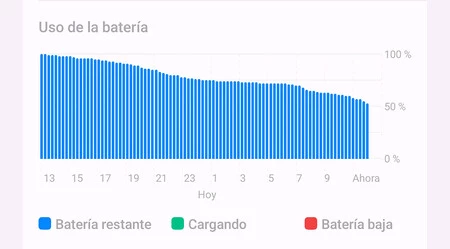
Regularly reviewing the battery usage statistics (Settings > Battery) is the first step in identifying power-hungry applications. This section provides a detailed breakdown of which apps and system processes have consumed the most power since the last full charge, offering actionable insights.
Adaptive Battery and Doze Mode
Ensure these Android features are enabled. Adaptive Battery learns usage patterns to optimize background app activity, while Doze Mode conserves power when the device is idle. These are usually enabled by default but are critical for system-level efficiency.
Data Sync and Notifications
Review the synchronization settings for email accounts, cloud storage services (e.g., Google Drive, Dropbox), and other apps. Reduce the frequency of automatic syncing or switch to manual sync where real-time updates are not essential. Similarly, be selective with app notifications; disable those that are not critical to avoid unnecessary screen wake-ups and background activity.
Location Services Granularity
Modern Android versions offer granular control over location access. For each app, choose "Allow only while using the app" or "Ask every time" instead of "Allow all the time," unless continuous location tracking is absolutely necessary for the app’s functionality (e.g., a fitness tracker).
Background App Refresh
Beyond individual app settings, Android often provides a general setting to restrict background data or activity for all apps or to put seldom-used apps into a "deep sleep" state. Utilizing these broader controls can provide an additional layer of optimization.
Screen Brightness and Display Settings
While not directly related to background processes, the screen is typically the single largest consumer of battery power. Using adaptive brightness, reducing screen timeout duration, and opting for dark mode (especially on AMOLED displays) can significantly extend battery life.
Wi-Fi vs. Mobile Data
Connecting to a stable Wi-Fi network is generally more power-efficient than relying on mobile data, particularly in areas with poor cellular signal where the phone has to expend more energy searching for a connection.
Software Updates
Regularly installing operating system and app updates is vital. Manufacturers and developers frequently release updates that include bug fixes, security patches, and performance optimizations, many of which are aimed at improving battery efficiency.
The Broader Context: Android’s Evolution and Future Battery Technology
The battle against battery drain is an ongoing saga in smartphone development. From early Android versions, which were often criticized for their power consumption compared to competitors, Google has invested heavily in optimizing the operating system. Initiatives like Project Volta (introduced in Android 5.0 Lollipop) aimed to provide developers with tools to manage power more efficiently, leading to features like JobScheduler. Subsequent advancements like Doze Mode and Adaptive Battery demonstrate a continuous commitment to enhancing power management at the system level.
Despite these software innovations, the fundamental challenge remains: powerful hardware, larger and higher-resolution screens, and increasingly complex applications demand more energy. This has spurred parallel developments in battery technology itself. The industry is seeing a trend towards higher capacity batteries, with 6,000 mAh becoming a more common standard in many devices, moving beyond the traditional 4,000-5,000 mAh range. Furthermore, research into novel materials like silicon-carbon anodes and the long-term promise of solid-state batteries aims to dramatically increase energy density and improve charging cycles, potentially ushering in an era where multi-day battery life is the norm, even for demanding users.
In conclusion, while Android has evolved into a highly optimized and efficient operating system, the onus of maximizing smartphone battery life remains a shared responsibility between developers who design power-efficient apps and users who actively manage their device settings. By understanding how background processes consume power and proactively applying the recommended mitigation strategies, users can significantly extend their daily battery autonomy and prolong the overall lifespan of their device, ensuring their smartphone remains a reliable companion throughout their day.