

Modern smartphones are designed with sophisticated algorithms that often make autonomous decisions regarding network connectivity, aiming to enhance user experience through seamless internet access. However, these intelligent functionalities can sometimes lead to undesirable outcomes, such as the consumption of mobile data even when a Wi-Fi network is available and ostensibly in use. This unintended data expenditure can result in unexpected charges, especially for users with limited data plans or those traveling internationally. This article details the underlying mechanisms behind these features and provides precise, step-by-step instructions for disabling them on both Android and iOS devices, thereby ensuring that cellular data is exclusively used when a Wi-Fi connection is genuinely unavailable or explicitly desired.
The phenomenon of smartphones utilizing cellular data despite an active Wi-Fi connection stems from built-in "smart" network management features. These features are typically engineered to prioritize network stability and speed. For instance, some devices are configured to maintain an active cellular data connection alongside Wi-Fi, allowing for rapid switching if the Wi-Fi signal deteriorates. Others are designed to intelligently "boost" a weak Wi-Fi connection by concurrently drawing upon cellular data, or to automatically transition to cellular data if the Wi-Fi performance falls below a certain threshold. While the intent is to provide an uninterrupted online experience, this can inadvertently deplete a user’s mobile data allowance. Understanding and managing these settings is crucial for maintaining control over data consumption and avoiding unforeseen costs.
The Evolution of Smart Connectivity
The proliferation of these smart connectivity features traces back to the mid-2010s, coinciding with the widespread adoption of 4G LTE networks and the increasing demand for always-on, high-speed internet. Smartphone manufacturers began integrating capabilities like "Wi-Fi Assist" on iOS (introduced with iOS 9 in 2015) and various "Smart Network Switch" or "Intelligent Wi-Fi" options on Android. The primary motivation was to mitigate the frustration users experienced with intermittent or slow Wi-Fi, particularly in areas with spotty coverage or high network congestion. These features were presented as solutions for "dead zones" within homes or offices, or for ensuring smooth transitions when moving between Wi-Fi and cellular environments.
From a technical standpoint, these systems continuously monitor the quality and performance of the Wi-Fi connection. Parameters such as signal strength (RSSI), latency, and throughput are constantly evaluated. If the Wi-Fi connection fails to meet predefined performance metrics, the device’s operating system or proprietary software layer initiates a switch or a concurrent usage of cellular data. This process is often seamless and occurs in the background, making it imperceptible to the average user until they review their data usage logs or receive an alert from their mobile carrier. While beneficial for maintaining connectivity, the lack of explicit user notification regarding data consumption during these transitions has been a point of contention for many consumers.
Managing Data Usage on Android Devices
Android, being an open-source platform with numerous manufacturers, offers a variety of settings and proprietary overlays that can influence data consumption. The most critical adjustment for preventing unintended cellular data usage often resides within the ‘Developer Options’ menu, a hidden section designed for advanced users and application developers.
Activating Developer Options
To access these advanced settings, users must first unlock the Developer Options menu. This process typically involves a specific sequence of taps on the device’s build number.
- Navigate to the ‘Settings’ application on your Android device.
- Scroll down and select ‘About phone’ or ‘About device’. The exact wording may vary slightly depending on the Android version and manufacturer’s custom interface (e.g., Samsung’s One UI, Xiaomi’s MIUI, Google’s Pixel UI).
- Within the ‘About phone’ section, locate ‘Build number’. This is often found under ‘Software information’ or a similar sub-menu.
- Tap on ‘Build number’ repeatedly, usually seven to ten times in quick succession. A toast notification will appear on the screen, indicating the countdown (e.g., "You are now X steps away from being a developer!").
- Once activated, a message will confirm: "You are now a developer!" or "Developer options are now enabled!" For security, some devices may require entering your screen lock PIN, pattern, or password to confirm the activation.
The Developer Options menu is intentionally hidden to prevent casual users from inadvertently altering system-level settings that could impact device stability or security. Its activation grants access to a powerful suite of debugging, performance, and network-related controls.
Disabling "Mobile Data Always Active"
With Developer Options now accessible, the next step is to locate and disable the setting responsible for keeping cellular data active even when Wi-Fi is connected.
- Return to the main ‘Settings’ menu.
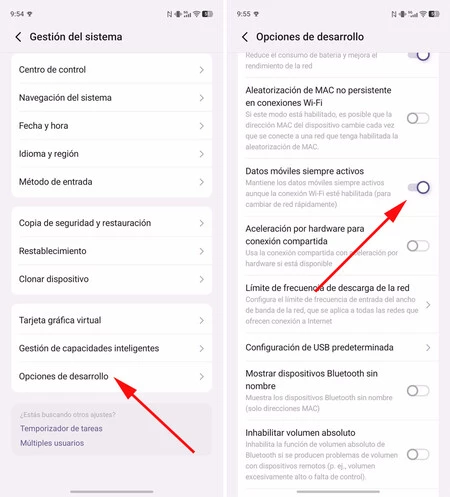
- Scroll down to the bottom. The ‘Developer Options’ menu will now appear, typically under ‘System’, ‘About phone’, or directly in the main settings list.
- Tap on ‘Developer Options’ to enter the menu.
- Within Developer Options, navigate through the extensive list of settings. Alternatively, use the search function if available at the top of the screen and type "mobile data" or "data always active".
- Locate the option titled ‘Mobile data always active’ or a similar phrasing. The description accompanying this setting usually clarifies its function: "Always keep mobile data active, even when Wi-Fi is active (for fast network switching)."
- Toggle this option to the ‘Off’ position.
By deactivating ‘Mobile data always active’, the device will no longer maintain a concurrent cellular data connection when Wi-Fi is established. This ensures that the cellular modem is effectively put into a standby state when Wi-Fi is in use, thereby eliminating any potential for background data consumption via the mobile network. The trade-off, as indicated by the setting’s description, is that switching from Wi-Fi to cellular data might take a fraction of a second longer, as the cellular modem will need to re-establish its connection. For most users, this minor delay is negligible compared to the benefit of guaranteed data conservation.
Exploring OEM-Specific Wi-Fi Enhancements
Beyond the core Android Developer Options, many manufacturers implement their own "smart" Wi-Fi features within their custom user interfaces. These features often operate independently of, or in conjunction with, the ‘Mobile data always active’ setting. Examples include:
- Samsung (One UI): Features like ‘Intelligent Wi-Fi’ or ‘Adaptive Wi-Fi’ can be found under ‘Settings > Connections > Wi-Fi > Intelligent Wi-Fi’. These settings often include options such as ‘Switch to mobile data’ when Wi-Fi is unstable or ‘Network auto switch’. Users should explore these menus and disable any options that permit automatic switching or combining of Wi-Fi and cellular data.
- Xiaomi (MIUI): Devices may have ‘Wi-Fi Assistant’ or ‘Dual Network Acceleration’ features in their Wi-Fi settings. These aim to improve network stability but can lead to data usage.
- OnePlus (OxygenOS): Similar "Smart Wi-Fi Switcher" options can be present, designed to optimize connectivity.
- Google Pixel (Stock Android/Adaptive Connectivity): Pixel devices feature ‘Adaptive Connectivity’, which intelligently manages network connections. While generally efficient, users concerned about data might want to review its settings under ‘Network & internet > Internet > Network preferences’.
It is highly recommended that Android users review their device’s specific Wi-Fi settings, typically found under ‘Settings > Network & internet > Wi-Fi’ or ‘Settings > Connections > Wi-Fi’, to identify and disable any additional "smart" or "adaptive" Wi-Fi features that could lead to unforeseen mobile data consumption.
Managing Data Usage on iPhone Devices

Apple’s iOS platform offers a more streamlined approach to managing automatic network switching, with a single, dedicated setting responsible for preventing unintended cellular data usage alongside Wi-Fi. This feature, known as ‘Wi-Fi Assist’, was introduced with iOS 9 in 2015 and quickly became a subject of discussion due to its potential to increase data consumption for some users.
Understanding Wi-Fi Assist
‘Wi-Fi Assist’ is designed to automatically switch to cellular data when your Wi-Fi connection becomes poor or unreliable. This means that if you are streaming video, browsing the web, or using data-intensive applications and your Wi-Fi signal weakens, your iPhone might seamlessly transition to using your cellular data plan without explicit notification. While this can prevent buffering or dropped connections, it can also lead to significant data usage, especially if you frequently encounter areas with weak Wi-Fi signals.
Steps to Disable Wi-Fi Assist
Disabling Wi-Fi Assist on an iPhone is a straightforward process:
- Open the ‘Settings’ application on your iPhone.
- Tap on ‘Mobile Data’ (or ‘Cellular’ in some regions).
- Scroll down to the very bottom of the ‘Mobile Data’ screen. Below the list of applications and their individual data usage, you will find the ‘Wi-Fi Assist’ option.
- Toggle the switch next to ‘Wi-Fi Assist’ to the ‘Off’ position.
Once disabled, your iPhone will no longer automatically switch to cellular data when your Wi-Fi connection is weak. If your Wi-Fi signal becomes too poor to maintain a connection, your device will simply experience a temporary loss of internet access until the Wi-Fi signal improves or until you manually disable Wi-Fi to force a cellular connection. This gives the user complete control over when and how cellular data is utilized.
The Rationale Behind Automatic Switching and Its Implications
Smartphone manufacturers’ integration of automatic network switching features like ‘Mobile data always active’ and ‘Wi-Fi Assist’ is fundamentally driven by a desire to optimize the user experience. In an increasingly connected world, dropped connections or slow internet speeds can be a major source of frustration. These features aim to provide a "best effort" connectivity model, ensuring that users remain online even in suboptimal network conditions. From a manufacturer’s perspective, a seamless experience enhances user satisfaction and reinforces the perception of a high-performance device.
However, this design philosophy often creates a conflict with user expectations regarding data consumption. Many users operate under the assumption that if they are connected to Wi-Fi, their mobile data plan is entirely insulated from usage. When this assumption is violated, it can lead to unexpected charges, particularly for those on limited data plans or when roaming internationally, where data costs can be exorbitant. A 2023 report by Statista indicated that global mobile data traffic continues to surge, reaching approximately 130 exabytes per month, highlighting the ever-increasing reliance on data. While these figures represent overall consumption, they underscore the financial implications for individual users if their devices are consuming data unknowingly.
Financial and Usage Implications
Disabling these automatic data switching features offers several tangible benefits:
- Cost Savings: The most immediate and significant benefit is the prevention of excess data charges. Users with capped data plans (e.g., 5GB, 10GB per month) can easily exhaust their allowance if their phone is consistently supplementing weak Wi-Fi with cellular data. This is particularly critical for prepaid users or those who face significant overage fees. For example, a user streaming high-definition video via Wi-Fi Assist for just a few hours under a weak Wi-Fi signal could easily consume several gigabytes of cellular data, potentially incurring tens of dollars in unexpected costs.
- Data Plan Management: By ensuring data is only used when Wi-Fi is truly unavailable, users gain clearer insights into their actual mobile data consumption, enabling better budgeting and selection of appropriate data plans. This transparency empowers users to manage their digital lives more effectively.
- Roaming Considerations: For international travelers, unknowingly using cellular data due to ‘Wi-Fi Assist’ or ‘Mobile data always active’ can lead to "bill shock," as international roaming data rates are often exceptionally high. Disabling these features is a crucial step in managing travel expenses and avoiding exorbitant charges.
- Battery Life: While the impact may be marginal, keeping the cellular modem continuously active (as with ‘Mobile data always active’ on Android) can contribute to slightly increased battery drain. Disabling it allows the modem to enter a lower power state when Wi-Fi is dominant.
Broader Economic and User Impact
The tension between seamless connectivity and user control over data consumption reflects broader trends in the mobile industry. On one hand, network providers and device manufacturers are pushing for ubiquitous, high-speed connectivity. On the other, consumers are increasingly demanding transparency and granular control over their digital resources. Telecom industry analysts frequently emphasize the importance of educating consumers about their data usage habits and the various settings that can impact them. Consumer advocacy groups have also consistently called for clearer disclosures from manufacturers and carriers regarding features that automatically consume data.
In an era where remote work, online education, and digital entertainment are prevalent, reliable and cost-effective internet access is paramount. For many, Wi-Fi represents a primary, often unlimited, source of internet access at home or in the workplace. Unintended data usage undermines the economic benefit of these Wi-Fi connections and can place an undue financial burden on individuals and families, especially those with tight budgets or limited access to affordable data plans.
In conclusion, while smartphone manufacturers aim to provide an optimized and uninterrupted online experience through features that intelligently manage network connections, these functionalities can inadvertently lead to unwanted cellular data consumption. By understanding the mechanisms behind ‘Mobile data always active’ on Android and ‘Wi-Fi Assist’ on iPhone, users can proactively adjust their device settings. This simple but effective measure ensures that mobile data is used only when explicitly intended or absolutely necessary, thereby empowering users to maintain control over their data plans, manage costs effectively, and align their device’s behavior with their personal preferences for connectivity and financial prudence.