

Shielding Your Digital Domain: A Comprehensive Guide to Implementing Pi-hole for Network-Wide Ad and Tracker Blocking introduces a powerful, open-source solution that moves beyond individual browser extensions to offer robust, network-wide protection against intrusive advertisements and data-tracking mechanisms. This comprehensive guide delves into the intricacies of setting up and managing Pi-hole, a critical tool for enhancing online privacy and optimizing network performance.
In an era where the internet is an indispensable part of daily life, the proliferation of online advertisements has become a significant concern for many users. These ads not only disrupt the browsing experience but also pose potential security risks, ranging from system resource depletion that can cripple devices to the injection of malicious code. Traditional ad-blocking methods, primarily relying on browser extensions or dedicated software installed on individual machines, often fall short when faced with a multitude of connected devices within a home or small business network. The administrative overhead of managing these solutions across numerous computers can become cumbersome, prompting a search for more scalable and efficient alternatives.
Pi-hole emerges as a compelling answer to this challenge. This innovative project functions as a network-wide advertisement and tracker blocker, operating at the Domain Name System (DNS) level. Unlike per-device solutions, Pi-hole acts as a central gateway, intercepting DNS queries from all connected devices and filtering out requests destined for known advertising and tracking domains. This centralized approach not only simplifies management but also extends its protective umbrella to a wide array of devices, including smart TVs, gaming consoles, and mobile devices that may not natively support ad-blocking software.
The core concept behind Pi-hole’s efficacy lies in its DNS sinkhole capabilities. When a device on the network requests information from a domain, Pi-hole intercepts this request. If the domain is found on its extensive blocklist, Pi-hole returns a null-routed address, effectively preventing the ad or tracker from loading. This process significantly reduces bandwidth consumption and minimizes the attack surface for malware delivered through compromised advertisements.
Understanding the Pi-hole Advantage: Beyond Browser Extensions
The limitations of per-device ad blocking are manifold. For individuals managing multiple computers, smartphones, and tablets, the task of installing and maintaining ad-blocking software on each device is time-consuming and prone to inconsistencies. Furthermore, many Internet of Things (IoT) devices, such as smart refrigerators, streaming devices, and security cameras, lack the flexibility to run such software, leaving them vulnerable to intrusive ads and potential data exfiltration.
Pi-hole addresses these shortcomings by operating at the network level. Once installed and configured on a dedicated device (often a low-power single-board computer like a Raspberry Pi or a virtual machine), Pi-hole acts as the network’s DNS resolver. All devices on the network are then configured to use Pi-hole as their DNS server. This unified approach ensures that every DNS query originating from the network is subject to Pi-hole’s filtering rules, providing a consistent and comprehensive ad-blocking experience across all connected devices.
The benefits of this network-wide approach extend beyond ad blocking. By preventing the loading of unnecessary ad content, Pi-hole can lead to a noticeable improvement in network performance. Websites load faster, and the overall browsing experience becomes smoother, particularly on networks with limited bandwidth. Moreover, the reduction in ad-related traffic can free up valuable bandwidth for essential applications and services.
The Pi-hole Architecture: DNS, DHCP, and Beyond
Pi-hole’s functionality is built upon its ability to intercept and process DNS requests. It maintains a regularly updated list of known advertising and tracking domains. When a device requests to resolve a domain name (e.g., "ads.example.com"), Pi-hole checks its blocklist. If the domain is blacklisted, Pi-hole provides a "no such domain" response, preventing the connection. If the domain is not blacklisted, Pi-hole forwards the request to an upstream DNS server (such as Google DNS, Cloudflare DNS, or OpenDNS) and then returns the resolved IP address to the requesting device.
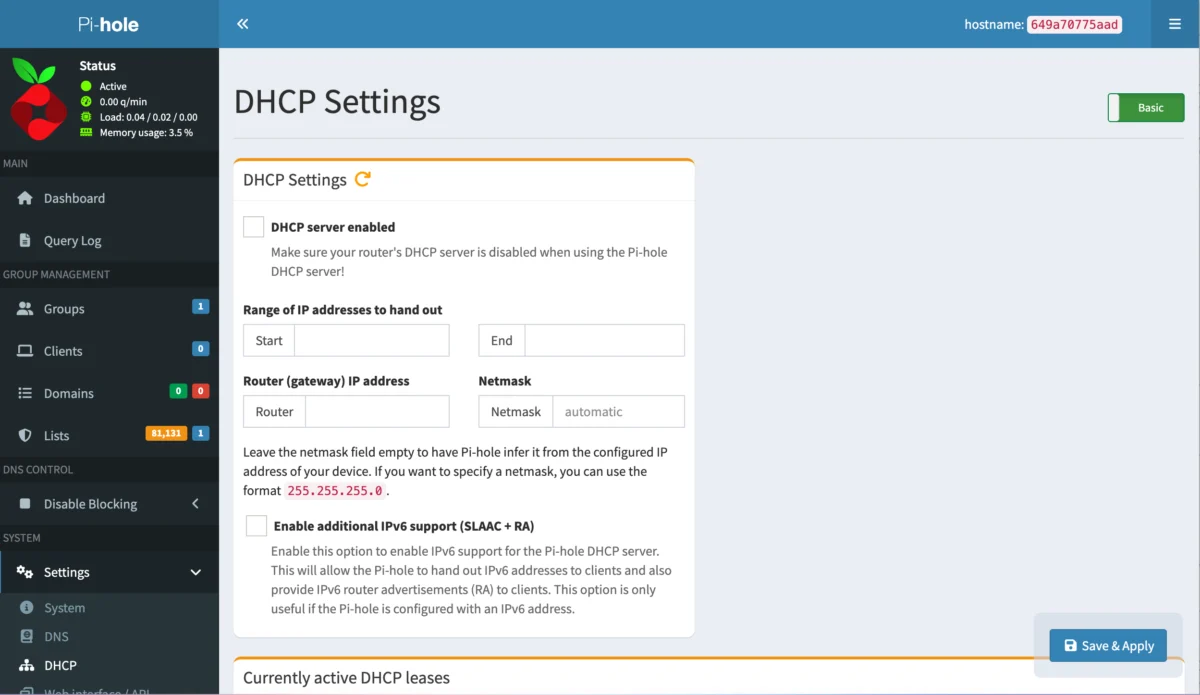
A key feature that enhances Pi-hole’s utility is its integrated DHCP server. In a typical home network, a router usually acts as the DHCP server, assigning IP addresses to devices. By disabling the router’s DHCP server and enabling Pi-hole’s, administrators can centrally manage IP address assignments and ensure that all devices automatically use Pi-hole as their DNS server. This eliminates the need for manual configuration on each individual device and further solidifies the network-wide ad-blocking strategy.
The web-based administrative interface of Pi-hole provides a user-friendly dashboard for monitoring network activity, viewing query statistics, managing blocklists, and configuring settings. Users can easily see which domains are being queried, which are being blocked, and the overall effectiveness of Pi-hole in filtering out unwanted content. This transparency allows for fine-tuning and troubleshooting, ensuring optimal performance and protection.
The Installation Journey: From Docker to Deployment
To deploy Pi-hole, a reliable and efficient method is to utilize containerization technology, such as Docker. Docker allows applications to be packaged with their dependencies into portable containers, simplifying deployment and ensuring consistency across different environments.
1. Preparing the Environment: Installing Docker

For users on macOS or Windows, Docker Desktop provides a straightforward installation process for the necessary Docker tools. For Linux users, particularly those running Ubuntu Server 24.04, the installation involves a few more steps.
The initial phase involves securing the Docker installation by adding the official Docker GPG key. This is typically achieved through a series of curl and gpg commands to download and store the key securely.
Following the key addition, the Docker repository needs to be configured. This involves adding a new entry to the system’s APT sources list, specifying the architecture and the stable Docker repository. The command for this typically looks like:
echo "deb [arch=$(dpkg --print-architecture) signed-by=/etc/apt/keyrings/docker.asc] https://download.docker.com/linux/ubuntu $(. /etc/os-release & echo "$UBUNTU_CODENAME:-$VERSION_CODENAME") stable" | sudo tee /etc/apt/sources.list.d/docker.list > /dev/nullOnce the repository is added, the system’s package list must be updated to recognize the new source, followed by the installation of the core Docker packages:
sudo apt-get update
sudo apt-get install docker-ce docker-ce-cli containerd.io docker-buildx-plugin docker-compose-plugin git -y
A crucial step for seamless Docker usage without constant sudo privileges is to add the current user to the docker group:
sudo usermod -aG docker $USERAfter executing this command, it is essential to log out and log back in for the group membership changes to take effect. Verifying the Docker installation can be done by running a simple command like docker run hello-world. A successful execution will display a message indicating that Docker is installed and working correctly, without any error messages.
2. Deploying Pi-hole with Docker
With Docker successfully installed, the deployment of Pi-hole becomes a straightforward process using a docker run command. This command orchestrates the creation and configuration of the Pi-hole container.
Key considerations when constructing the docker run command include:
- Port Mapping: External ports (left side of the colon) must be mapped to the container’s internal ports. It’s imperative to ensure that the chosen external ports are not already in use on the host system. Common ports for Pi-hole include 53 for DNS, 80 for the web interface, and 443 for HTTPS.
- API Password: A strong and unique password for the Pi-hole web interface API (
FTLCONF_webserver_api_password) is essential for security. - Timezone: Setting the correct timezone (
TZ) ensures that logs and scheduled tasks operate accurately. - Volume Mounting: Persistent storage for Pi-hole’s configuration and data is achieved by mounting host directories to corresponding directories within the container (
/etc/piholeand/etc/dnsmasq.d). This ensures that data is not lost when the container is restarted or updated. - Network Administration Privileges: The
NET_ADMINcapability is often required for Pi-hole to manage network interfaces and routing. - Restart Policy: Setting a restart policy, such as
unless-stopped, ensures that Pi-hole automatically restarts if the host system reboots or if the container encounters an unexpected shutdown.
A typical docker run command for Pi-hole might look like this:
docker run
  --name pihole
  -p 54:53/tcp
  -p 54:53/udp
  -p 8081:80/tcp
  -p 443:443/tcp
  -e TZ=America/New_York
  -e FTLCONF_webserver_api_password="YOUR_STRONG_PASSWORD"
  -e FTLCONF_dns_listeningMode=all
  -v ./etc-pihole:/etc/pihole
  -v ./etc-dnsmasq.d:/etc/dnsmasq.d
  --cap-add NET_ADMIN
  -d
  --restart unless-stopped
  pihole/pihole:latest
After executing this command, it’s advisable to allow a minute or two for the container to initialize. The status of the container can be checked using docker ps -a. Once the container is listed as "healthy," Pi-hole is ready for configuration.
Accessing and Configuring Pi-hole
With the Pi-hole container running, accessing its web-based administration interface is the next step. This is typically done by navigating to http://<SERVER_IP_ADDRESS>:<EXTERNAL_PORT>/admin/ in a web browser, where <SERVER_IP_ADDRESS> is the IP address of the machine hosting the Docker container, and <EXTERNAL_PORT> is the port mapped to the container’s web server (e.g., 8081 in the example command).
Upon first access, users will be prompted to log in using the FTLCONF_webserver_api_password that was set during the docker run command. Once authenticated, the Pi-hole dashboard provides a comprehensive overview of network activity, including the number of DNS queries, blocked queries, and top clients.

Network-Wide DNS Configuration: The Core of Pi-hole’s Power
The true power of Pi-hole is unleashed when all devices on the network are configured to use it as their DNS server. There are two primary methods for achieving this:
Method 1: Per-Device DNS Configuration
This method involves manually changing the DNS settings on each individual device. While straightforward for a few devices, it becomes increasingly cumbersome as the number of connected devices grows. This involves accessing the network settings on each computer, smartphone, or tablet and manually entering the IP address of the Pi-hole server as the preferred DNS server.
Method 2: Router-Level DNS Configuration with DHCP Server Integration
This is the more efficient and recommended approach for comprehensive network-wide coverage. It involves two key steps:
-
Configuring Router DNS: The router’s DNS settings are updated to point to the Pi-hole server’s IP address. This ensures that all DNS requests originating from devices obtaining their network configuration from the router will be directed to Pi-hole. However, it’s important to note that some Internet Service Providers (ISPs), such as AT&T Fiber, may restrict users from modifying the DNS settings on their modems/routers, presenting a significant hurdle for this method. In such cases, alternative approaches or ISP-provided equipment that allows DNS modification may be necessary.
-
Enabling Pi-hole’s DHCP Server: If the router’s DNS settings cannot be modified, or to ensure all devices consistently use Pi-hole, it is recommended to disable the DHCP server on the router and enable Pi-hole’s integrated DHCP server. This is configured within the Pi-hole web interface under
Settings > DHCP. Users will need to define the IP address range that Pi-hole will assign to devices on the network and specify the router’s IP address as the gateway. Once enabled, all devices that connect to the network will receive their IP address and DNS settings directly from Pi-hole, guaranteeing that their DNS queries are routed through the ad-blocking system.
After implementing either of these configuration methods, devices on the network will need to renew their IP address leases or be restarted for the new DNS settings to take effect. Once updated, these devices will benefit from Pi-hole’s ad and tracker blocking capabilities.
Broader Implications and Future Considerations
The adoption of Pi-hole extends beyond mere ad avoidance. In an era of increasing data privacy concerns, Pi-hole empowers users to regain control over their online footprint by significantly reducing the amount of personal data collected by trackers. For businesses, it can enhance employee productivity by minimizing distractions from advertisements and improve network security by blocking access to potentially malicious advertising domains.
The open-source nature of Pi-hole fosters continuous development and community support. Regular updates to blocklists and the software itself ensure that it remains effective against evolving advertising and tracking techniques. Furthermore, its flexibility allows for advanced customization, including the creation of custom blocklists and the integration with other network management tools.
While the setup of Pi-hole, particularly with Docker, requires a degree of technical proficiency, the long-term benefits in terms of privacy, security, and network performance make it a worthwhile investment for any discerning internet user. As online threats and intrusive advertising continue to evolve, tools like Pi-hole are becoming increasingly indispensable for safeguarding our digital lives.