
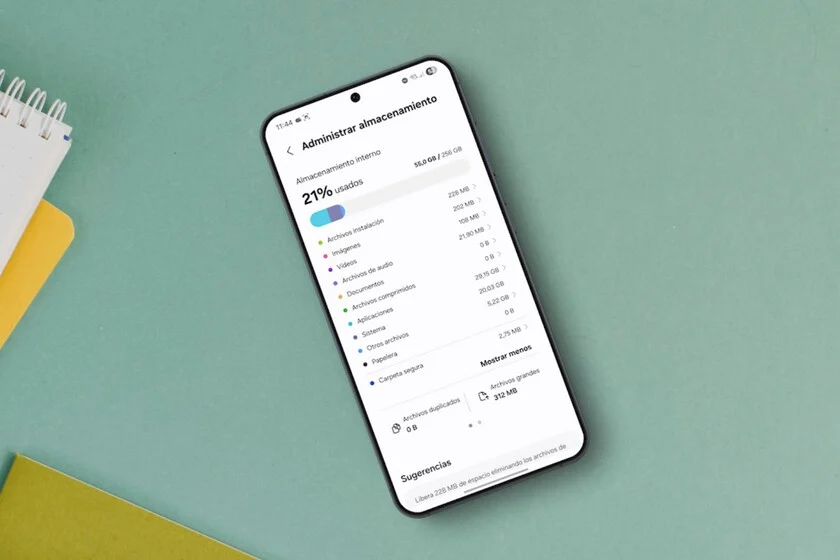

The ubiquitous smartphone has become an indispensable extension of modern life, a repository for countless memories, critical communications, and essential applications. Yet, few digital frustrations rival the moment a user confronts a dwindling storage capacity, only to discover a significant portion consumed by the enigmatic category labeled "Other files." This often-opaque designation, a common feature across the Android ecosystem, frequently leaves users bewildered, unable to pinpoint the exact culprits behind the vanishing gigabytes. Samsung, a dominant player in the mobile market, offers a pragmatic explanation: this category serves as a catch-all for data generated by installed applications, core system files, accumulated cache, and various temporary files that do not neatly fit into more intuitive classifications such as "Images," "Videos," or "Documents." Far from being a system error or a phantom entity, "Other files" represents a legitimate, albeit challenging, reservoir of data that, if left unchecked, can significantly impede device performance and user experience. Understanding its composition and mastering effective management strategies is paramount for maintaining optimal device health and ensuring seamless operation.
The phenomenon of storage depletion under the banner of "Other files" stems from a multitude of operational necessities and digital interactions inherent to a modern smartphone. Fundamentally, this category aggregates critical components that facilitate the smooth and efficient functioning of the Android operating system and its myriad applications. These include, but are not limited to, vital system files that underpin the device’s core operations, extensive data held in various caches to expedite app loading and performance, and a continuous stream of temporary files generated during routine usage. From the transient cache files of frequently used applications to system-generated packages and residual data that the operating system accumulates to enhance responsiveness, these elements are designed to optimize the user experience. However, the inherent trade-off for this convenience and agility is the gradual, often imperceptible, accumulation of data that, over time, can monopolize substantial storage real estate.
This reality underscores a crucial distinction: simply deleting photographs, videos, or documents, while often helpful, will rarely resolve a significant "Other files" storage issue. The solution invariably lies in delving into the less visible, underlying data structures that contribute to this category. Mobile operating systems, including Samsung’s One UI, are intricate ecosystems where every interaction, every app launch, and every system process leaves a digital footprint. These footprints, while individually small, coalesce into a formidable volume of data that demands specific, targeted intervention for effective management.
Understanding the Anatomy of ‘Other Files’
To effectively combat the expansion of the "Other files" category, a deeper understanding of its constituent elements is essential. This seemingly monolithic block of data is, in fact, a diverse collection of digital debris and operational necessities:
-
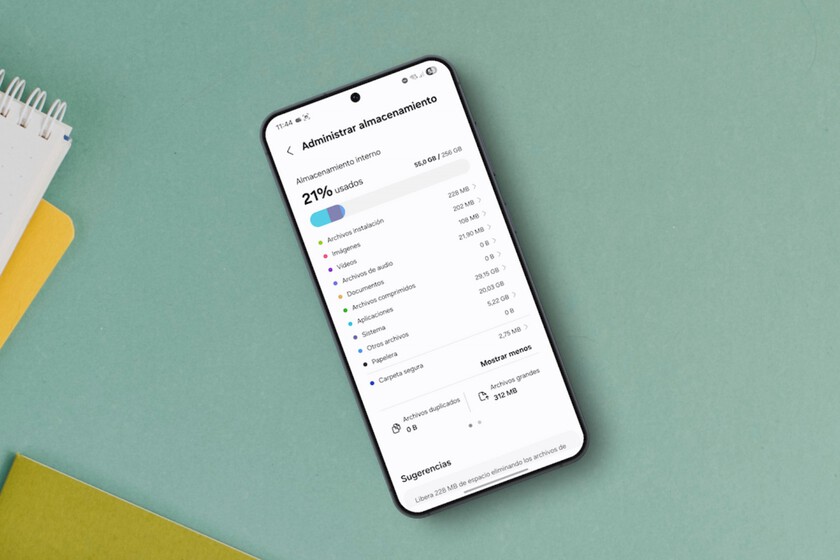
System Files and Data: These are the backbone of the Android operating system and Samsung’s One UI. They include the operating system kernel, system libraries, configuration files, and critical updates. While essential, these files can grow with each OS update, security patch, and new feature introduction. Additionally, system logs, error reports, and diagnostic data, though typically small, can accumulate. These are vital for device stability and security, making direct user manipulation highly risky.
-
Application Data (Beyond Media): While media files are categorized, many applications store their operational data, user settings, databases, and offline content within the "Other files" category. For instance, a messaging app like WhatsApp stores its chat backups, media sent/received (if not explicitly moved), and database files. Streaming services like Spotify or Netflix might store downloaded content for offline viewing, which, while user-initiated, often resides in this less visible segment until explicitly categorized by the system. Gaming applications, particularly those with extensive graphics and downloadable content packs, are also significant contributors to this category.
-
Cache Files: Cache is temporary data stored by applications and the operating system to speed up access to frequently used information.
- App Cache: Every app generates cache to store temporary files, images, or data segments to reduce loading times and data consumption. Web browsers (Chrome, Samsung Internet) are notorious for large caches, storing website data, images, and scripts. Social media apps (Facebook, Instagram, TikTok) cache feed content, user profiles, and stories. Streaming apps cache recently played content. Over time, these caches can swell to several gigabytes.
- System Cache: The operating system also maintains a cache for system processes, frequently accessed files, and temporary data related to updates or background tasks. This helps the OS run more smoothly and respond faster.
-
Temporary Files: This is a broad category encompassing various transient data points. It includes partially downloaded files, remnants of failed installations, log files generated by apps and the system, residual data from uninstalled applications that weren’t completely purged, and temporary files created during document editing or media processing. These files are often intended to be deleted automatically but can persist due to system glitches or improper app closure, gradually accumulating and consuming valuable space.
Historical Context and Evolving Storage Challenges
The challenge of managing "Other files" is not new, but its prominence has grown alongside the evolution of smartphone technology and user behavior. In the early days of smartphones, with limited internal storage (e.g., 8GB or 16GB), users were acutely aware of every megabyte. Operating systems like early Android versions offered more rudimentary storage breakdowns, making "Other" an even greater enigma. As internal storage capacities expanded significantly—from 64GB to 128GB, 256GB, and even 1TB in modern flagships—the perception of abundant space often led to less diligent storage hygiene. Users accumulated more apps, captured higher-resolution photos and videos, and downloaded extensive media, inadvertently allowing "Other files" to grow unchecked in the background.
Simultaneously, applications themselves have become more sophisticated and resource-intensive. High-fidelity games, advanced photo/video editing tools, and comprehensive social media platforms demand larger installation sizes and generate more substantial cache and temporary data. The shift from external SD card reliance to primary internal storage has also placed greater emphasis on optimizing the built-in memory, making efficient management of all categories, especially the nebulous "Other files," more critical than ever. The increasing complexity of modern operating systems, with their multitude of background processes and interconnected services, further contributes to the persistent growth of this category, requiring users to adopt more proactive management strategies.
The Ramifications of Unmanaged Storage
Allowing the "Other files" category to consume a significant portion of internal storage can lead to a cascade of negative consequences for device performance and user experience:
- Performance Degradation: A near-full storage drive can significantly slow down the operating system. Apps may launch slower, multitask poorly, and the overall user interface can become sluggish and unresponsive. The system may struggle to allocate temporary space for operations, leading to lag and a frustrating user experience.
- Inability to Install Updates: Android system updates and app updates often require a certain amount of free space to download and install. A device with insufficient storage, largely due to "Other files," may be unable to receive critical security patches or new features, leaving it vulnerable or outdated. This can compromise device security and deny access to new functionalities.
- Failed App Installations: New applications cannot be installed, and existing ones may not function correctly if they lack the necessary space for their data or cache. This directly impacts the user’s ability to utilize their device’s full potential.
- Media Capture Issues: Users may find themselves unable to take new photos or record videos, missing crucial moments, simply because there isn’t enough space to store the new media. This is a common and highly frustrating limitation.
- Data Corruption and Instability: In extreme cases, critically low storage can lead to system instability, app crashes, or even data corruption, as the operating system struggles to manage its resources. This poses a risk to user data integrity and device reliability.
Samsung’s Integrated Approach to Storage Management
Samsung, recognizing the widespread frustration associated with storage management, particularly the "Other files" category, has integrated robust tools within its One UI interface. These tools are designed to empower users to proactively manage their device’s health and storage.
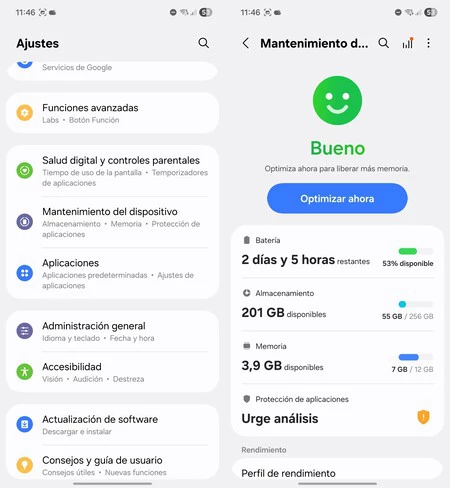
The primary gateway to these features on a Samsung Galaxy device is typically found via: Settings > Device Care (or Device maintenance) > Storage.
Within this section, users are presented with a detailed breakdown of their storage utilization, categorized intuitively (e.g., Images, Videos, Audio, Documents, Apps). Crucially, the "Other files" category is also displayed, often highlighting its significant contribution. One of the most accessible and recommended starting points for a general cleanup is the "Optimize now" function. This powerful, yet safe, feature allows the system to autonomously perform a series of maintenance tasks:
- Closing Background Processes: It identifies and closes apps running unnecessarily in the background, freeing up RAM and potentially improving performance. This is crucial for devices with limited RAM.
- Clearing Cache: It intelligently clears a portion of the accumulated cache data from various applications and system processes, targeting non-essential temporary files that can be safely removed.
- Scanning for Malware: While primarily a storage management tool, "Optimize now" often integrates with security features to scan for potential threats, contributing to overall device health and safeguarding user data.
This "Optimize now" function serves as an invaluable initial step because it offers a secure, system-guided approach to reclaiming space without risking the deletion of critical user data. It allows the Galaxy device to intelligently purge easily disposable temporary files and background detritus, providing a baseline improvement. Only after this initial, non-destructive sweep should users consider more granular, app-specific interventions if the "Other files" category remains stubbornly large. This methodical approach ensures that users begin with the least invasive methods, gradually escalating to more targeted actions as needed, thereby minimizing risk to personal data.
Targeted Intervention: Managing App-Specific Storage
While the "Optimize now" feature provides a broad system cleanup, often the most significant culprits behind a bloated "Other files" category are individual applications that accumulate vast amounts of cache or operational data. Identifying and managing these app-specific storage hogs is a critical step.
The path to managing individual app storage on a Samsung device is: Settings > Apps > [select desired app] > Storage.
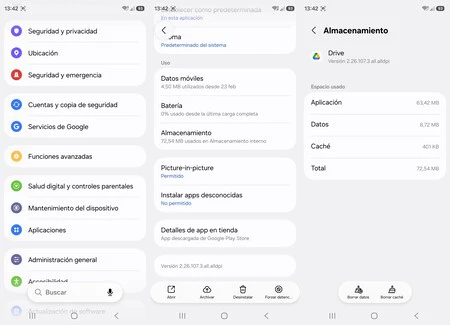
Within this section, users will typically find two crucial options: "Clear cache" and "Clear data."
-
Clear Cache: This action purges the temporary files associated with a specific application. It is generally a safe operation that frees up space without affecting the app’s functionality or user data. It’s particularly effective for apps that frequently handle large volumes of temporary content, such as:
- Web Browsers: Chrome, Samsung Internet, Firefox. They cache website data, images, and scripts to speed up browsing and reduce data consumption. Clearing their cache can often reclaim hundreds of megabytes or even several gigabytes over time.
- Social Media Apps: Facebook, Instagram, TikTok, X (formerly Twitter). They cache feed content, user profiles, and media to enhance loading times. Given the constant influx of new content, their caches can grow rapidly.
- Messaging Apps: WhatsApp, Telegram, Signal. While media is often categorized, chat backups and some operational data can accumulate.
- Streaming Services: Spotify, Netflix, YouTube. These apps often cache recently played content or store user preferences to improve playback experience. Downloaded content for offline viewing, while user-initiated, also resides here.
Clearing the cache of these types of apps can often yield significant storage reclamation within the "Other files" category. The app will simply re-download necessary temporary files as they are needed, without data loss or requiring re-login. This makes it a highly recommended first-line defense.
-
Clear Data: This is a more aggressive action. When "Clear data" is selected, it effectively resets the application to its initial installed state. This means all user data, settings, accounts, databases, and associated files for that specific app are deleted. For example, clearing data for a messaging app would delete all chat history and require the user to log in again. For a game, it would delete saved progress (unless synced to a cloud service).
Crucial Distinction: While "Clear data" will undoubtedly free up a substantial amount of space, it should be approached with extreme caution. It is akin to reinstalling the app from scratch. Therefore, the sensible strategy is to always begin with "Clear cache." Only if clearing the cache does not sufficiently reduce the "Other files" burden, or if an app is malfunctioning severely, should "Clear data" be considered, and only after ensuring any critical data within that app has been thoroughly backed up to a cloud service or another device. Without proper precautions, "Clear data" can lead to