
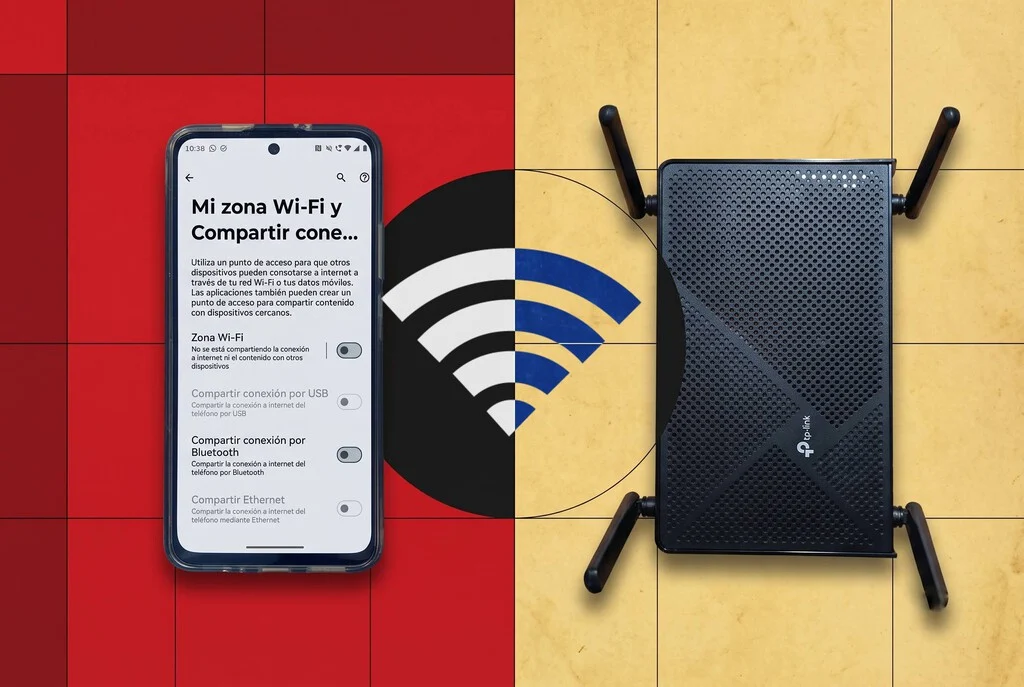

The extreme temperatures already being experienced at the outset of summer, projected to intensify, pose significant risks not only to public health but also place immense strain on critical infrastructure and electronic devices. This environmental stress can lead to the thermal expansion of cabling in electrical and telecommunications lines, increasing the susceptibility to faults and service interruptions. When faced with an unexpected disruption to a home’s internet connection, the most immediate and common response for many users is to activate their mobile phone’s Wi-Fi hotspot, allowing other devices to temporarily access cellular data. However, this conventional approach, while seemingly straightforward, introduces several inefficiencies and limitations for maintaining a robust home network, particularly when a multitude of smart devices, computers, and entertainment systems are reliant on a stable connection. The necessity of reconfiguring network credentials on each individual device to connect to a new, temporary Wi-Fi network can be a tedious and time-consuming process, detracting from the seamless connectivity users have come to expect. Furthermore, this method often fails to provide the stable, centralized network management offered by a dedicated router, leading to potential performance issues and increased administrative burden. In response to these growing challenges, particularly as climate patterns contribute to more frequent and severe heatwaves impacting digital infrastructure, a more sophisticated solution has emerged: directly integrating an Android smartphone’s mobile data connection into the existing home router setup. This strategy leverages the router’s capabilities to distribute the mobile internet connection to all connected devices without requiring individual reconfigurations, effectively transforming the smartphone into a resilient backup internet source for the entire household. This comprehensive guide will explore three effective methods to achieve this, offering users enhanced control and reliability over their home networks during periods of conventional internet service disruption.
The Growing Challenge: Extreme Heat and Infrastructure Vulnerability
The onset of summer across many regions has been marked by a discernible increase in the frequency, intensity, and duration of heatwaves, a trend widely attributed to anthropogenic climate change. This environmental shift has profound implications for urban and rural infrastructure, extending beyond immediate concerns like power grid overloads to encompass the delicate network of telecommunications. Fiber optic cables, while generally robust, can be affected by extreme temperature fluctuations leading to micro-bends and signal degradation. Copper wiring, still prevalent in many legacy networks, is particularly susceptible to thermal expansion, which can cause breaks in connections, increased resistance, and compromised signal integrity. Data centers, central offices, and local network nodes, despite advanced cooling systems, face heightened operational risks, leading to potential equipment failures and localized outages.
According to reports from telecommunications regulatory bodies and industry analysts, internet service disruptions linked to extreme weather events have seen a notable uptick in recent years. For instance, in areas experiencing prolonged periods above 35°C (95°F), the probability of service interruptions can increase by 15-20% due to infrastructure strain. The economic ramifications are substantial, with estimates suggesting that even brief, widespread internet outages can cost national economies millions, if not billions, of dollars daily in lost productivity, business revenue, and critical service downtime. For individual households, the impact ranges from disrupted remote work and online education to inaccessible essential services and a significant reduction in quality of life. The increasing reliance on a stable internet connection for virtually all aspects of modern life — from smart home devices and security systems to entertainment streaming and critical communication — underscores the urgency of developing robust backup strategies.
Beyond the Basic Hotspot: The Need for Router Integration
While the personal Wi-Fi hotspot feature on smartphones offers a quick fix for individual device connectivity, it presents significant limitations when aiming to restore full home network functionality. Most modern households operate with a router at the core of their digital ecosystem, managing dozens of connected devices, including smart TVs, gaming consoles, smart home hubs, laptops, and various IoT gadgets. Each of these devices is typically configured to connect to the router’s Wi-Fi network using specific credentials. When the primary internet connection through the router fails, simply activating a phone’s hotspot means manually disconnecting each device from the router’s network and reconfiguring it to connect to the phone’s new, temporary Wi-Fi network. This process is not only cumbersome but often impractical, especially for devices lacking a direct interface (like some smart plugs or light bulbs) or those located in less accessible areas.
Integrating the smartphone’s mobile data directly into the home router bypasses these issues entirely. By feeding the cellular connection into the router, the entire existing home network remains intact. All devices continue to connect to the router as usual, using the same Wi-Fi name (SSID) and password. The router then intelligently distributes the mobile internet connection to all connected devices, effectively acting as a central gateway for the backup internet. This approach maintains network stability, retains advanced router features like parental controls, QoS (Quality of Service), and guest networks, and provides a much more seamless and less disruptive transition during an outage. This method transforms a personal device into a critical component of home network resilience, ensuring that the digital infrastructure of the household remains largely operational even when primary services fail.
Method 1: Direct USB Tethering – Transforming Your Phone into a Wired Modem
One of the most straightforward and often overlooked methods for restoring home internet during an outage involves directly connecting an Android smartphone to the home router via a USB cable. Many modern routers, particularly those designed for home office or small business use, include a USB port on their rear panel. While these ports are frequently intended for network-attached storage (NAS) or printer sharing, a significant number of routers also possess the capability to recognize a tethered smartphone as an external internet source.
The Process:
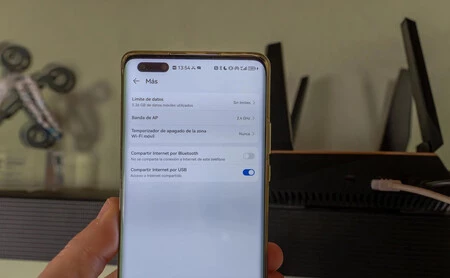
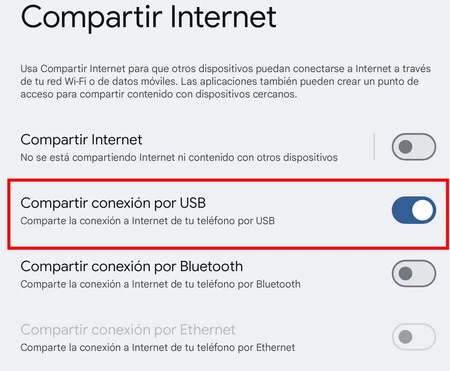
To implement this method, you will need a standard USB cable compatible with your Android phone (e.g., USB-A to USB-C or Micro-USB). Connect one end of the cable to your smartphone and the other to the USB port on your router. Once physically connected, navigate to your Android phone’s settings. The exact path may vary slightly depending on the phone manufacturer and Android version, but generally, you’ll find it under "Network & Internet" or "Connections," then look for "Hotspot & tethering" or "Portable hotspot." Within this section, locate and activate the "USB tethering" option. This action instructs your smartphone to share its mobile data connection through the USB cable, essentially creating a virtual Ethernet interface.
Technical Nuances and Advantages:
Upon activating USB tethering, the router should detect your smartphone as a new network interface, often appearing as an Ethernet connection on its WAN (Wide Area Network) port. Some advanced routers, such as certain models from Asus, are designed with sophisticated firmware that allows configuring this USB connection as a secondary or failover WAN. In such a setup, the router is programmed to automatically switch to the smartphone’s internet connection if it detects a loss of service from the primary fiber optic or DSL connection. This automatic failover provides an almost instantaneous and seamless transition, minimizing service disruption.
Beyond providing an internet connection, a significant advantage of this method is that the router often simultaneously charges your Android phone’s battery. This eliminates concerns about the phone running out of power during prolonged outages, allowing for sustained use of the backup internet. The connection typically offers decent speeds, limited primarily by your cellular network’s performance and the USB standard supported by both devices. It’s a highly stable connection, less prone to interference compared to Wi-Fi-based solutions.
Considerations:
Compatibility is key. Not all routers with a USB port will support USB tethering as a WAN input. It’s advisable to consult your router’s manual or manufacturer’s website to confirm this feature. Older Android versions or highly customized OEM skins might have slightly different menu structures for enabling USB tethering. Ensure the USB cable is in good working condition to guarantee a stable connection and efficient charging.
Method 2: Leveraging Wireless WAN (WWAN) – Your Router as a Smart Repeater
The second method involves using your router to connect wirelessly to your smartphone’s Wi-Fi hotspot, effectively making your router a repeater for your mobile data. This capability is often referred to as Wireless Wide Area Network (WWAN), "Wi-Fi as WAN," or Wireless Internet Service Provider (WISP) mode. Unlike traditional Wi-Fi repeating, where the repeater merely extends an existing Wi-Fi signal, WWAN mode configures the router to receive an internet connection wirelessly from an external source (your phone’s hotspot) and then distribute it as its own local area network (LAN).
The Process:
To utilize this method, you first need to activate the standard Wi-Fi hotspot feature on your Android phone. This will broadcast a Wi-Fi network from your phone using its mobile data. Next, you must access your home router’s administrative interface (typically via a web browser using its IP address, e.g., 192.168.1.1). Within the router’s settings, look for a section related to "Operation Mode," "WAN Settings," or "Wireless Settings." Here, you’ll need to find and enable the WWAN, WISP, or "Wi-Fi as WAN" mode. The router will then scan for available Wi-Fi networks. Select your smartphone’s hotspot SSID from the list and enter its password. Once connected, your router will use your phone’s mobile data as its internet source, maintaining your existing home Wi-Fi network for all your devices.
Technical Nuances and Advantages:
The core benefit of WWAN is its wireless nature, eliminating the need for physical cables between your phone and router. This provides flexibility in device placement. Your router continues to act as the central network manager, providing a unified network experience for all devices. It’s particularly useful for users whose routers lack a compatible USB port for tethering or who prefer a cable-free setup.
Considerations and Advanced Solutions:
The main drawback of this method is its limited compatibility. Many standard routers provided by internet service providers (ISPs) or entry-level consumer routers do not natively support WWAN functionality. This feature is more commonly found in higher-end prosumer routers (e.g., from brands like Ubiquiti, Mikrotik), specialized travel routers (like those from GL.iNet), or routers designed for specific WISP deployments.
For users with incompatible routers, a viable but more advanced solution is to install third-party open-source firmware like OpenWrt. OpenWrt replaces the router’s original operating system with a highly customizable Linux-based system, often unlocking advanced features, including robust WWAN capabilities, that were not available in the factory firmware. However, installing OpenWrt requires a degree of technical proficiency, carries the risk of bricking the router if not performed correctly, and may void the device’s warranty. Users considering this option should thoroughly research their specific router model for OpenWrt compatibility and follow detailed installation guides. Additionally, relying on Wi-Fi for both the WAN and LAN connections can sometimes introduce a slight performance overhead or latency increase compared to wired methods due to the "double hop" wireless communication.
Method 3: High-Performance Ethernet Tethering via USB-C Adapter – The Most Robust Connection
For users seeking the highest levels of speed, stability, and compatibility, connecting an Android smartphone to a router using an Ethernet cable via a USB-C adapter represents the most robust solution. This method essentially transforms your phone’s mobile data into a wired Ethernet connection that your router can universally understand.
The Process:
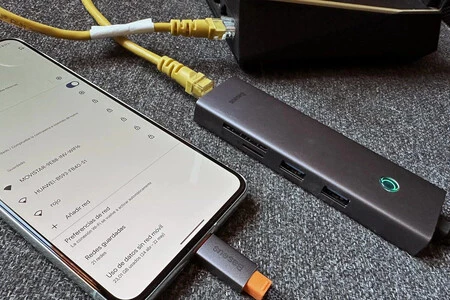
This approach requires a specific piece of hardware: a USB-C to Ethernet adapter or a USB-C hub with an integrated Ethernet port. First, connect the USB-C end of the adapter to your Android phone. Then, use a standard Ethernet cable to connect the adapter’s Ethernet port to the WAN (Wide Area Network) port on your home router. Once the physical connection is established, navigate to your Android phone’s settings, similar to USB tethering. Look for "Network & Internet" or "Connections," then "Hotspot & tethering," and activate the "Ethernet tethering" or "Share connection via Ethernet" option. This instructs the phone to send its mobile data through the USB-C to Ethernet adapter. Your router, recognizing the incoming Ethernet signal on its WAN port, will then use this as its internet source, distributing it to all connected devices via its internal network.
Technical Nuances and Advantages:
This method offers several significant advantages. Firstly, it leverages the universal standard of Ethernet, making it compatible with virtually any router that has a functional WAN port. Unlike USB tethering, which relies on specific router firmware support for USB WAN, an Ethernet connection is a standard input that almost all routers are designed to handle. Secondly, an Ethernet connection provides superior stability, significantly higher speeds (often Gigabit Ethernet, depending on the adapter and phone’s USB capabilities), and lower latency compared to both Wi-Fi hotspots and sometimes even direct USB tethering. This is crucial for bandwidth-intensive activities like online gaming, video conferencing, and streaming high-definition content, making it the preferred method for demanding users.
Considerations:
The primary consideration for this method is the need for additional hardware (the USB-C to Ethernet adapter/hub). Quality adapters can range from $20 to $50, representing a modest investment for enhanced reliability. A more critical factor is power management. While using the USB-C port for Ethernet tethering, the phone cannot simultaneously be charged through that same port. This can lead to rapid battery drain during extended outages. To mitigate this, it is highly recommended to use a USB-C hub that supports Power Delivery (PD). A PD-compatible hub allows you to connect the Ethernet cable and a power adapter (charger) to the phone simultaneously through the hub, ensuring continuous charging while providing the internet connection. This ensures your phone remains powered for the duration of the internet outage, transforming it into a truly reliable and long-lasting backup modem for your home network.
Comparative Analysis: Choosing the Right Backup Strategy
Selecting the optimal method depends on individual circumstances, available equipment, and technical comfort level. Here’s a comparative overview:
| Feature/Method | Direct USB Tethering | Wireless WAN (WWAN) | Ethernet Tethering (USB-C Adapter) |
|---|---|---|---|
| Ease of Setup | Moderate | Moderate to Difficult | Moderate |
| Hardware Required | USB cable | Compatible router (or OpenWrt) | USB-C to Ethernet adapter, Ethernet cable, (PD hub) |
| Router Compatibility | Specific USB WAN support | Specific WWAN/WISP support (less common) | Universal (any router with WAN port) |
| Speed/Performance | Good (limited by USB/cellular) | Fair to Good (potential Wi-Fi overhead) | Excellent (Gigabit Ethernet capable) |
| Stability | Very Good (wired) | Good (wireless, subject to interference) | Excellent (wired) |
| Latency | Low | Moderate | Very Low |
| Phone Charging | Often simultaneous | Independent | Requires PD hub for simultaneous charging |
| Cost | Low (if USB cable owned) | Variable (if new router needed) | Moderate (adapter cost) |
| Complexity | Low | High (especially with OpenWrt) | Low to Moderate (managing PD hub) |
Recommendations:
- For simplicity and occasional use: Start with Direct USB Tethering if your router supports it. It’s often the easiest and cheapest if you have the right router.
- For wireless flexibility and advanced users: Consider WWAN if you already have a compatible router or are comfortable with flashing OpenWrt. It offers a clean, cable-free solution for the phone side.
- For maximum performance and reliability: Ethernet Tethering via USB-C Adapter is the gold standard. It guarantees the best speed, stability, and broad router compatibility, making it ideal for critical applications or prolonged outages, provided you invest in the necessary adapter and PD hub.
Optimizing Your Backup Internet: Practical Tips and Best Practices
Having a backup internet strategy is only half the battle; optimizing its use is crucial for a smooth experience during an outage.
- Monitor Data Usage: Mobile data plans often come with caps. Be mindful of your usage during an outage, prioritizing essential tasks over heavy streaming or large downloads. Many Android phones allow you to set data limits and warnings.
- Ensure Strong Cellular Signal: Your backup internet’s performance is directly tied to your phone’s cellular signal strength. Place your phone in an area with optimal reception. Consider using a cellular signal booster if outages are frequent in a weak signal area.
- Battery Management: If using methods without simultaneous charging (WWAN or Ethernet without PD hub), keep your phone charged, or have a power bank ready.
- Pre-Configure Router Settings: If your router has a failover feature (like secondary WAN for USB tethering), configure it in advance. For WWAN, save your phone’s hotspot credentials in the router settings.
- Keep Cables/Adapters Handy: Store the necessary USB cables, Ethernet cables, and USB-C to Ethernet adapters in an easily accessible location so you’re not scrambling during an emergency.
- Test Periodically: Periodically test your chosen backup method to ensure it works as expected. This proactive approach identifies any compatibility issues or forgotten settings before an actual outage occurs.
- Disable Auto-Updates: Temporarily disable automatic updates for apps and operating systems on all connected devices to conserve mobile data.
The Apple Ecosystem: Specific Considerations for iPhone Users
While Android offers robust flexibility for these advanced tethering methods, the Apple ecosystem presents certain limitations for iPhone users.
- USB Tethering: iPhones do support USB tethering (Personal Hotspot via USB), but Apple utilizes a proprietary protocol. This means that for a router to recognize an iPhone’s USB tethering as a WAN input, the router’s firmware must specifically include support for Apple’s protocol. This is less common than generic Android USB tethering support, making router compatibility a significant hurdle. Users would need to verify if their specific router model explicitly lists iPhone USB tethering compatibility.
- Wireless WAN (WWAN): The WWAN method (router connecting to the phone’s Wi-Fi hotspot) works identically for iPhones as it does for Android, provided the router itself supports WWAN/WISP mode. This is often the most viable option for iPhone users who wish to integrate their mobile data with their router wirelessly.
- Ethernet Tethering via USB-C Adapter: This is where iPhones face their most significant limitation in this context. While iPhones (especially newer models with USB-C) can connect to USB-C to Ethernet adapters for direct internet access to the phone itself, the iOS operating system does not currently offer a built-in "Ethernet tethering" or "Share connection via Ethernet" option that would allow the phone to broadcast its cellular internet over a wired Ethernet connection to a router’s WAN port. This makes the highly stable and high-performance wired router integration method unavailable to iPhone users through official means.
For iPhone users, the most practical router-integrated backup strategy typically relies on the WWAN method, if their router supports it. Otherwise, alternatives like a dedicated mobile hotspot device (MiFi) that provides a standard Wi-Fi or Ethernet output would be necessary to achieve router-level backup connectivity.
Broader Implications and Future Resilience
The increasing frequency of extreme weather events, driven by climate change, underscores a critical need for enhanced resilience in telecommunications infrastructure and greater preparedness at the consumer level. The strategies detailed here for integrating smartphone data with home routers are not merely technical tricks but essential tools for maintaining digital continuity in an increasingly connected and vulnerable world.
Telecom companies are actively investing in hardening their networks, deploying more resilient fiber, implementing advanced cooling solutions for equipment, and increasing backup power capabilities at critical network nodes. Regulatory bodies are also pushing for greater network redundancy and transparency regarding outage reporting. However, these large-scale efforts take time and significant capital. In the interim, individual users must take proactive steps to safeguard their own connectivity.
The ability to seamlessly transition to mobile data via a home router has significant implications for remote workforces, students engaged in online learning, and access to critical information during emergencies. It democratizes network resilience, empowering individuals to maintain essential digital services even when primary infrastructure falters. As smart homes become more prevalent and IoT devices proliferate, the need for an always-on network becomes paramount. Future trends may see more routers incorporating native support for mobile broadband dongles or advanced failover mechanisms, making these backup solutions even more accessible and plug-and-play. This shift reflects a broader societal acknowledgment that internet access is no longer a luxury but a fundamental utility, requiring robust and adaptable solutions for every contingency.
In conclusion, as climate patterns continue to challenge the reliability of traditional internet infrastructure, the proactive integration of Android smartphones with home routers offers a powerful and flexible solution for maintaining uninterrupted connectivity. By understanding and implementing these advanced tethering methods, users can transform their mobile device into a critical component of their home’s digital resilience strategy, ensuring that work, education, communication, and entertainment remain accessible even in the face of widespread service disruptions. This empowerment through technology not only mitigates the immediate impact of outages but also contributes to a more robust and adaptable digital future.
