
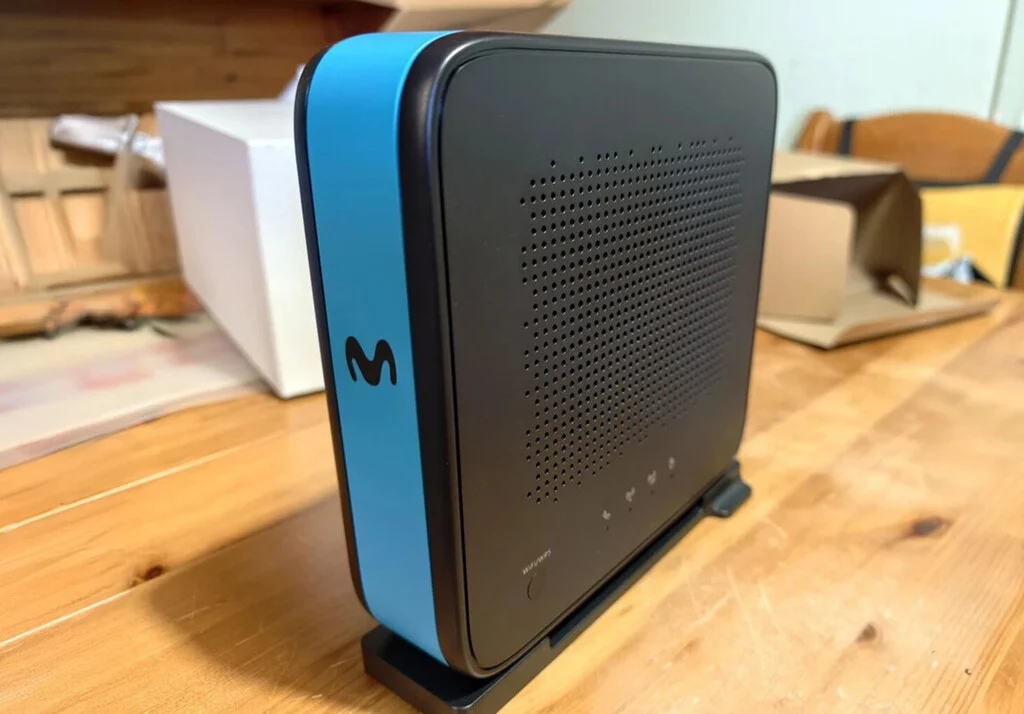

Movistar has introduced a significant enhancement to its service offerings for 2026 with the launch of its new Smart WiFi 7 router. This advanced device is now available for purchase at 60 euros, though various options exist for customers to acquire it without direct cost, and notably, it is designed for self-installation, streamlining the upgrade process for users. Beyond its immediate plug-and-play capabilities, the router offers sophisticated configuration options for those seeking to maximize their network performance, including a feature Movistar terms "Monopuesto," which is essentially a Bridge Mode. This article delves into the functionality of the Smart WiFi 7 router, the implications of its Bridge Mode, and provides a comprehensive guide to its configuration, emphasizing its role in empowering users to tailor their home network environment.
Understanding the Smart WiFi 7: A New Era of Connectivity
The Smart WiFi 7 router represents Movistar’s commitment to delivering cutting-edge internet technology to its subscribers. Its core innovation lies in supporting the Wi-Fi 7 standard, officially known as IEEE 802.11be, or Extremely High Throughput (EHT). This standard is poised to revolutionize wireless connectivity, building upon its predecessors, Wi-Fi 6 (802.11ax) and Wi-Fi 6E. While Wi-Fi 6 focused on improving efficiency and performance in congested environments, Wi-Fi 7 pushes the boundaries further by introducing capabilities designed for the most demanding applications, such as 8K video streaming, virtual reality (VR), augmented reality (AR), and real-time gaming.
Key advancements of Wi-Fi 7 include the utilization of 320 MHz channels, which doubles the bandwidth available in Wi-Fi 6E, leading to significantly higher data rates. It also incorporates 4096-QAM (Quadrature Amplitude Modulation), allowing for even more data to be packed into each signal, resulting in theoretical speeds that can exceed 30 Gbps. Multi-Link Operation (MLO) is another pivotal feature, enabling devices to send and receive data simultaneously across different frequency bands (2.4 GHz, 5 GHz, and 6 GHz), thus improving throughput and reducing latency. Furthermore, enhanced resource unit (RU) allocation, known as Preamble Puncturing, allows for more efficient use of spectrum, mitigating interference and maximizing available bandwidth. The introduction of the Smart WiFi 7 positions Movistar at the forefront of providing next-generation wireless infrastructure, anticipating the increasing demands of connected homes.
Movistar’s Strategic Rollout and Accessibility
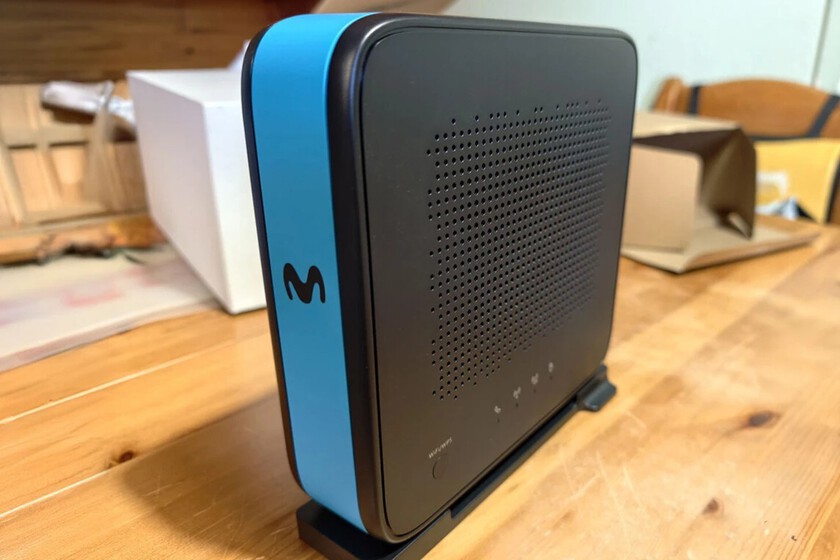
Movistar’s decision to launch the Smart WiFi 7 router as early as 2026 (or, given its current availability, perhaps anticipating its widespread impact by that year) highlights a strategic vision to equip its customer base with future-proof technology. The router’s availability for 60 euros, coupled with options for free acquisition, demonstrates a flexible approach to adoption. Customers can often secure the device free of charge when signing up for specific high-tier fiber optic plans or through loyalty programs, making the upgrade accessible to a broad segment of its user base. The self-installable nature of the router is a crucial design choice, empowering users to manage their upgrades independently, reducing the need for technician visits and improving customer convenience. This approach aligns with a broader industry trend towards user-friendly equipment and self-service solutions.
The Significance of Bridge Mode (Monopuesto)
While the Smart WiFi 7 router offers robust performance out of the box, advanced users often seek greater control over their home network. This is where the Bridge Mode, which Movistar refers to as Monopuesto, becomes invaluable. Essentially, when a router is set to Bridge Mode, it disables its routing capabilities—such as Network Address Translation (NAT), DHCP server functions, and firewall—and acts purely as a modem. It passes the public IP address directly to another device, typically a more powerful, third-party "neutral" router connected to it.
Why Opt for a Neutral Router? Enhancing Your Home Network Experience
The desire to use a neutral router instead of the one provided by an Internet Service Provider (ISP) stems from several key advantages:
- Advanced Features and Customization: Neutral routers, especially high-end models, often come equipped with more sophisticated features not found in ISP-provided devices. These can include advanced Quality of Service (QoS) settings for prioritizing specific types of traffic (e.g., gaming, streaming), more robust parental controls, integrated VPN clients/servers, and comprehensive network monitoring tools.
- Enhanced Performance and Coverage: Many third-party routers offer superior Wi-Fi coverage through more powerful antennas, beamforming technology, and support for mesh Wi-Fi systems that extend seamless connectivity throughout larger homes. Users can also choose models optimized for specific use cases, such as gaming routers with low-latency optimizations or professional-grade routers for small businesses.
- Greater Control and Flexibility: A neutral router provides complete administrative control over the network. Users can customize firewall rules, manage port forwarding with greater precision, set up multiple SSIDs, and implement advanced security protocols. This level of control is often restricted on ISP-managed routers.
- Firmware Updates and Security: While ISPs manage firmware updates for their routers, third-party router manufacturers often release more frequent updates that patch vulnerabilities and introduce new features. Users also have the option to install custom firmware (e.g., DD-WRT, OpenWRT) on compatible neutral routers, unlocking even more advanced functionalities and customization options.
- Hardware Longevity and Investment: Investing in a high-quality neutral router can be a long-term decision. Unlike ISP routers that might be tied to a specific service or become outdated with a provider change, a neutral router remains a personal asset, potentially offering better performance and features for years, irrespective of the ISP.
By activating Bridge Mode, the Movistar Smart WiFi 7 router effectively transitions into a gateway, forwarding the internet connection to the preferred neutral router, which then handles all network management tasks, thereby unlocking these advanced capabilities for the user.

Step-by-Step Configuration: Activating Monopuesto on Movistar’s Smart WiFi 7
Configuring the Movistar Smart WiFi 7 router into Monopuesto (Bridge) Mode is a straightforward process, designed to be user-friendly. Here’s a detailed guide:
-
Accessing the Router’s Configuration Panel:
The initial step involves accessing the router’s web-based configuration interface. Open a web browser (such as Chrome, Firefox, Edge, or Safari) on a device connected to the Movistar router (either via Wi-Fi or an Ethernet cable). In the address bar, type the default local IP address for most domestic routers:http://192.168.1.1/and press Enter. This address is the gateway to your router’s internal settings. -
Authentication:
Upon attempting to access the configuration panel, you will be prompted to enter a username and password. If you have not previously changed these credentials, they can typically be found on a sticker located on the underside or back of your Movistar Smart WiFi 7 router. Look for a section labeled "Datos de acceso al router" (Router access data) or similar, which will provide the default username and password. It is highly recommended to change these default credentials after the initial login for enhanced security. -
Navigating to the Monopuesto Option:
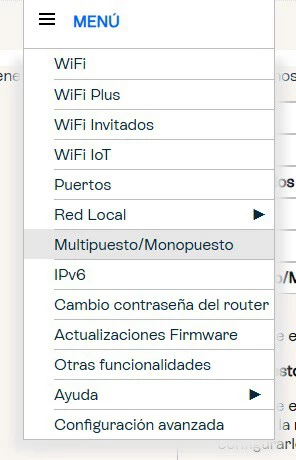
Once successfully logged into the router’s interface, you will see the main dashboard. To locate the Bridge Mode setting, look for a menu icon, often represented by three horizontal lines (sometimes referred to as a "hamburger menu"), typically situated in the upper left-hand corner of the screen. Click on this icon to reveal the navigation menu. Within this menu, browse through the available options until you find "Multipuesto/Monopuesto." Select this option to proceed. -
Selecting Monopuesto (Sin NAT):
After clicking "Multipuesto/Monopuesto," you will be presented with different operating modes. To activate Bridge Mode, select the option labeled "Monopuesto (Sin NAT)." This choice is critical as it explicitly disables the Network Address Translation (NAT) function of the Movistar router.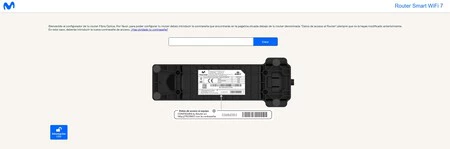
Understanding "Sin NAT": The Technical Implication
Movistar provides a clear explanation of what "Sin NAT" (Without NAT) entails: "Mediante el uso de este modo podrás tener tu ordenador o equipo cliente conectado directamente a internet. Este modo permite que tu equipo adquiera directamente la IP pública evitando utilizar NAT (‘Network Address Translation’) para navegar por internet. Este método solo permite tener un equipo conectado al Router, consiguiendo una navegación totalmente transparente. Esto es útil si solo dispones de un equipo en tu red y quieres utilizar programas avanzados que requieran configuración de puertos. Debes configurar una conexión de red en su PC del tipo Banda Ancha (PPPoE), el nombre de usuario y contraseña para la conexión PPPoE provista por Movistar."
In essence, NAT is a process that translates private IP addresses used within a local network into a single public IP address when communicating with the internet. This allows multiple devices on a private network to share a single public IP address, conserving IPv4 addresses and providing a basic layer of security. However, for users who wish to run servers, use specific applications that require direct public IP access, or, most commonly, connect a secondary router to manage their network, NAT can be a limitation.
By selecting "Monopuesto (Sin NAT)," the Movistar router ceases to perform NAT. It passes the public IP address directly to the device connected to its designated port (usually the WAN/Internet port of your neutral router). This means your neutral router, or even a single computer if directly connected, will obtain the public IP address, making the connection "totally transparent." This is particularly beneficial for applications requiring direct public IP exposure or for complex network setups where the neutral router will handle all NAT and routing functions. Users must then configure their neutral router (or PC) to establish a PPPoE (Point-to-Point Protocol over Ethernet) connection using the username and password provided by Movistar, as the ISP’s authentication will now be handled by the secondary device.
Completing the Setup with Your Neutral Router
Once "Monopuesto (Sin NAT)" is activated on the Movistar Smart WiFi 7 router, the primary router effectively becomes a simple gateway. The next step is to connect and configure your chosen neutral router. This typically involves:
- Connecting the Neutral Router: Connect an Ethernet cable from one of the LAN ports (often specifically designated for Bridge Mode or a specific port mentioned in Movistar’s instructions) of the Movistar router to the WAN/Internet port of your neutral router.
- Powering On and Accessing Neutral Router Settings: Power on your neutral router and connect a device (computer, smartphone) to it, either via Ethernet or its default Wi-Fi network. Access its configuration panel, usually by typing its default IP address (e.g., 192.168.0.1, 192.168.1.1, or 192.168.X.X, consult its manual) into a web browser.
- Configuring PPPoE: Within your neutral router’s settings, navigate to the WAN or Internet connection type. Select PPPoE and enter the username and password provided by Movistar for your internet connection. This information is crucial for your neutral router to establish the internet connection.
- Setting Up Your Network: Once the PPPoE connection is established, proceed to configure your neutral router’s Wi-Fi network (SSID, password), DHCP settings, and any other advanced features you wish to utilize.
This seamless transition allows users to leverage the superior capabilities of their chosen neutral router while still utilizing Movistar’s fiber optic infrastructure.
Broader Impact and Implications
Movistar’s embrace of Wi-Fi 7 technology and its user-friendly approach to advanced configurations like Bridge Mode carry significant implications for the telecommunications landscape in Spain and beyond.
- Empowering the Prosumer: By making advanced features accessible, Movistar caters to a growing segment of "prosumers" – users who demand more control, performance, and customization from their home networks than standard ISP equipment typically offers. This move could enhance customer satisfaction and loyalty among tech-savvy individuals.
- Driving Wi-Fi 7 Adoption: As one of the major ISPs to roll out Wi-Fi 7 compatible hardware, Movistar plays a crucial role in accelerating the adoption of this new standard. This, in turn, will encourage device manufacturers to integrate Wi-Fi 7 into a wider range of client devices, creating a more robust ecosystem.
- Competitive Edge: Offering cutting-edge technology and flexibility can provide Movistar with a competitive advantage in a crowded market. As internet speeds and the number of connected devices continue to grow, the quality and features of the provided router become increasingly important to consumers.
- Challenges and Support: While empowering users, providing access to advanced configurations also presents challenges for customer support. Movistar will need to ensure that its support channels are equipped to assist users who delve into these settings, particularly those who might encounter issues with their neutral routers. However, the self-installable and clearly documented approach aims to mitigate some of these complexities.
- Industry Trend Towards Openness: This initiative reflects a broader industry trend where ISPs are gradually becoming more open to allowing customers to integrate third-party hardware, moving away from entirely closed ecosystems. This benefits consumers by fostering innovation and choice.
Conclusion
The launch of Movistar’s Smart WiFi 7 router, coupled with the accessible configuration of its Monopuesto (Bridge) Mode, marks a significant step forward in consumer home networking. It brings the benefits of next-generation Wi-Fi 7 speeds and efficiency directly to users, while simultaneously empowering those who seek deeper control over their digital environment through the integration of neutral routers. This strategic offering underscores Movistar’s commitment to innovation and customer empowerment, positioning it as a leader in adapting to the evolving demands of the hyper-connected era. For the millions of Movistar subscribers, this means not just faster internet, but a more intelligent, customizable, and future-proof home network experience.
