
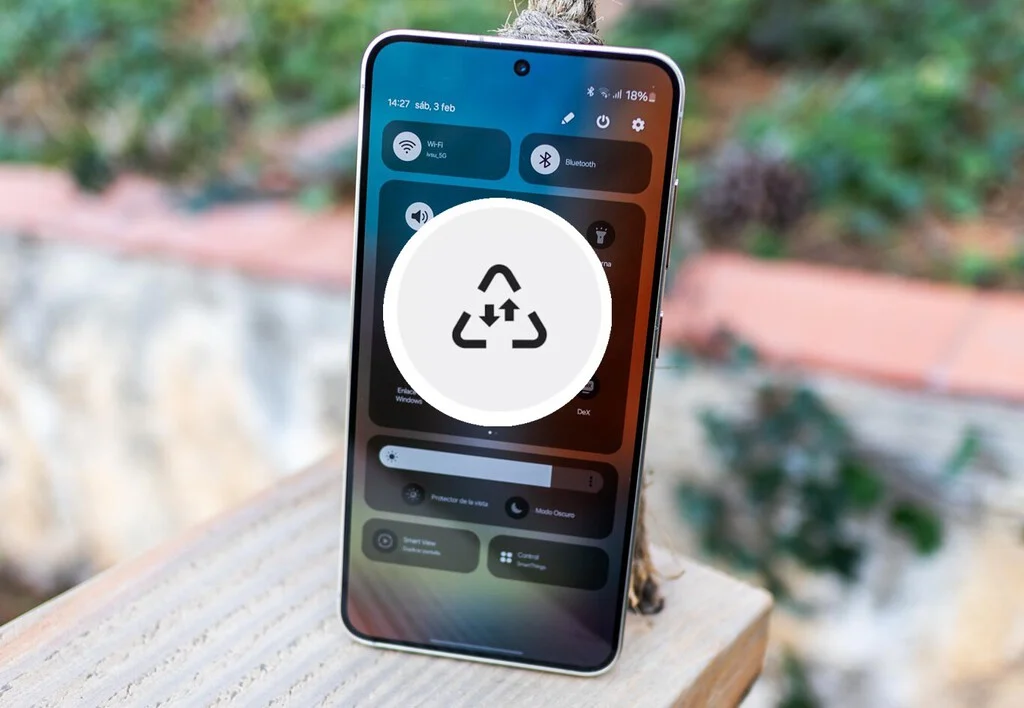

Mobile phone interfaces are replete with a myriad of icons, some universally recognized like the battery level indicator, Wi-Fi signal strength, or Bluetooth activation symbol, while others remain a source of confusion for many users. These familiar glyphs appear frequently, often remaining constant across different Android devices and even iPhones, ensuring a degree of intuitive understanding. However, a distinct category of icons emerges less frequently or is specific to particular manufacturers, leading to user bewilderment. A prime example of such an icon, often prompting alarm among its users, is the triangle featuring one downward and one upward arrow, exclusively found on Samsung smartphones running its proprietary One UI. This symbol, far from indicating a system error or an urgent problem, is a visual cue signifying the activation of the device’s Data Saver mode.
The Icon Revealed: Samsung’s Data Saver
The appearance of the triangle icon with two opposing arrows—one pointing down, the other up—in the notification bar of a Samsung device frequently triggers user concern. Its geometric shape, reminiscent of warning signs or traffic alerts, often leads owners to believe their device is experiencing a malfunction or requires immediate attention. However, this interpretation is erroneous. The icon is, in fact, an innocuous indicator that the Data Saver mode has been enabled on the smartphone. This feature, designed to help users manage and conserve their mobile data allowance, is a standard component of modern Android operating systems, though its visual representation varies significantly across different manufacturers and their custom user interfaces. For instance, Google Pixel devices display a circular icon with a cross at its center to denote the same functionality, highlighting the lack of a universal visual standard for this particular feature within the broader Android ecosystem.
The Data Saver mode’s primary objective is to restrict the background data usage of applications, thereby reducing overall mobile data consumption. Its activation can occur either manually by the user or automatically if specific data limits have been configured on the device and are nearing their threshold. This automatic activation serves as a proactive measure to prevent users from exceeding their monthly data cap, which could otherwise result in additional charges or a reduction in data speed. Understanding this icon is crucial for Samsung users to effectively manage their mobile data and avoid unnecessary anxiety over what appears to be an unusual system notification.
A Growing Need: The Context of Mobile Data Consumption
The necessity for features like Data Saver mode has become increasingly pronounced in an era characterized by escalating mobile data consumption. Global mobile data traffic has witnessed exponential growth over the past decade, driven by the proliferation of smartphones, the widespread adoption of data-intensive applications such as video streaming, social media, online gaming, and cloud services, and the continuous expansion of 4G and 5G networks. According to recent industry reports, the average smartphone user now consumes several gigabytes of data per month, a figure projected to rise steadily in the coming years. This surge in data usage places considerable strain on individual data plans, often leading to concerns about exceeding limits and incurring additional costs.
Furthermore, the economic implications of mobile data consumption vary significantly across different regions. While some countries offer relatively affordable data packages, others present a higher cost per gigabyte, making efficient data management a critical financial consideration for users. In this global context, data-saving functionalities are not merely convenience features but essential tools for digital inclusion and economic accessibility, allowing users to maximize their connectivity within budget constraints. The background activity of numerous applications—including instant messaging platforms, email clients, news aggregators, and cloud synchronization services—can surreptitiously consume substantial amounts of data, often without the user’s direct awareness. Data Saver mode directly addresses this challenge by providing a mechanism to curtail such unmonitored consumption, putting more control back into the hands of the user.
One UI and Data Management: Samsung’s Approach
Samsung’s One UI, its custom Android overlay, is renowned for its extensive customization options and user-centric design philosophy. Developed to enhance the user experience on Samsung Galaxy devices, One UI integrates various features aimed at optimizing performance, improving accessibility, and streamlining daily interactions. Within this framework, data management tools, including the Data Saver mode, are given prominence. Samsung’s decision to employ a distinct icon for its Data Saver, while differing from stock Android or other OEM implementations, aligns with its broader strategy of providing a unique visual identity and a comprehensive suite of functionalities tailored for its vast user base.

The evolution of One UI has seen continuous refinements to its data management capabilities. Early Android versions offered basic controls over background data, but subsequent iterations, coupled with OEM innovations, have introduced more granular controls, such as per-app data restrictions and automatic activation triggers based on data limits. Samsung’s One UI builds upon these foundational Android features, embedding them seamlessly into its settings menu and providing clear visual indicators like the triangle icon. This approach underscores Samsung’s commitment to empowering its users with sophisticated tools to navigate the complexities of mobile data consumption, ensuring that the device operates efficiently while respecting the user’s data plan.
How Data Saver Works: Mechanisms and Benefits
At its core, Data Saver mode operates by strategically limiting the internet access of applications when they are not actively in use or are running in the background. When activated, the system employs several mechanisms to achieve data conservation:
- Restricting Background Data: The most significant impact of Data Saver is its ability to prevent applications from sending or receiving data when they are not in the foreground. This means that apps like social media feeds, news aggregators, or cloud backup services will not automatically refresh or sync content unless explicitly opened by the user.
- Reducing Sync Frequency: For certain applications, instead of outright blocking background data, the Data Saver mode may reduce the frequency with which they check for new information. This allows for some level of background functionality but with a minimized data footprint.
- Potential for Data Compression: While not universally applied, some implementations of data saving features across the Android ecosystem may also involve data compression techniques, such as optimizing images or videos before they are loaded, further reducing bandwidth usage.
The benefits of activating Data Saver mode are multifaceted:
- Cost Savings: By curbing excessive background data usage, users can significantly reduce their overall mobile data consumption, helping them stay within their monthly data allowance and avoid costly overage charges.
- Extended Data Plans: For users with limited data plans, Data Saver can effectively stretch their allowance further, ensuring connectivity throughout the billing cycle.
- Improved Battery Life: Less background data activity translates to reduced processing and network radio usage, which in turn can lead to noticeable improvements in the device’s battery life.
- Faster Foreground Performance: With fewer applications competing for network resources in the background, the app currently in use can often experience faster loading times and more responsive performance.
Navigating the Trade-offs: What Users Should Know
While Data Saver mode offers considerable advantages, users must be aware of its operational implications, particularly regarding real-time communication and notifications. When Data Saver is active, applications that rely on continuous background data for real-time updates may experience delays. For example:
- Messaging Apps (e.g., WhatsApp): Users may not receive new messages or notifications until they open the application, as the app’s background data access is restricted. This can lead to delays in communication and potentially missed urgent messages.
- Email Clients: Similarly, new emails might not be fetched or notifications displayed until the email application is brought to the foreground, impacting timely access to correspondence.
- News and Social Media Feeds: These apps will not automatically refresh content in the background, meaning users will see older information until they manually open and refresh the application.
- Cloud Synchronization Services: Files and data may not sync in real-time with cloud storage platforms, potentially affecting productivity for users who rely on immediate backups or cross-device file access.
It is crucial for users to understand these trade-offs to make informed decisions about when and how to utilize Data Saver. For individuals who prioritize uninterrupted real-time updates for specific applications, the ability to whitelist certain apps is an invaluable feature.
Empowering the User: Activating, Deactivating, and Customizing
Samsung’s One UI provides users with straightforward methods to manage the Data Saver feature, offering both global activation/deactivation and granular control over individual applications.

To access and control Data Saver mode:
- Navigate to the Settings menu on your Samsung device.
- Select Connections.
- Tap on Mobile networks.
- Choose Data usage.
- Locate Data Saver (or "Ahorro de datos" in Spanish).
- Here, you will find a toggle switch to Activate or Deactivate the feature. Toggling it off will immediately remove the distinctive triangle icon from the notification bar.
A key aspect of Data Saver’s utility is the option to exempt specific applications from its restrictions. This allows users to enjoy the benefits of data saving for most apps while ensuring that critical applications continue to function without interruption. This setting is typically found under an option like "Permitir uso de datos en Ahorro de datos" (Allow app to use data while Data Saver is on) or "Unrestricted data usage" within the Data Saver menu. By adding an app to this whitelist, users can ensure that, for instance, their primary messaging app continues to receive real-time notifications even when Data Saver is active for all other applications. This level of customization ensures that the feature can be adapted to individual usage patterns and priorities, striking a balance between data conservation and essential connectivity.
Furthermore, it’s worth noting that if the triangle icon appears automatically without manual activation, it often indicates that a mobile data limit has been set on the device, and the current data consumption is nearing that predetermined threshold. This automatic trigger serves as a helpful alert, prompting users to review their data usage and adjust settings as needed. The Data usage section also typically displays detailed statistics on data consumption by individual apps, allowing for further analysis and targeted optimization.
The Broader Implications: Digital Literacy and UX
The presence and occasional confusion surrounding icons like Samsung’s Data Saver symbol highlight broader implications for digital literacy and user experience (UX) in the smartphone era. As mobile devices become increasingly sophisticated, incorporating a multitude of features and functionalities, the challenge of effectively communicating device status to users grows.
- Digital Literacy: The incident with the triangle icon underscores the importance of digital literacy. Users are increasingly expected to understand the various symbols, settings, and functions of their devices to optimize their experience and avoid potential issues. Educational efforts, both from manufacturers and tech journalists, play a vital role in demystifying these aspects of smartphone usage.
- User Experience (UX): For designers and manufacturers, the case of the Data Saver icon presents a UX dilemma. While a unique icon can foster brand identity, a lack of immediate clarity can lead to user frustration or anxiety. The balance lies in creating intuitive, easily understandable visual cues that require minimal explanation, or providing clear, accessible information within the device’s interface itself. Future design trends may lean towards more universally recognized symbols or more verbose notifications that explicitly state the function being performed.
- Developer Impact: Application developers must also consider data-saving modes when designing their apps. Optimizing apps for reduced background data consumption, implementing efficient data fetching mechanisms, and providing users with clear indications of data usage within their apps can enhance the overall user experience and ensure compatibility with data-saving features across different devices.
Conclusion: A Small Icon, Significant Impact
In conclusion, the seemingly innocuous triangle icon with two arrows on Samsung devices is more than just a cryptic symbol; it is a critical indicator of the Data Saver mode, a powerful tool designed to help users manage their mobile data consumption. Far from signaling a problem, it represents an active effort by the device to optimize data usage, save costs, and potentially extend battery life. While its unique design may initially perplex some users, understanding its meaning and the robust customization options available within Samsung’s One UI empowers them to navigate the complexities of modern mobile connectivity. This small icon serves as a microcosm of the broader digital landscape, highlighting the continuous evolution of smartphone features, the growing importance of digital literacy, and the ongoing quest for intuitive user experiences in an increasingly data-intensive world. As mobile technology advances, clear communication between devices and their users remains paramount for seamless and worry-free digital interaction.
