


Virtual machine (VM) software for Windows acts as a powerful enabler of modern computing, allowing users to create and run isolated, virtualized environments on a single physical computer. These virtual machines meticulously emulate complete computer systems, from their central processing units (CPUs) and memory to their network interfaces and storage. This technology offers a versatile solution for a myriad of use cases, from software development and testing to running legacy applications and enhancing server consolidation. The ability to create "snapshots" of a VM’s current state, enabling users to revert to a previous point in time, is a particularly invaluable feature for iterative development and risk-free experimentation.
In today’s dynamic technological landscape, the demand for robust and efficient VM solutions for Windows operating systems continues to grow. Businesses and individuals alike are seeking ways to optimize resource utilization, enhance flexibility, and bolster security. This article delves into the leading virtual machine software options available for Windows, examining their core functionalities, performance characteristics, compatibility, security features, and pricing models. By providing a comprehensive comparison and analysis, we aim to equip readers with the knowledge necessary to make an informed decision that aligns with their specific needs, whether for personal projects or large-scale enterprise deployments.
Top Virtual Machine Software for Windows: A Comparative Overview
Selecting the right VM software is paramount, as it directly impacts operational efficiency, resource management, and overall system performance. The following table provides a high-level comparison of six standout VM software solutions for Windows, highlighting their key strengths across critical evaluation criteria.
| Feature | Azure VM | Azure Stack HCI | VMware Workstation Pro | Citrix Hypervisor | Red Hat OpenShift Virtualization | Parallels Desktop |
|---|---|---|---|---|---|---|
| Performance & Resource Mgmt | Efficient scaling, good resource allocation | Optimized for hybrid, balanced resource utilization | High performance, advanced resource management | Ideal for large-scale enterprise environments | Designed for cloud-native environments | Optimized for Windows on Mac |
| Compatibility & System Req’s | Cloud-based, wide OS support, requires internet | Integrated with Windows, specific hardware needed | Broad OS support | Compatible with wide range of hardware | Dependable on Windows, primarily Linux-focused | Tailored for macOS running Windows VMs |
| Security & Isolation | Strong cloud-based security and isolation | Strong hybrid cloud security features | Advanced security measures, robust isolation | High-level security for enterprise | Container-based isolation and security | Good security for desktop-level virtualization |
| Networking Capabilities | Extensive cloud-based features, complex configs | Optimized for hybrid cloud, integrates with Azure | Comprehensive networking features | Strong enterprise-level network configurations | Supports advanced Kubernetes networking | Solid networking for desktop virtualization |
| Starting Pricing | $7.59/mo. (various plans) | $10/mo. per physical core | $199 (one-time for local features) | Contact Citrix for pricing | Depends on server editions, contact Red Hat | $99.99/yr (Standard Edition) |
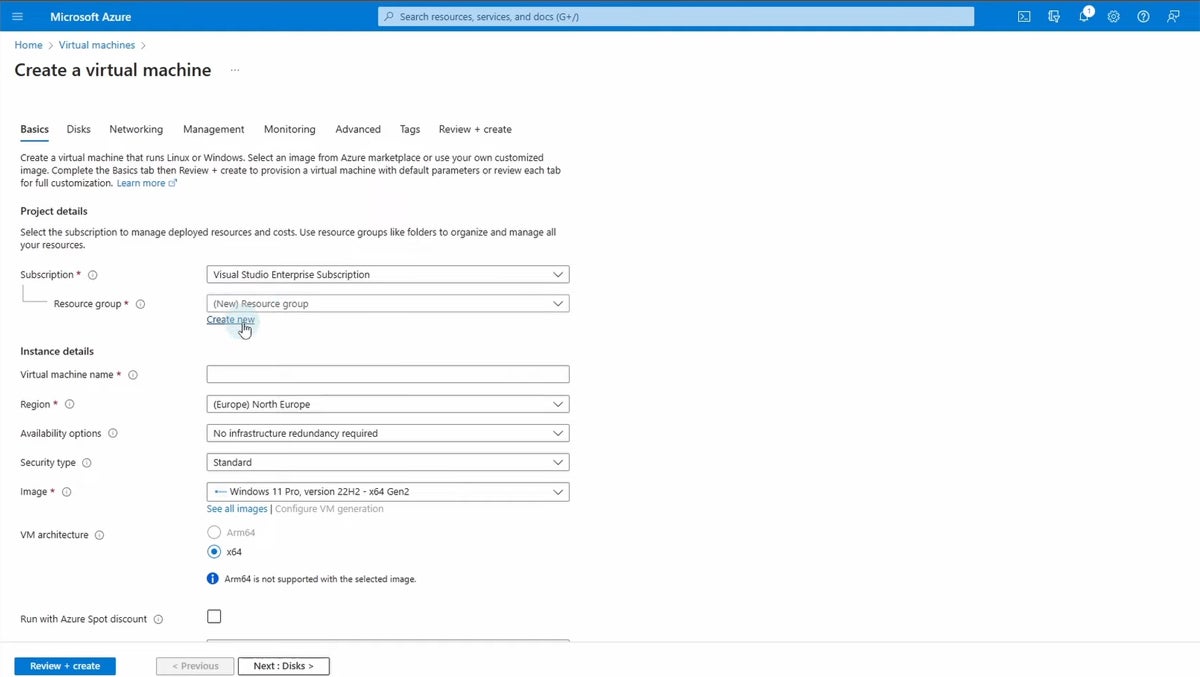
Azure VM: Scalable Cloud-Based Computing Power
Microsoft’s Azure Virtual Machines (VMs) represent a core component of its expansive Azure cloud computing service. This platform empowers users to provision and deploy a diverse array of virtual machines within Azure’s global infrastructure, catering to a wide spectrum of applications, from web servers and databases to gaming servers and complex analytics workloads. Azure VMs offer unparalleled flexibility, allowing for the selection of numerous operating systems, including Windows and various Linux distributions, and precise configuration to meet specific performance benchmarks. This makes Azure VMs an exceptionally versatile solution for organizations looking to extend their IT infrastructure into the cloud, whether for development and testing, hosting critical applications, or undertaking demanding data processing tasks. The inherent scalability of cloud computing means that resources can be rapidly adjusted to meet fluctuating demands, a critical advantage in today’s fast-paced business environment.

Overall Rating: 4.5/5
Pricing
Azure VM pricing is consumption-based, meaning users are charged for the compute, storage, and networking resources they utilize. This model offers flexibility, but costs can escalate depending on the chosen VM size, duration of use, and associated services. Pricing tiers range from pay-as-you-go to reserved instances, which offer cost savings for long-term commitments.
| Pros | Cons |
|---|---|
| Offers a high degree of scalability and the flexibility to choose from a wide range of VM sizes. | Can be expensive, especially for high-performance setups or continuous high usage, requiring careful cost management. |
| Seamless integration with other Azure services like Azure Active Directory and Azure SQL Database. | The vast array of options and complex product structure can be overwhelming for beginners or smaller organizations without dedicated IT. |
| Benefits from Microsoft Azure’s extensive global infrastructure, offering high availability. | Reliance on stable internet connectivity is crucial for optimal performance and management. |
Features
Azure VM boasts a comprehensive suite of features designed for enterprise-grade cloud computing. This includes a vast selection of VM sizes and types optimized for various workloads, from general-purpose computing to memory-intensive or compute-intensive tasks. Advanced networking capabilities allow for complex virtual network configurations, including virtual private networks (VPNs) and load balancing. Security is a paramount concern, with Azure offering robust identity and access management, encryption for data at rest and in transit, and advanced threat protection. The platform also provides tools for monitoring, diagnostics, and automated scaling, ensuring high availability and performance.
Azure Stack HCI: Bridging the Gap Between Cloud and On-Premises
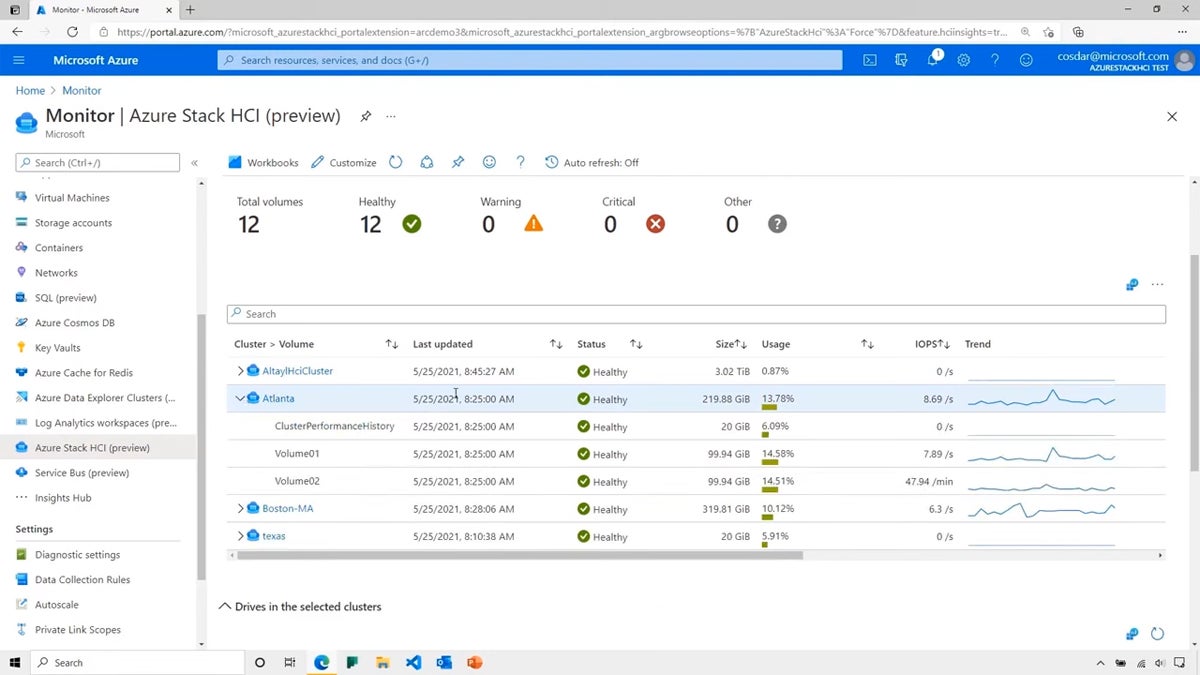
Azure Stack HCI represents Microsoft’s strategic approach to hybrid cloud infrastructure, merging the power of virtualization, storage, and networking into a cohesive, on-premises system. Designed to modernize the management and execution of virtualized workloads, Azure Stack HCI extends many of Azure’s cloud capabilities directly into an organization’s data center. This makes it an ideal solution for businesses that need to maintain sensitive or critical workloads on-premises while still leveraging the benefits of cloud services. The platform is particularly well-suited for enterprises aiming for a hybrid strategy, balancing the agility and flexibility of the cloud with the stringent control and security requirements of on-premises infrastructure. It streamlines the management and scaling of resources and is optimized for both Windows and Linux virtual machines.
Overall Rating: 4.25/5
Pricing
Azure Stack HCI is licensed on a per-core basis, with a monthly subscription fee. This model aims to provide predictable costs for on-premises infrastructure, integrating with Azure services for management and cloud connectivity.
| Pros | Cons |
|---|---|
| Seamlessly integrates with Azure for cloud services while maintaining on-premises workloads. | The initial setup and configuration can be complex, requiring expertise in both Azure and on-premises infrastructures. |
| Offers excellent scalability and flexibility in configuring storage, compute, and networking. | While offering a flexible pricing model, the overall costs can be significant, especially for larger deployments. |
| Provides a unified management experience using Windows Admin Center and Azure Arc. | Small organizations without dedicated IT teams may find the Microsoft product ecosystem complex and potentially overwhelming. |
Features
Azure Stack HCI’s feature set is geared towards hybrid environments. It leverages Hyper-V for virtualization, Storage Spaces Direct for software-defined storage, and software-defined networking for flexible network configurations. Management is centralized through Windows Admin Center and enhanced by Azure Arc, which extends Azure management and governance capabilities to on-premises servers. This enables unified monitoring, policy enforcement, and access to Azure services like Azure Monitor and Azure Security Center. The platform is designed for high availability and resilience, ensuring continuous operation of critical workloads.

VMware Workstation Pro: A Powerhouse for Developers and IT Professionals
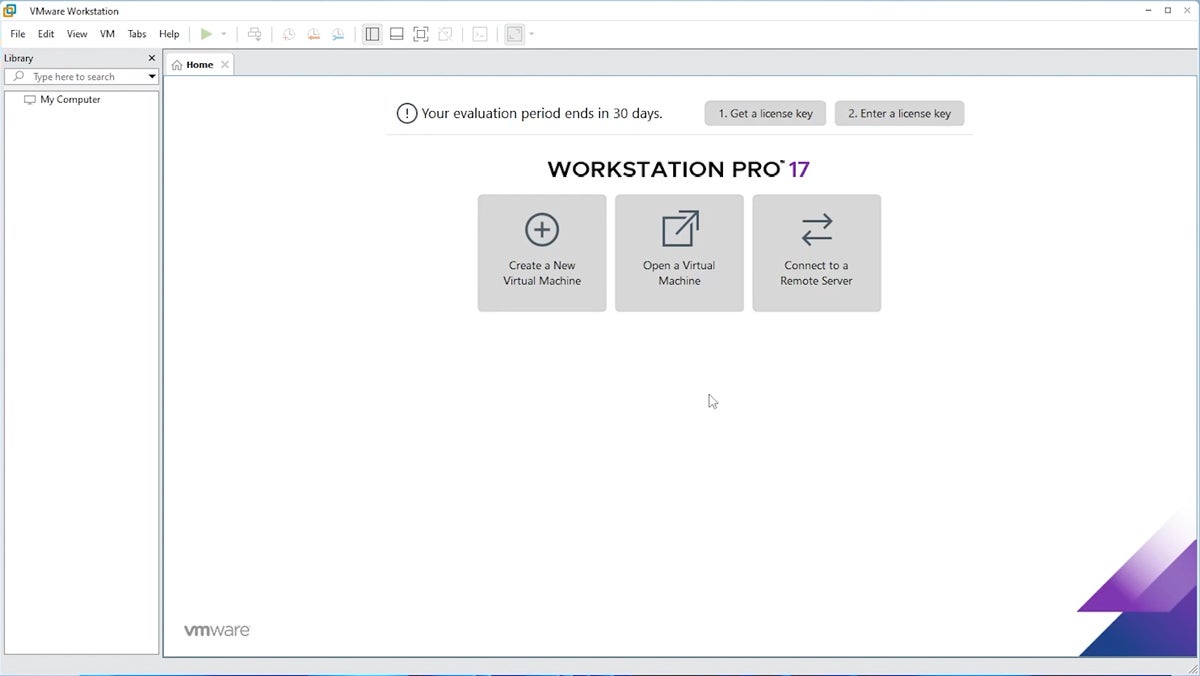
VMware Workstation Pro has long been a benchmark in the desktop virtualization space, empowering users to create and run multiple virtual machines on a single physical host. It supports a wide array of operating systems, including various versions of Windows, Linux distributions, and others, making it an indispensable tool for developers, IT professionals, and businesses engaged in software testing, application development, and system simulation. Renowned for its robust performance, exceptional reliability, and an extensive feature set, Workstation Pro excels in handling complex networking scenarios and development environments. This makes it an ideal choice for simulating intricate network topologies, testing new software releases, running older applications that are no longer supported on modern operating systems, or experimenting with different operating system configurations without impacting the host system.
Overall Rating: 4.25/5
Pricing
VMware Workstation Pro is typically purchased as a perpetual license, with a one-time fee for the software. Upgrades to newer versions may incur additional costs.
| Pros | Cons |
|---|---|
| Supports a wide range of operating systems, offering significant user flexibility. | Can be demanding on system resources, particularly when running multiple or resource-intensive VMs. |
| Includes powerful features like snapshot and clone capabilities for easy state management. | The extensive feature set and advanced capabilities may present a steeper learning curve for new users. |
| Offers advanced networking features, enabling complex network simulations for testing and development. | Primarily focused on desktop virtualization, may not be the most cost-effective solution for large-scale server virtualization. |
Features
Workstation Pro’s feature set is extensive. It includes support for hundreds of guest operating systems, advanced 3D graphics acceleration for improved performance in graphics-intensive applications, and sophisticated networking capabilities that allow users to create complex virtual networks. The snapshot and cloning features are central to its utility, enabling quick backups and easy duplication of VM configurations. It also supports encryption for virtual machines, providing an added layer of security for sensitive data. For developers, features like Unity mode, which integrates guest OS applications into the Windows desktop, and the ability to connect to vSphere or ESXi servers enhance productivity.
Citrix Hypervisor: Enterprise-Grade Open-Source Virtualization
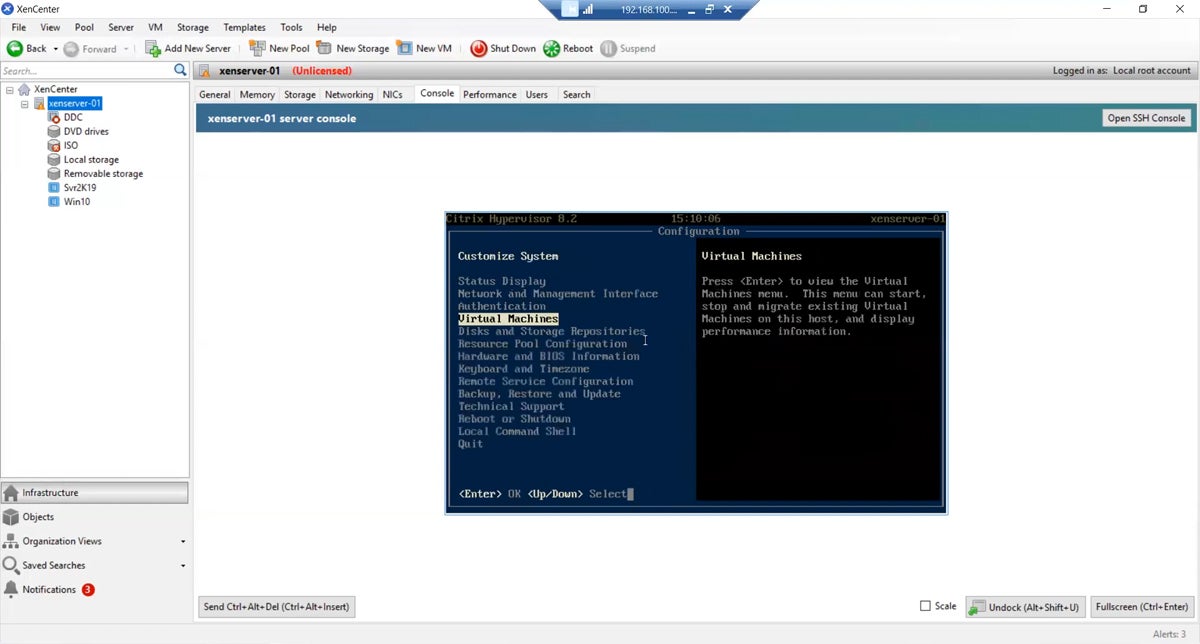
Citrix Hypervisor, formerly known as XenServer, stands as a leading open-source virtualization management platform, engineered for the efficient administration of Windows and Linux virtual servers. It has carved a significant niche in enterprise environments due to its exceptional scalability, inherent robustness, and a dedicated focus on server virtualization. This hypervisor is particularly well-suited for cloud computing environments and the deployment of large-scale virtual infrastructures, where performance and stability are paramount. Its reputation for high performance, a comprehensive feature set, and broad compatibility with diverse hardware and network configurations makes it a preferred choice for organizations seeking to optimize their virtualization strategies and achieve significant operational efficiencies.
Overall Rating: 3/5
Pricing
Citrix Hypervisor offers a free edition for basic use. For enterprise features such as live migration, high availability, and advanced management tools, paid editions with tiered support plans are available. Pricing is typically based on the number of hosts or sockets.
| Pros | Cons |
|---|---|
| Excellently suited for large-scale deployments, offering robust scalability options. | Can be complex to set up and manage, particularly for smaller businesses or those with limited IT resources. |
| Known for its robust performance, especially in handling large numbers of virtual servers. | More focused on server virtualization; may not be the most ideal or cost-effective choice for desktop virtualization needs. |
| Being open-source, it offers flexibility and customization options for specific enterprise needs. | The free version lacks some critical enterprise features, necessitating an upgrade for full functionality. |
Features
Citrix Hypervisor provides a powerful set of features for managing virtualized server environments. It supports a wide range of guest operating systems and hardware configurations. Key features include live migration of VMs between hosts without downtime, high availability to ensure continuous operation in case of host failure, and robust management tools through XenCenter. It also offers advanced networking capabilities, including virtual network segmentation and integration with external firewalls, and sophisticated storage management options, such as thin provisioning and support for various storage protocols. Security features include role-based access control and encrypted VM storage.
Red Hat OpenShift Virtualization: Unifying Containers and VMs
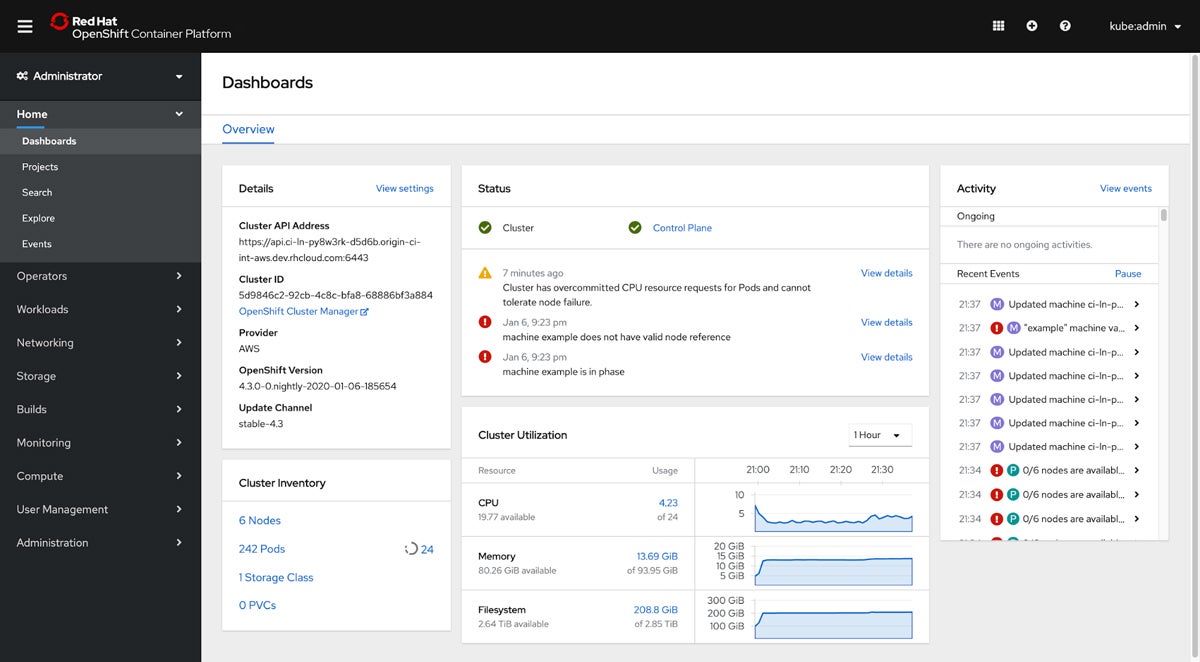
Red Hat OpenShift Virtualization is an integrated component of Red Hat OpenShift, a leading enterprise Kubernetes platform, designed to enable the simultaneous management of both containerized and virtualized applications on a single, unified platform. This convergence is critical for organizations undergoing digital transformation, allowing them to modernize traditional applications alongside cloud-native microservices. Tailored for hybrid cloud environments, it provides a flexible, efficient, and consistent platform for diverse workloads. Red Hat OpenShift Virtualization is particularly attractive to businesses aiming to streamline their application infrastructure, enhance agility, and adopt a more cloud-centric operational model without having to abandon their existing investments in virtualized applications.
Overall Rating: 3/5
Pricing
Red Hat OpenShift Virtualization is part of the broader Red Hat OpenShift offering. Pricing is typically subscription-based and depends on the scale of deployment, features required, and support levels. Specific pricing details require consultation with Red Hat sales.
| Pros | Cons |
|---|---|
| Seamlessly integrates VMs and containers, offering a consistent platform for all workload types. | Can be complex to set up and manage, requiring expertise in both Kubernetes and traditional virtualization concepts. |
| Ideal for hybrid cloud strategies, supporting both on-premises and cloud environments. | May require substantial resources for optimal performance, especially in larger or more demanding deployments. |
| Benefits from the robust Red Hat and Kubernetes ecosystems, including extensive community and enterprise support. | Primarily designed for modern cloud-native architectures; may be overkill or less intuitive for users solely focused on traditional desktop virtualization. |
Features
Red Hat OpenShift Virtualization leverages KubeVirt, an open-source project, to run VMs within Kubernetes. This allows for VMs to be managed alongside containers using familiar Kubernetes tools and APIs. Key features include VM lifecycle management (create, start, stop, delete), networking integration with OpenShift’s software-defined networking, storage integration with Kubernetes persistent volumes, and the ability to utilize OpenShift’s robust security features. It enables a unified approach to application deployment and management, simplifying operations for teams managing mixed workloads.
Parallels Desktop: Seamless Windows on Mac
Parallels Desktop is a premier virtualization software specifically engineered for macOS, providing users with the ability to run Windows, Linux, and other operating systems concurrently with macOS, eliminating the need for disruptive reboots. Renowned for its user-friendly interface and seamless integration into the Mac ecosystem, Parallels Desktop is a favored choice among Mac users who require access to Windows-specific applications or wish to conduct cross-platform testing and development. It stands out for its exceptional performance, particularly when running Windows applications, and offers innovative features like Coherence mode, which allows Windows applications to run and appear as if they are native macOS applications. This makes it an ideal solution for professionals, developers, and casual users who demand a reliable and fluid virtualization experience on their Mac computers.
Overall Rating: 3.5/5
Pricing
Parallels Desktop is offered through a subscription model, with different tiers (Standard, Pro, Business) providing varying levels of features and support.
| Pros | Cons |
|---|---|
| Offers features like shared folders, clipboard synchronization, and support for Mac gestures in Windows apps. | While it handles business applications well, it may not be the best choice for running high-end games or highly graphics-intensive applications. |
| Known for its user-friendly interface, making it simple for users to install and manage different operating systems. | The subscription model means ongoing costs, which might be less appealing than a one-time purchase for some users. |
| Especially effective in running Windows applications on Mac, providing a smooth user experience. | Primarily focused on running guest OSs on macOS, it’s not a solution for running VMs on Windows machines. |
Features
Parallels Desktop excels in its user experience and integration. Coherence mode is a standout feature, allowing seamless switching between macOS and Windows applications. It offers robust graphics performance, enabling many Windows applications to run smoothly. Features like shared folders, shared clipboard, and drag-and-drop functionality between the host and guest operating systems significantly enhance productivity. Parallels Desktop also supports USB devices, networking configurations, and allows for customization of VM resources like RAM and CPU cores. It is optimized for Apple’s M-series chips, providing efficient performance for running ARM-based Windows and Linux versions on modern Macs.
Key Features of Virtual Machine Software for Windows
Virtual machine software for Windows is a critical technology, offering unparalleled flexibility, efficiency, and a broad spectrum of capabilities essential for both personal and professional computing. It provides a dynamic and cost-effective method for running multiple operating systems, rigorously testing software, and efficiently managing server infrastructure.
Performance and Resource Management
The efficacy of VM software hinges on its ability to maximize performance while minimizing the burden on the host system. Advanced solutions dynamically allocate resources, prioritizing VMs during peak usage and scaling back during idle periods to maintain overall system stability. Performance monitoring tools are indispensable, offering insights into resource utilization that aid in identifying bottlenecks and optimizing VM settings for superior performance and efficient server virtualization.
Compatibility and System Requirements
The versatility of VM software is underscored by its broad compatibility with a wide range of Windows versions and diverse hardware configurations. High-end VM software supports both legacy and the latest Windows iterations, ensuring broad usability. Compatibility with different CPU architectures (e.g., x86 and ARM) and support for graphics acceleration technologies like DirectX and OpenGL are significant advantages. The software should also adeptly handle various networking and storage devices and be optimized for solid-state drives (SSDs) to ensure rapid performance.
Usability and Management
The most effective VM software for Windows features an intuitive, user-friendly interface, making it accessible to users of all technical skill levels. Key functionalities include streamlined VM creation wizards, easily navigable settings, and quick access to common tasks such as cloning, network configuration, and storage management. Robust management tools for handling backups, snapshots, and system restores are vital for data integrity and rapid recovery from system failures or data corruption.
Security and Isolation
Security is a non-negotiable aspect of VM software. Strong isolation mechanisms are crucial to ensure that activities within a VM do not compromise the integrity or security of the host system. Features such as VM encryption, secure boot options, and hardware-assisted security enhance protection against malware and other cyber threats. Integration with enterprise-grade antivirus solutions and support for network security features like firewalls and isolated networks provide additional layers of defense.
Networking Capabilities
VM software’s networking capabilities enable complex network configurations and facilitate seamless interaction between VMs and the external network. Support for diverse network modes, including bridged (VM acts as an independent network entity), NAT (VM shares the host’s IP address), and host-only (VMs isolated from external networks), is fundamental. Advanced features like VLAN support, network condition simulation, and bandwidth throttling are particularly valuable for testing and development environments.
Scalability and Flexibility
Scalability ensures that VM software can gracefully handle increasing workloads. It should allow users to effortlessly add or remove VMs and adjust resources according to fluctuating demands. Flexibility encompasses the ability to run a wide variety of operating systems, including different Windows versions, Linux distributions, and even macOS (where licensing permits). Features like cloning, snapshots, and templates streamline the deployment and management of multiple VMs.
Reliability and Uptime
Reliability and uptime are critical, especially in business contexts where downtime can incur significant costs. Features contributing to this include automated backups, which prevent data loss, and failover capabilities, which ensure operational continuity in the event of hardware failure. High-availability configurations, enabling VMs to run on multiple host machines, guarantee that if one host fails, the VM can quickly resume operation on another, minimizing disruption.
Integration and Compatibility with Existing Infrastructure
For businesses, the seamless integration of VM software with their existing IT infrastructure is paramount. This includes compatibility with cloud platforms, facilitating the smooth migration of VMs to and from the cloud. Support for APIs and scripting languages enables automation and integration with other IT management tools. The ability to migrate VMs across different hosts, cloud environments, and even between different VM software solutions ensures adaptability and future-proofing of investments.
How to Choose the Best Virtual Machine Software for Windows
For organizations leveraging Windows, the selection of appropriate VM software is a strategic decision that impacts operational efficiency and resource utilization. This guide assists in the evaluation and selection process tailored to specific business requirements.
Understanding Your Business Requirements
The initial step involves a thorough identification of the specific use cases for VM software within the business. Key questions include: Is the primary need for software testing across diverse operating systems? Is it for running legacy applications that are no longer compatible with current OS versions? Or is it for creating a secure, isolated environment for sensitive tasks? Clearly defining these requirements will help narrow down the software options to those offering the most pertinent features.
Furthermore, consider the scalability of the VM software. The chosen solution should not only meet current demands but also possess the capacity to accommodate future growth. This includes the potential to support a larger number of VMs, integrate with additional hardware, or scale up resources for more demanding workloads.
Evaluating Key Features
Leveraging the insights gained from understanding business requirements, it is crucial to evaluate the key features offered by different VM software solutions. Many vendors provide trial versions or demo installations, allowing for hands-on testing of core functionalities.

When evaluating, pay close attention to the following critical capabilities:
- Performance and Resource Management: Assess how efficiently the software allocates and manages CPU, memory, and storage resources.
- Compatibility: Verify support for your specific Windows versions and any other operating systems you intend to virtualize.
- Usability and Management: Evaluate the ease of installation, the intuitiveness of the user interface, and the simplicity of routine tasks.
- Security and Isolation: Examine the robustness of built-in security features and the effectiveness of VM isolation.
- Networking Capabilities: Assess the flexibility and performance of networking options, including support for different network modes.
- Scalability and Flexibility: Determine how well the software scales with growing needs and its adaptability to different configurations.
- Reliability and Uptime: Investigate the software’s track record for stability and features that ensure high availability.
- Integration: Consider how well the VM software integrates with your existing IT infrastructure and cloud platforms.
Support and Reliability
Reliable and accessible technical support is indispensable, particularly in scenarios demanding rapid troubleshooting to prevent or minimize downtime. Businesses should prioritize vendors offering comprehensive support through multiple channels, including phone, email, live chat, and extensive online knowledge bases. The inherent reliability and uptime of the VM software are equally critical. A software’s history of stability can often be gauged through user reviews and industry reports. Features that enhance reliability include automated backup solutions and failover capabilities, ensuring continuous operation even in the event of system component failure.
How We Evaluated Virtual Machine Software for Windows
Our evaluation process for VM software on Windows was rigorous and multifaceted, focusing on aspects critical to business operations. Each feature was assigned a weight based on its perceived importance and impact on overall performance, usability, and security.
Features – 50%
Performance and Resource Management – 10%: This critical feature received the highest weight. We assessed efficiency in allocating and managing system resources (CPU, memory, storage), dynamic resource scaling, and load balancing capabilities. Software demonstrating superior performance, minimal latency, and seamless handling of intensive tasks scored highest. Criterion Winner: VMware Workstation Pro
Compatibility and System Requirements – 7.5%: We evaluated compatibility with various Windows versions and hardware configurations, including peripherals. Software with broader compatibility and lower hardware requirements scored better, reflecting its versatility. Criterion Winner: VMware Workstation Pro
Usability and Management – 7.5%: Ease of installation, interface intuitiveness, and simplicity of routine tasks like snapshots were assessed. Software offering a more intuitive experience and comprehensive management tools received higher scores. Criterion Winners: VMware Workstation Pro, Parallels Desktop
Security and Isolation – 7.5%: We scrutinized built-in security features (encryption, firewalls) and the level of isolation between VMs. Software with robust security measures and strong isolation capabilities scored higher. Criterion Winners: VMware Workstation Pro, Citrix Hypervisor, Azure VM
Networking Capabilities – 5%: Evaluation included the ability to configure and manage various network types (NAT, bridged, host-only) and network traffic efficiency. VM software offering flexible and high-performance networking options scored better. Criterion Winner: VMware Workstation Pro
Scalability and Flexibility – 5%: We examined how well the software scales with business growth and its adaptability through customizable configurations. Software efficiently handling an increasing number of VMs without performance degradation received higher scores. Criterion Winners: Azure VM, Citrix Hypervisor
Reliability and Uptime – 5%: Assessed through overall stability, frequency of crashes, and uptime guarantees. VM software demonstrating high reliability and consistent performance scored higher. Criterion Winner: VMware Workstation Pro, Azure VM

Integration and Compatibility with Existing Infrastructure – 2.5%: We evaluated seamless integration with existing IT infrastructure, cloud platforms, and third-party applications. Software easily integrating with a broad range of systems scored higher. Criterion Winner: Azure VM
Cost – 25%
Assessing the cost of VM software involves more than just sticker price. We considered price transparency, clarity of pricing information, availability of sales channels, and customizability of bundled solutions. Criterion Winners: Azure VM, Azure Stack HCI
Support – 25%
Accessible and responsive support is vital. We assessed the availability of support channels (phone, email, chat) and the quality of online resources like knowledge bases and forums. Criterion Winners: Azure VM, Azure Stack HCI, Red Hat OpenShift
Frequently Asked Questions (FAQs)
What is Virtual Machine Software, and Why Would I Need It for Windows?
Virtual machine (VM) software enables the creation and operation of multiple isolated virtual environments on a single physical hardware system. For Windows users, this is beneficial for:
- Software Testing: Test applications across different operating systems (e.g., various Windows versions, Linux) without needing multiple physical machines.
- Running Legacy Applications: Execute older software that may not be compatible with modern Windows versions.
- Security: Create sandboxed environments to safely explore potentially malicious files or websites without risking the host system.
- Development: Develop and test applications in isolated environments that mimic production servers.
- Resource Consolidation: Reduce hardware costs and energy consumption by running multiple server workloads on fewer physical machines.
Is Virtual Machine Software Compatible with All Versions of Windows?
Modern VM solutions like VMware Workstation Pro, Microsoft Azure VM, and Citrix Hypervisor generally support the latest Windows versions, including Windows 10, Windows 11, and Windows Server editions. However, compatibility with older Windows versions may be limited. It is essential to verify the specific system requirements of each VM software, as some may necessitate Windows Server or Windows Professional editions.
What is Microsoft Hyper-V and Why Wasn’t It Included?
Microsoft Hyper-V is a native virtualization platform for Windows that allows users to create and manage VMs on x86-64 systems. It is available on Windows 10/11 Pro, Enterprise, and Education editions, as well as Windows Server. Hyper-V is known for its deep integration with the Windows ecosystem and features like dynamic memory and live migrations.
However, Microsoft has recently announced significant shifts regarding Hyper-V. Mainstream support for Hyper-V Server 2019, the last standalone version, ended on January 9, 2024, with extended support concluding in January 2029. Microsoft is now guiding customers toward Azure Stack HCI as its primary solution for modern hybrid cloud infrastructure, integrating advanced cloud capabilities with on-premises deployments. This strategic pivot by Microsoft influenced its exclusion from direct comparison in this article, with Azure Stack HCI being highlighted as the forward-looking alternative.
Bottom Line: Making an Informed Choice in Virtual Machine Software for Windows
Whether for professional development, application testing across diverse operating systems, consolidating hardware resources, or educational purposes, VM software offers an essential toolkit for maximizing efficiency and productivity. The key to effectively leveraging this technology lies in selecting the right software that aligns precisely with your specific requirements. Careful consideration of compatibility with your Windows version, intended use, system requirements, desired features, and budget is paramount to ensuring the chosen solution meets current needs and accommodates future growth. Understanding the delicate balance between usability, performance, security, and integration capabilities will ultimately pave the way for a seamless and highly productive virtualization experience.
For any virtualization solution chosen for Windows, robust backup strategies are essential to safeguard against data loss, theft, or damage. ServerWatch also provides comprehensive reviews of the best VM backup software to ensure continuous business operations.
