
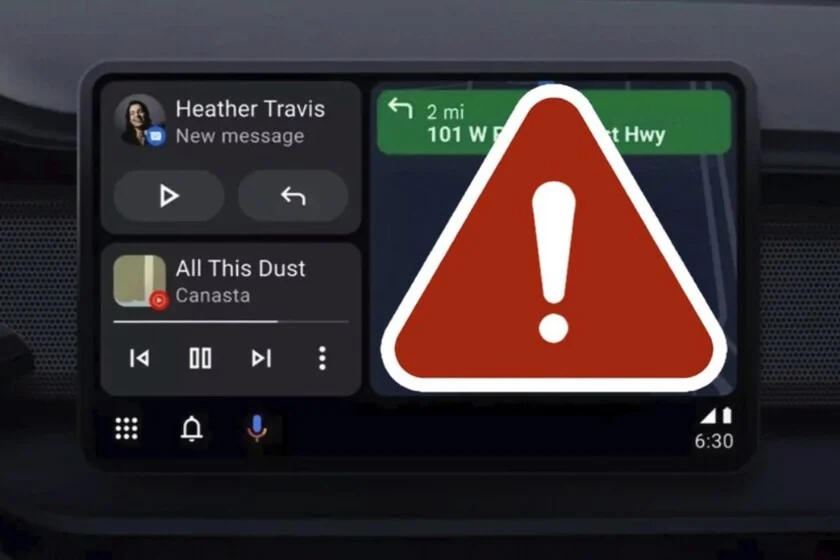

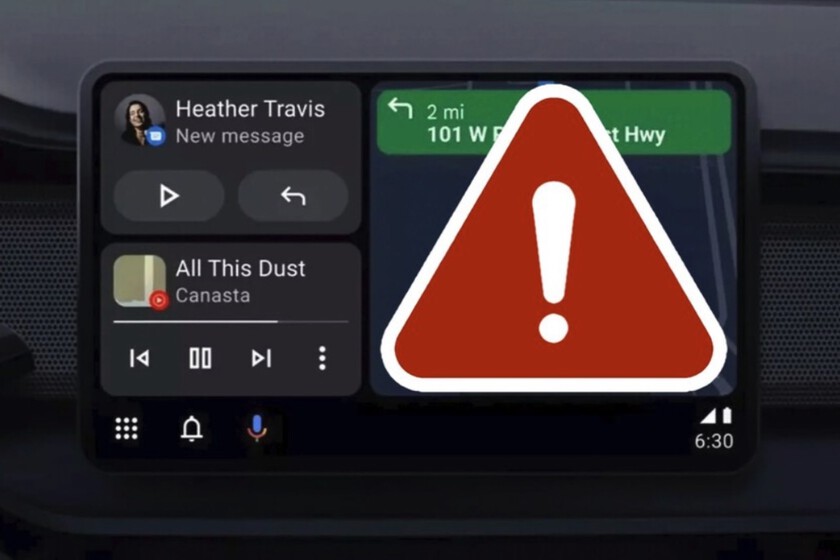
The sudden disappearance of applications from the Android Auto interface is a remarkably disconcerting experience for many drivers, transforming a usually seamless in-car infotainment system into a source of frustration. Imagine connecting your smartphone to your vehicle, expecting immediate access to your preferred navigation, music, or messaging applications, only to find them inexplicably absent from the launcher. This issue, which can range from a single missing music app to a significantly truncated app menu, is a common grievance reported by users across various Android device ecosystems. While initially alarming, it is crucial to understand that these occurrences seldom signify a grave system failure or a fundamental flaw in Android Auto itself. Instead, the root causes are typically identifiable and resolvable configuration issues, often stemming from the smartphone’s settings rather than the vehicle’s head unit or Android Auto’s core functionality.
Understanding Android Auto’s Complex Ecosystem
Android Auto functions as a projection system, mirroring a specially adapted interface of your smartphone applications onto the vehicle’s infotainment screen. This intricate dance involves several components: the Android operating system on your phone, the Android Auto application itself, Google Play Services, the specific third-party applications designed for Android Auto, and the vehicle’s head unit firmware. The complexity of this ecosystem means that a disruption in any one of these layers can manifest as an issue within Android Auto. Introduced in 2015, Android Auto aimed to provide a safer and more integrated way to use smartphone features while driving. Over the years, it has evolved significantly, transitioning from predominantly wired connections to widespread wireless capabilities and incorporating an ever-growing library of compatible applications. However, this evolution has also introduced new points of potential friction, particularly as smartphone operating systems become more sophisticated in managing resources like battery life and app permissions. Reports from user forums and official support channels consistently highlight app visibility problems as a recurring theme, suggesting that while the system is robust, its interaction with diverse device configurations and user habits can lead to these common anomalies.
Common Culprits: Unraveling the Mystery of Missing Apps
The majority of instances where applications vanish from Android Auto can be attributed to a handful of predictable factors. These issues are rarely indicative of an application being permanently removed from Android Auto’s compatibility list but rather suggest an impediment to its proper display or functionality. A structured approach to troubleshooting, starting with the simplest checks, is often the most effective path to resolution.
The Launcher Customization Trap
One of the most frequently overlooked causes for missing applications is Android Auto’s own customization feature. Android Auto allows users to personalize the app launcher, enabling them to select which applications appear on the vehicle’s display and even arrange them in a preferred order. This functionality is designed to enhance user experience by reducing clutter and ensuring quick access to frequently used apps. However, it also presents a scenario where an application might not have disappeared from the system at all; it may have simply been deselected from the visible launcher.
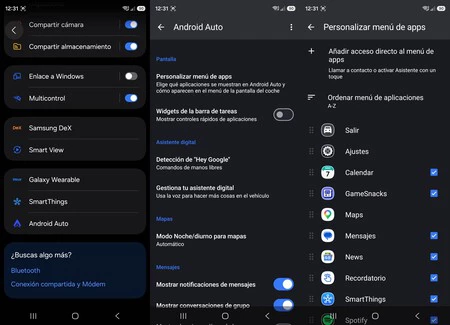
This feature can be particularly prone to accidental changes following system updates, a factory reset, or even inadvertent interaction within the settings menu. Users, especially those new to Android Auto or those who have recently updated their phone’s operating system, might not be aware of this specific customization layer. For devices like Samsung phones, a common pathway to check this setting involves navigating through the phone’s system menus:
- Open the Settings app on your smartphone.
- Tap on Connected devices or Advanced features (naming can vary by Android version and OEM).
- Select Android Auto.
- Look for an option labeled Customize launcher or Customize apps menu.
Within this menu, a list of all Android Auto-compatible applications installed on your phone will be displayed, each with a toggle switch. If a previously visible application is found in this list but its corresponding toggle is switched off, activating it will typically resolve the issue. Upon the next connection to Android Auto, the application should reappear in its designated place. This simple verification step is crucial because it often prevents unnecessary and more complex troubleshooting efforts. The presence of this customization option highlights Google’s commitment to user control, yet it simultaneously creates a common point of confusion when apps seemingly vanish.
Aggressive Battery Optimization: A Double-Edged Sword
Modern Android operating systems, and particularly OEM-specific variants such as Samsung’s One UI, incorporate increasingly aggressive battery management features. While designed to extend battery life and optimize device performance, these features can sometimes inadvertently interfere with the background operation of applications critical for Android Auto’s functionality. When an application is subjected to stringent battery restrictions, the system may prevent it from running in the background, communicating effectively with Android Auto, or even launching correctly when requested by the infotainment system. This can lead to the app not appearing in the launcher or failing to function even if it appears.
Google introduced features like Doze mode and App Standby in earlier Android versions to manage background processes, but many manufacturers layer their own, often more rigorous, optimizations on top. Samsung, for example, is known for its robust battery optimization algorithms that can "sleep" applications deemed inactive. While beneficial for overall battery longevity, this can be detrimental to applications that need to maintain constant background connectivity or be readily available, such as music streaming services, podcast players, or messaging apps, which are frequently used within Android Auto.
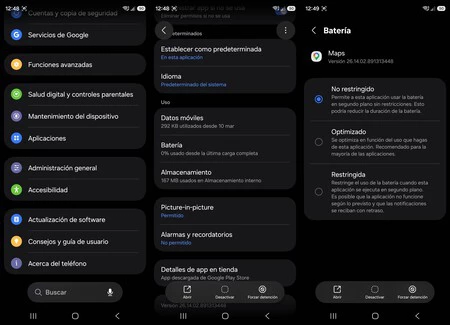
To mitigate this, users should exempt essential Android Auto applications from these battery optimization routines. The general steps on a Samsung device typically include:
- Go to Settings.
- Tap on Apps.
- Select the specific application that is disappearing or misbehaving.
- Tap on Battery or Usage details.
- Look for options like Optimize battery usage, App power management, or Background restrictions.
- Ensure the application is set to Unrestricted or Not optimized.
After adjusting these settings, it is advisable to re-check the "Customize launcher" menu within Android Auto settings, as the app might reappear there, ready to be reactivated if it was previously deselected due to its restricted status. This measure is particularly vital for apps that rely on continuous background operation to integrate seamlessly with Android Auto, ensuring they remain active and visible when needed.
Permission Predicaments: The Gatekeepers of Functionality
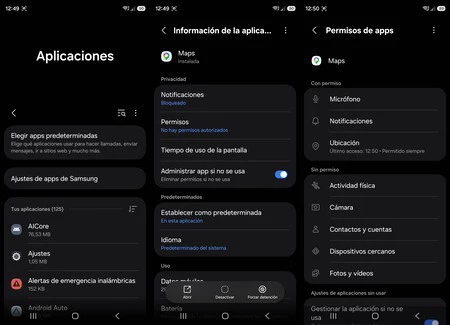
Android’s robust permission model is a cornerstone of its security architecture, granting users fine-grained control over what data and device capabilities applications can access. However, changes in app permissions can also be a significant factor in Android Auto integration issues. Applications may lose necessary permissions after a major operating system update, a reset of app preferences, or even through an accidental user action. When an application lacks a critical permission, Android Auto may not be able to interact with it correctly, leading to its disappearance from the launcher or its inability to function properly within the car interface.
For instance, a navigation app might require location permissions, a messaging app needs notification access, and a music app might need storage access to play local files. If these permissions are revoked, the app’s functionality within Android Auto can be severely hampered, causing it to be hidden. Users should systematically review the permissions granted to any problematic application.
The process usually involves:
- Opening Settings on your smartphone.
- Navigating to Apps or Applications.
- Selecting the specific application that is experiencing issues.
- Tapping on Permissions.
- Reviewing the list of granted and denied permissions.
- Ensuring that all necessary permissions, such as Location, Microphone (for voice commands), Storage, and Notification access, are explicitly granted.
While this check is not always the culprit, it is particularly relevant if an app starts misbehaving or disappears immediately following a system update, as updates can sometimes reset or alter permission defaults. This aspect underscores the delicate balance between user privacy and app functionality within the Android ecosystem.
App-Specific Anomalies and Developer Challenges
Not all instances of disappearing apps are attributable to Android Auto’s core functionality or smartphone settings. Sometimes, the problem lies with the third-party application itself. The vast Android ecosystem, with its multitude of device manufacturers, Android versions, and custom overlays, presents significant challenges for app developers. Ensuring consistent compatibility across all possible configurations, especially for an integrated platform like Android Auto, is an ongoing task.
An application might lose compatibility temporarily due to a poorly executed update from its developer. A new version might introduce bugs, alter its manifest in a way that Android Auto no longer recognizes it, or fail to adhere to Google’s specific Android Auto developer guidelines. These guidelines dictate how apps should behave, their UI/UX, and their interaction with the car’s system to ensure driver safety and minimal distraction. If an app deviates from these guidelines, even unintentionally, it might be excluded by Android Auto.
In such cases, where only a specific app is affected while others function normally, troubleshooting should focus on the app itself:
- Check for updates: Ensure the app is running the latest version from the Google Play Store. Developers often release quick patches for critical bugs.
- Clear cache and data: Go to Settings > Apps > [Affected App] > Storage and select Clear Cache and then Clear Data. This effectively resets the app to its initial state without uninstalling it, often resolving corrupted temporary files or settings.
- Consult app reviews and support: Check the app’s reviews on the Google Play Store or visit the developer’s support forums. Other users might be reporting similar issues, and the developer might have already provided a workaround or an acknowledgment of a bug.
This approach helps differentiate between an Android Auto system issue and an isolated problem with a specific application, guiding users toward the appropriate solution.
The Power of a Fresh Start: Reinstallation as a Solution
When all other troubleshooting steps fail, the most radical yet surprisingly effective solution is to completely uninstall and then reinstall the problematic application. While seemingly basic, this process acts as a comprehensive reset, often resolving underlying issues that are difficult to diagnose individually. Reinstallation can rectify corrupted installation files, clear out stubbornly misconfigured permissions, and ensure a fresh integration with the Android Auto system.
The steps for reinstallation are straightforward:
- Uninstall: On your smartphone, long-press the icon of the disappearing app and select Uninstall, or go to Settings > Apps > [Affected App] > Uninstall.
- Reboot (Optional but Recommended): A quick phone reboot after uninstalling can help clear any lingering processes or temporary files.
- Reinstall: Go to the Google Play Store, search for the app, and download it again.
- Initial Launch on Phone: Crucially, before connecting your phone to Android Auto, open the newly installed application directly on your smartphone. This step allows the app to perform its initial setup, grant necessary permissions, and register itself correctly with the Android operating system and, by extension, Android Auto. Many applications require this initial standalone launch to properly configure their components and ensure they are recognized by integrated systems.
- Reconnect to Android Auto: Once the app has been launched and confirmed to be working on the phone, connect your smartphone to Android Auto and check the app launcher.
This method often resolves persistent issues caused by partial or corrupted updates, or permissions that were not correctly inherited or applied during a previous installation. It ensures that the app integrates as if it were being installed for the very first time, often clearing up any accumulated inconsistencies.
Ensuring System Integrity: The Role of Updates
The entire Android Auto experience is built upon a foundation of interconnected software components, each requiring regular updates to maintain optimal performance and compatibility. Neglecting updates for any part of this ecosystem can lead to unexpected behaviors, including applications failing to appear. It’s a common misconception that Android Auto updates automatically and seamlessly, but several layers need attention:
- Android Auto App: The core Android Auto application itself receives frequent updates via the Google Play Store. These updates often include bug fixes, performance enhancements, and compatibility improvements with new Android versions or vehicle head units.
- Google Play Services: This is a crucial background service that enables many core Android functionalities, including the proper functioning of Android Auto and many third-party apps. Outdated Play Services can cause a cascade of issues.
- Android Operating System: Major Android OS updates introduce new APIs, security features, and resource management policies. Keeping your phone’s OS up-to-date ensures that Android Auto can leverage the latest system capabilities and maintain compatibility.
- Vehicle Head Unit Firmware: While less frequent, updates to your car’s infotainment system firmware can also be critical for Android Auto’s stability and feature set. These updates are typically managed by the car manufacturer or dealership.
Users should make it a habit to periodically check for updates across all these components. For the Android Auto app and Google Play Services, this can be done through the Google Play Store. For the phone’s OS, check the "System Update" section in your phone’s settings.
This preventative measure is particularly important if multiple apps disappear simultaneously, or if the Android Auto menu structure changes unexpectedly after a significant phone update. Ensuring all components are running their latest stable versions minimizes the chances of compatibility conflicts and ensures that Android Auto can correctly identify and launch all compatible applications. Google’s ongoing commitment to pushing regular updates underscores the dynamic nature of this platform and the constant need to adapt to new technologies and address emerging issues.
Broader Implications and User Experience
The frequent occurrence of disappearing apps in Android Auto, while often easily solvable, has broader implications for user experience and driver safety. For many, Android Auto is an essential tool for navigation and entertainment during commutes and long journeys. Any disruption to its functionality can lead to significant frustration, potentially causing drivers to divert their attention from the road to troubleshoot their phones, thereby increasing the risk of accidents. This highlights the importance of making troubleshooting as straightforward and accessible as possible.
From a developer perspective, the challenge lies in maintaining compatibility within a highly fragmented ecosystem. With countless Android phone models, OS versions, and vehicle head unit variations, ensuring that an app works flawlessly for every user is an enormous task. Google continuously refines its Android Auto developer guidelines and provides tools to help developers achieve this, but the onus remains on individual app creators to meticulously test and update their offerings. Community forums and online support groups have become vital resources where users share their experiences and solutions, often filling the gap before official patches or documentation become available.
Preventive Strategies for a Seamless Android Auto Experience
Beyond troubleshooting after an issue arises, users can adopt several proactive measures to minimize the likelihood of apps disappearing from Android Auto:
- Regularly Review Android Auto Settings: Periodically check the "Customize launcher" menu to ensure all desired apps are selected.
- Whitelist Essential Apps from Battery Optimization: Identify frequently used Android Auto apps (e.g., navigation, music, messaging) and exempt them from aggressive battery saving features on your phone.
- Maintain Up-to-Date Software: Make it a habit to regularly check for and install updates for your phone’s Android OS, Google Play Services, and the Android Auto application itself.
- Grant Necessary Permissions Promptly: When installing new apps or after system updates, be mindful of permission requests and grant those essential for Android Auto integration.
- Backup and Sync: Ensure your phone’s data and app settings are regularly backed up, which can simplify recovery if a more drastic solution like a factory reset becomes necessary.
Conclusion
The perplexing phenomenon of disappearing applications in Android Auto, while undoubtedly an annoyance, is rarely a sign of a catastrophic failure. Instead, it is most often a symptom of minor configuration discrepancies within the complex interplay of smartphone settings, app permissions, battery optimizations, or outdated software components. By systematically addressing these common culprits – from verifying launcher settings and adjusting battery restrictions to ensuring proper app permissions and maintaining up-to-date software – users can effectively restore their Android Auto experience to its intended seamless functionality. Empowering users with this knowledge not only alleviates frustration but also reinforces the understanding that most digital hiccups, even within sophisticated in-car systems, are often solvable with a methodical approach. As in-car technology continues to evolve, understanding these foundational troubleshooting principles will remain invaluable for navigating the digital driving experience.
