

In the modern digital age, the smartphone has become an indispensable extension of daily life, serving as our primary tool for communication, information, entertainment, and productivity. With billions of devices in active circulation globally, the reliance on these sophisticated handheld computers means that any disruption to their functionality can cause significant inconvenience. One of the most common, yet often perplexing, issues users encounter is a frozen or unresponsive device. While a simple restart often resolves minor glitches, the challenge escalates when the phone becomes completely unresponsive, leaving users in a digital lurch. This guide provides a detailed examination of restarting a Samsung Galaxy device, from conventional methods to advanced techniques for forced reboots when the system appears entirely locked up, along with a deeper dive into the underlying causes and preventative measures.
The Ubiquity of the Restart: A Proactive Measure for Optimal Performance
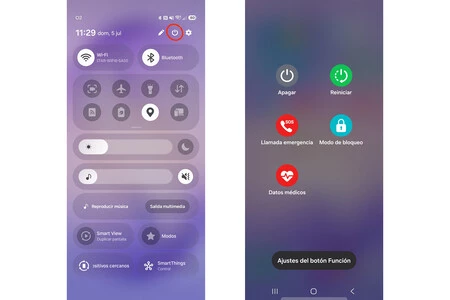
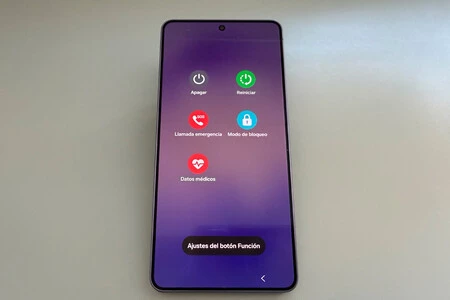
The act of restarting a smartphone is a fundamental troubleshooting step, almost universally recommended by tech support professionals. It’s a digital refresh that can resolve a myriad of minor software conflicts, clear temporary memory, and close rogue applications that might be consuming excessive resources. Data from various tech support forums and user surveys consistently shows that a significant percentage of performance issues, such as slow operation, app crashes, and minor connectivity problems, can be remedied by a simple reboot. Industry analysis suggests that regularly restarting a smartphone, perhaps once a week, contributes positively to its overall health and responsiveness. This practice allows the operating system to clear its cache, reinitialize system processes, and ensure that all components are starting from a clean state, thereby preventing the accumulation of errors that can lead to more severe issues over time. For Samsung Galaxy users, the conventional restart process typically involves one of two straightforward methods, accessible when the device is still partially responsive. The first involves pressing and holding the power button until a power menu appears on the screen, offering options such as "Power off," "Restart," and "Emergency mode." Tapping "Restart" initiates a graceful shutdown and subsequent reboot. Alternatively, a more rapid approach involves pulling down the notification shade to access the quick settings panel. Within this panel, a power icon is usually present, which, when tapped, brings up the same power menu for selection. These methods are designed for user convenience when the device is operational, albeit potentially experiencing minor slowdowns or application misbehavior.
The Crisis Point: When Your Galaxy Defies Conventional Commands
The true test of a user’s troubleshooting prowess arises when a Samsung Galaxy phone becomes entirely unresponsive. This scenario can manifest in several ways: a completely black screen, a frozen display showing an application or the home screen, or a device that fails to react to any touch input or button presses. This state of complete lock-up can be particularly distressing, as the usual avenues for a soft restart are rendered inaccessible. The immediate implication for the user is a complete loss of functionality, affecting communication, access to critical information, and overall productivity. While rare, such incidents are not unheard of and typically signal a deeper software or, less frequently, a hardware issue. The inability to interact with the device through the touchscreen or conventional button presses necessitates a more forceful approach to regain control, preventing potential data corruption that could occur if the device remains in a persistent error state. Understanding how to execute a forced restart in these extreme circumstances is crucial for every Samsung Galaxy owner, transforming a moment of panic into a manageable troubleshooting exercise.
Executing the Emergency Protocol: Forcing a Hard Restart on Your Galaxy
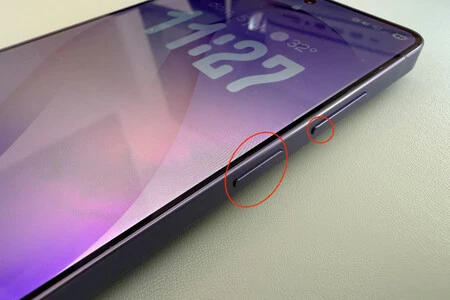
When a Samsung Galaxy phone is completely frozen and unresponsive to standard commands, a forced restart (often referred to as a "hard reset" or "force reboot") becomes the necessary intervention. This method bypasses the operating system’s normal shutdown procedures, directly cutting power to the device and then re-initiating the boot sequence. It’s a hardware-level command designed as a last resort for system recovery, akin to pulling the power plug on a desktop computer. For most modern Samsung Galaxy models, the procedure for this emergency reboot is consistent and relies on a specific combination of physical buttons. Users must simultaneously press and hold both the Volume Down button and the Power button. The critical difference from a conventional restart lies in the duration of this press: it must be maintained for approximately seven seconds or more. During this prolonged press, the device’s internal power management system detects the command to force a shutdown. Upon successful execution, the user will typically feel a distinct haptic vibration, signaling that the device has registered the command and is now initiating the reboot process. Unlike a soft restart, this method does not present any on-screen options for power off or restart; the device simply goes black and then begins its boot sequence, displaying the Samsung logo and proceeding to the lock screen or home screen once the operating system has reloaded. This direct power cycle is highly effective in resolving software-induced freezes by terminating all active processes and giving the operating system a fresh start. It is a testament to smartphone design that even in a state of apparent paralysis, a fundamental hardware-level recovery mechanism remains accessible to the user.
Unpacking the Root Causes: Why Smartphones Freeze
While a forced restart offers an immediate solution to an unresponsive phone, it’s equally important to understand the underlying reasons for such a critical failure to prevent recurrence. Device freezes are rarely random; they are typically symptomatic of deeper issues within the smartphone’s software, hardware, or user interaction patterns.
One of the most common culprits is insufficient system memory (RAM). Modern smartphones juggle numerous applications and background processes simultaneously. If too many demanding apps are running, or if a single app develops a memory leak, the available RAM can become exhausted. When the operating system runs out of memory to allocate, it can lead to system instability, slowdowns, and ultimately, a freeze as it struggles to process new commands.
Another significant factor is low storage space. While distinct from RAM, critically low internal storage can also impede performance. The operating system, as well as many applications, requires a certain amount of free storage to function correctly, particularly for temporary files, cache, and system updates. When storage is nearly full, operations that require writing or reading data can slow to a crawl or fail entirely, causing the device to hang.
Software bugs and application conflicts are also frequent causes. A poorly coded application, a recent software update with unforeseen glitches, or an incompatibility between two applications can lead to system crashes. Applications might enter an infinite loop, consume excessive CPU cycles, or attempt to access protected memory regions, all of which can destabilize the operating system and result in a freeze. Samsung, like other manufacturers, regularly releases One UI updates not just for new features but also for crucial bug fixes and performance enhancements, directly addressing such vulnerabilities.
Less commonly, hardware malfunctions can cause freezes. While modern smartphones are robust, a failing component, an overheating processor, or even a damaged battery can lead to erratic behavior, including complete system lock-ups. Overheating, in particular, can trigger thermal throttling mechanisms that might cause the device to slow down drastically or shut down unexpectedly to prevent permanent damage.
Finally, malware or corrupted files pose a serious threat. Malicious software can run rampant in the background, consuming resources, altering system files, and creating instability that culminates in device freezes. Downloading apps from untrusted sources or opening suspicious attachments can introduce such threats, making cybersecurity hygiene paramount. Cybersecurity experts consistently warn against sideloading applications from unofficial app stores, as these are common vectors for malware.
Preventative Measures and System Maintenance: Ensuring Galaxy Stability
Addressing the root causes of device freezes requires a proactive approach to smartphone maintenance. Implementing best practices can significantly reduce the likelihood of encountering an unresponsive Samsung Galaxy.
Storage Management: Regularly reviewing and managing internal storage is fundamental. Users should routinely delete unnecessary files, old photos, videos, and large app caches. Cloud storage services (like Google Drive, OneDrive, or Samsung Cloud) offer excellent solutions for offloading media, while connecting the phone to a PC allows for easy transfer of large files for archival purposes. Many Samsung devices also support expandable storage via microSD cards, providing an additional avenue for managing media files and reducing strain on internal memory.
Software Updates: Keeping the operating system and all applications updated is crucial. Manufacturers like Samsung frequently release updates for their One UI overlay and Android OS, which include critical bug fixes, security patches, and performance optimizations. These updates often address vulnerabilities that could lead to crashes or freezes. For instance, the original article mentions the potential for One UI 9 to introduce features like PIN authentication for restarts, enhancing security and potentially system stability. Users can typically check for updates by navigating to Settings > Software update > Download and install.
App Hygiene: Periodically auditing installed applications is another key step. Uninstalling unused apps frees up storage and RAM, and reduces the number of background processes. Users should also be mindful of app permissions, ensuring that apps only have access to necessary device features. Restricting background data usage for non-essential apps can also conserve resources.
Security Practices: Adhering to strong cybersecurity practices is vital. This includes only downloading apps from the official Google Play Store or Samsung Galaxy Store, using a reputable antivirus solution, avoiding suspicious links and attachments, and regularly backing up important data. A robust security posture minimizes the risk of malware-induced freezes and data loss.
Hardware Care: While less frequent, hardware issues can also be mitigated. Preventing physical damage, avoiding extreme temperatures, and using official chargers and accessories can prolong the lifespan of components and reduce the risk of hardware-related freezes. If persistent overheating is observed, it may warrant a professional inspection.
The Broader Impact: Device Longevity and Enhanced User Experience
Beyond the immediate relief of resolving a frozen phone, understanding and applying these troubleshooting and maintenance practices has broader implications for smartphone users. Firstly, it directly contributes to device longevity. A phone that is regularly maintained, kept free of excessive clutter, and updated with the latest software is likely to perform optimally for a longer period. This translates to a better return on investment for consumers, as they can extend the useful life of their expensive devices rather than needing premature replacements due to preventable performance degradation.
Secondly, it significantly enhances the user experience. A smoothly functioning phone that rarely freezes or crashes allows for uninterrupted productivity and enjoyment. Users can rely on their device for critical tasks, confident that it will perform as expected. This reduces frustration, saves time, and fosters a more positive relationship with technology.
Furthermore, the ability to troubleshoot and resolve issues independently empowers users, reducing their reliance on costly technical support. As Samsung continues to develop its One UI ecosystem, incorporating features that simplify maintenance and improve system resilience, the user experience is set to become even more robust. The commitment by manufacturers like Samsung to provide extended software support, with some Galaxy models now guaranteed seven years of updates, underscores the importance of ongoing maintenance for both security and sustained performance. This commitment not only secures devices against evolving threats but also ensures that performance optimizations and bug fixes are delivered consistently, directly impacting the frequency of issues like device freezes.
In conclusion, while a frozen Samsung Galaxy can be a moment of digital panic, the solutions are often within reach. From routine restarts to the critical forced reboot, understanding these mechanisms is fundamental. More importantly, adopting proactive maintenance habits—managing storage, keeping software updated, practicing app hygiene, and ensuring robust security—are the keys to preventing such disruptions. These practices not only resolve immediate problems but also contribute to the long-term health, performance, and overall satisfaction derived from our indispensable mobile companions.
