


WhatsApp, the undisputed titan of instant messaging, has seamlessly integrated into the daily lives of billions, becoming the primary conduit for personal and professional communications across both Android and iOS platforms. Its convenience, however, often comes with an often-overlooked cost: the relentless consumption of a smartphone’s internal storage. This pervasive issue stems predominantly from the application’s default setting for automatic media downloads, a feature designed for convenience but which, over time, can significantly clog device memory. Addressing this common predicament is not merely about freeing up space; it’s about optimizing device performance, preserving mobile data, and fostering better digital hygiene.
The sheer volume of multimedia shared daily through WhatsApp is staggering. From high-resolution photographs and lengthy videos to an endless stream of GIFs, voice notes, and documents, these digital artifacts quickly accumulate. While an individual image or short video may seem negligible, their collective presence, especially within numerous active group chats, can swiftly escalate into multiple gigabytes of occupied storage. This accumulation often occurs silently in the background, with users only becoming aware of the problem when their device begins to slow down, essential applications fail to update, or they receive frustrating "storage full" notifications.
The Silent Storage Eater: Understanding WhatsApp’s Impact on Device Memory
WhatsApp’s dominance is undeniable, boasting over 2 billion active users globally. This massive user base translates into an unprecedented volume of shared content. Each day, billions of messages are exchanged, a significant portion of which includes multimedia files. While precise figures for daily media transfers vary, industry reports consistently highlight the exponential growth of visual content in digital communications. High-definition photos, often exceeding several megabytes each, and 4K videos, which can consume hundreds of megabytes or even gigabytes for longer clips, are now commonplace. When multiplied by the number of chats a user participates in and the frequency of media sharing, the storage footprint becomes substantial.

Modern smartphones, while offering increasingly generous internal storage capacities—ranging from 64GB in entry-level models to 1TB in premium devices—are still susceptible to this digital clutter. Operating systems, system updates, and a multitude of other applications already claim a significant portion of this space. Games, productivity suites, and streaming apps further compete for memory. Consequently, WhatsApp’s unchecked media downloads can quickly push even high-capacity devices to their limits. This issue is particularly pronounced for users with older phones or those on tighter budgets, who often rely on devices with more constrained storage capabilities.
A Deep Dive into the Problem: Why Automatic Downloads Became Default and Its Hidden Costs
The concept of automatic media downloads in messaging applications like WhatsApp emerged from a desire to enhance user experience. In the early days of multimedia messaging, users often had to manually tap to download each image or video, a process that could be cumbersome and time-consuming. The default auto-download feature was introduced to provide instant gratification: media would be immediately available for viewing, eliminating waiting times and creating a more seamless communication flow. This design choice prioritized convenience and immediacy, reflecting a broader trend in technology to minimize user effort.
However, this convenience comes with several hidden costs:
- Exorbitant Storage Consumption: As detailed, this is the primary and most visible consequence. Unwanted memes, irrelevant forwarded videos, and redundant images from various groups all contribute to a burgeoning media gallery that quickly overwhelms the device’s storage.
- Increased Mobile Data Usage: For users not connected to Wi-Fi, automatic downloads consume mobile data. This can lead to unexpected charges or rapid depletion of monthly data allowances, especially for those with limited data plans. High-resolution videos, in particular, are notorious data guzzlers.
- Potential for Unwanted Content and Privacy Concerns: Automatically downloading every piece of media means that unsolicited or potentially inappropriate content might end up on your device without explicit consent. While WhatsApp has implemented features like "View Once" to mitigate some of these concerns, the default auto-download setting still grants considerable autonomy to incoming media.
- Performance Degradation: A phone operating with near-full storage often experiences a noticeable decline in performance. Applications launch slower, multitasking becomes sluggish, and the overall user interface can feel unresponsive. This is because the operating system requires a certain amount of free space to function efficiently, particularly for temporary files and system caches.
- Battery Drain: The continuous process of downloading and indexing media in the background can also contribute to increased battery consumption, further impacting the daily usability of the device.
The evolution of WhatsApp’s features, including the introduction of Status updates, larger group chat capacities, and enhanced video calling, has only exacerbated the storage issue, as these features often involve the exchange and temporary storage of more multimedia content. While WhatsApp has introduced rudimentary storage management tools within the app, the fundamental default setting for automatic downloads remains a significant contributor to memory woes.

The Solution Unveiled: Disabling Automatic Media Downloads
Fortunately, WhatsApp provides a straightforward solution to this problem: the ability to disable automatic media downloads. This simple configuration tweak empowers users to regain control over their device’s storage and data usage. By deactivating this default setting, media files will no longer be automatically saved to your phone’s gallery or internal storage. Instead, they will remain on WhatsApp’s servers until you explicitly tap on them to download them. This allows for a selective approach, ensuring that only the content you genuinely wish to keep occupies your valuable device memory. The process is quick, reversible, and universally applicable across both major mobile operating systems: Android and iOS.
Step-by-Step Guide for Android Users
For Android users, navigating to these settings is intuitive. The structure of the WhatsApp application on Android devices typically places core settings behind an easily accessible menu.
- Open WhatsApp: Launch the WhatsApp application on your Android smartphone.
- Access Settings: From the main chat screen, locate the three vertical dots icon (often referred to as the "Kebab menu") in the top-right corner of the screen. Tap on it.
- Select "Settings": A drop-down menu will appear. Tap on "Settings" from this list.
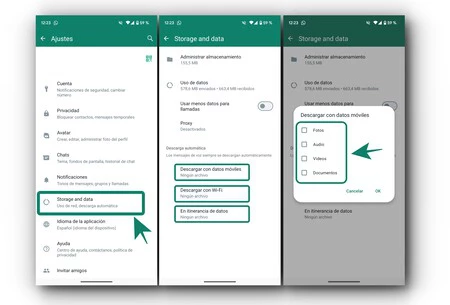
- Navigate to "Storage and data": Within the Settings menu, scroll down and tap on "Storage and data" (which might also appear as "Storage and Data Usage" depending on your WhatsApp version). This section is dedicated to managing how WhatsApp utilizes your device’s storage and network data.
- Locate "Media auto-download": Under the "Media auto-download" section, you will find three distinct options, each corresponding to a specific network condition:
- "When using mobile data": This controls media downloads when your phone is connected to your cellular network.
- "When connected on Wi-Fi": This controls media downloads when your phone is connected to a Wi-Fi network.
- "When roaming": This controls media downloads when your phone is using data services while roaming internationally.
- Disable Auto-Downloads: Tap on each of these three options individually. For each, you will see a list of media types (Photos, Audio, Videos, Documents). To prevent automatic downloads, uncheck all the boxes for Photos, Audio, Videos, and Documents under each network condition. After unchecking, tap "OK" to save your changes.
By performing these steps, you ensure that no media will be automatically downloaded, regardless of your network connection. You will now have to manually tap on any incoming media file within a chat to download and view it.

Step-by-Step Guide for iOS Users
For iPhone users, the path to managing automatic media downloads is equally straightforward, albeit with a slightly different interface layout reflective of iOS design principles.
- Open WhatsApp: Launch the WhatsApp application on your iPhone.
- Access Settings: From the bottom navigation bar, tap on the "Settings" icon, which typically looks like a gear cog.
- Navigate to "Storage and Data": Within the Settings menu, tap on "Storage and Data." This section centralizes options related to how the app handles your device’s storage and network consumption.
- Locate "Media Auto-Download": Under the "Media Auto-Download" section, you will see options for different media types: Photos, Audio, Videos, and Documents.
- Configure Download Settings: Tap on each media type (Photos, Audio, Videos, Documents) individually. For each, you will be presented with three choices:
- "Never": Select this option to completely prevent automatic downloads for that media type.
- "Wi-Fi": Selecting this will allow automatic downloads only when connected to Wi-Fi.
- "Wi-Fi & Cellular": This will allow automatic downloads on both Wi-Fi and mobile data.
- Set to "Never": To maximize storage savings and data control, select "Never" for Photos, Audio, Videos, and Documents. Once you’ve selected "Never" for all media types, simply go back to the previous screen. Your changes are automatically saved.
With these adjustments, your iPhone will no longer automatically save incoming WhatsApp media to your camera roll or local storage. You will now have the power to decide which specific files you wish to download and keep.
Beyond Auto-Downloads: A Holistic Approach to Storage Management
While disabling automatic media downloads is a crucial first step, a comprehensive strategy for smartphone storage management involves several other practices. These methods complement the primary fix and contribute to a healthier, more efficient device ecosystem.
- Clearing WhatsApp Cache: The cache stores temporary data to speed up the app’s performance. Over time, this cache can grow significantly. Regularly clearing it can free up several hundred megabytes without deleting any personal chats or media.
- Android: Go to Phone Settings > Apps (or Apps & Notifications) > WhatsApp > Storage > Clear Cache.
- iOS: There isn’t a direct "Clear Cache" button for individual apps like on Android. Instead, you might offload the app (which keeps documents and data but removes the app itself, which can then be reinstalled) or delete and reinstall WhatsApp (which will clear all cache but requires backing up chats first).
- Utilizing Cloud Backups: WhatsApp offers seamless integration with cloud services like Google Drive (for Android) and iCloud (for iOS) for chat backups. Ensure your chats are regularly backed up to the cloud. This provides a safety net, allowing you to delete older media or even entire chat histories from your device, knowing that your conversations are secure in the cloud. However, note that media backups to these services often consume space within those cloud accounts.
- Regular Chat Cleanup: WhatsApp includes a built-in storage management tool that allows users to identify and delete large files or media from specific chats.
- Accessing WhatsApp’s Storage Tool: Go to WhatsApp Settings > Storage and data > Manage storage. Here, you’ll see a breakdown of how much space WhatsApp is using, often categorized by "Reviewed and delete items" (for large files) and "Chats" (listing chats by storage consumption).
- Deleting Specific Media: You can review media forwarded many times or files larger than 5MB. You can also tap on individual chats to review and delete media exchanged within them, giving you granular control.
- Deleting Old, Irrelevant Chats: Over time, many group chats or individual conversations become inactive and contain media that is no longer needed. Periodically reviewing and deleting these entire chats can free up substantial space. Be mindful that deleting a chat will remove all its content from your device.
- External Storage (Android): Some Android phones support microSD cards. While WhatsApp primarily stores data on internal storage, some media might be moved to an SD card via file managers, or apps can be configured to save downloads directly to external storage if the option is available.
The Broader Implications of Proactive Storage Management
Implementing these storage management strategies extends far beyond simply freeing up space; it contributes to a more efficient, secure, and enjoyable smartphone experience.
- Enhanced Device Performance: A phone with ample free storage operates more smoothly and responsively. Apps load faster, transitions are fluid, and the risk of crashes due to low memory is significantly reduced. This translates to a more satisfying daily interaction with your device.
- Optimized Data Usage: Disabling automatic downloads directly impacts mobile data consumption. Users with limited data plans can avoid exceeding their allowances, leading to cost savings and preventing unexpected throttling of internet speeds.
- Improved Digital Hygiene and Privacy: Taking control of media downloads ensures that only desired content resides on your device. This reduces clutter in your photo gallery, makes it easier to find important files, and mitigates the privacy risk of having unwanted or potentially sensitive images and videos automatically saved to your phone.
- Extending Smartphone Lifespan: While not a direct factor in hardware longevity, maintaining optimal software performance and storage levels can contribute to a device feeling "newer" for longer. Users are less likely to upgrade their phones prematurely if their current device continues to perform well.
- Environmental Considerations: On a broader, albeit indirect, scale, reducing unnecessary data transfers and prolonging the usable life of electronic devices aligns with principles of environmental sustainability. Less data flowing through networks means marginally less energy consumption by data centers, and extending device lifespans reduces electronic waste.
Expert Perspectives on Digital Decluttering
Tech experts consistently advocate for proactive digital decluttering as a fundamental aspect of modern device management. Many compare it to maintaining a physical space: regular tidying prevents overwhelming clutter. "Our phones are digital extensions of ourselves, and just like our physical environments, they benefit from regular organization," notes Dr. Anya Sharma, a digital wellness researcher. "Ignoring storage issues leads to performance degradation and increased stress for the user." Cybersecurity specialists also highlight the importance of knowing what’s on your device. "Unwanted downloads, even if benign, add to the attack surface," explains cybersecurity analyst Mark Chen. "While WhatsApp media is generally safe, the principle of only downloading what you need is a good security practice."
In conclusion, while WhatsApp remains an indispensable communication tool, its default settings can inadvertently lead to significant storage woes. By understanding the mechanisms of media accumulation and diligently applying the simple steps to disable automatic downloads, users can reclaim control over their device’s memory. This primary adjustment, coupled with a holistic approach to storage management—including cache clearing, cloud backups, and regular chat cleanup—offers a powerful pathway to a more efficient, responsive, and ultimately more enjoyable smartphone experience. The initial minor inconvenience of manually downloading chosen media is a small price to pay for the long-term benefits of optimized performance and data management.
