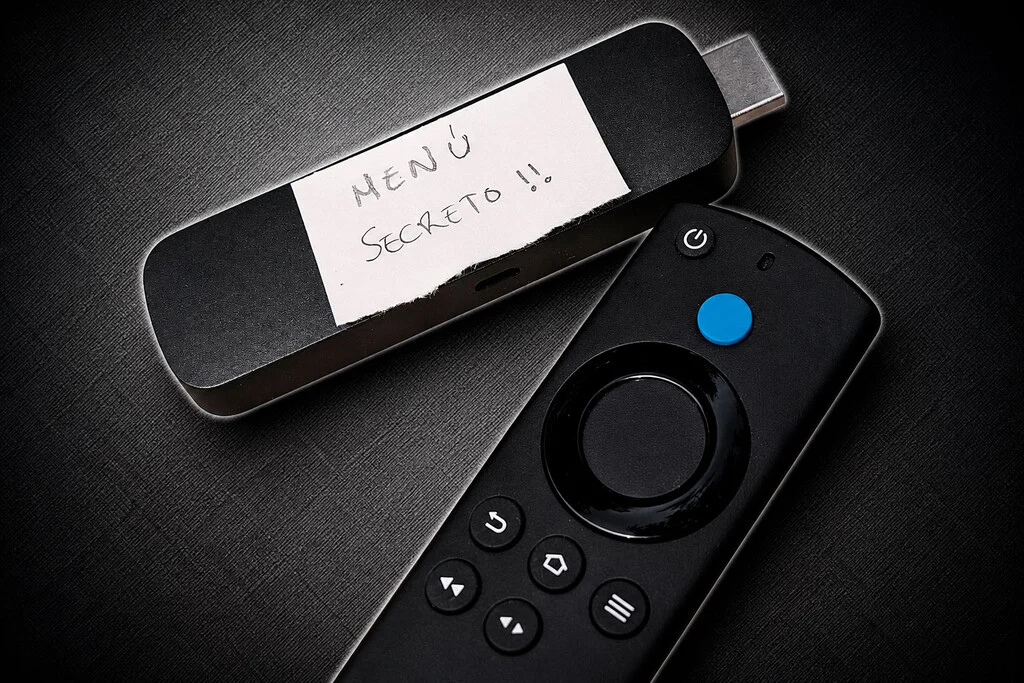

Amazon Fire TV devices, long a staple in many households for transforming standard televisions into smart entertainment hubs, have historically benefited from their foundational reliance on Android. This architectural choice, manifest in Amazon’s proprietary Fire OS, has meant that many of the robust functionalities and underlying flexibilities inherent to Google’s mobile operating system have been seamlessly integrated into Amazon’s streaming dongles and set-top boxes. This deep-seated connection to Android has, for years, allowed Fire TV users to access advanced features, including the ability to install applications via APK files and delve into a basic set of developer options. However, the ecosystem is currently undergoing a significant transformation with the phased introduction of Vega OS into Amazon’s product catalog. While newer models, particularly the recently launched Fire TV Stick 4K Select, are making the shift to Vega OS, the vast majority of existing Fire TV devices continue to operate on Fire OS, preserving their Android lineage and, with it, access to a less-known, highly potent secret developer menu that offers unparalleled diagnostic and customization capabilities.
The core of Amazon’s Fire OS has always been an intricately customized version of the Android Open Source Project (AOSP). This strategy allowed Amazon to leverage Android’s robust framework, extensive hardware compatibility, and a massive developer community, while simultaneously creating a distinct user experience tailored to its own content ecosystem, services, and hardware. For years, this meant that Fire TV devices, despite their Amazon branding, shared much of the underlying DNA with Android smartphones and tablets. This shared heritage facilitated a degree of interoperability and customizability often unavailable in more closed ecosystems. Users could, for instance, sideload applications not available in the Amazon Appstore, provided they were compatible Android Package Kit (APK) files. This flexibility significantly expanded the utility of Fire TV devices beyond their primary role as content consumption portals, turning them into more versatile media centers. The ability to install third-party browsers, VPNs, or even productivity tools underscored the inherent power granted by the Android foundation.
The introduction of Vega OS marks a pivotal strategic shift for Amazon. Unlike Fire OS, which is a fork of Android, Vega OS is designed as a more independent, purpose-built operating system, likely intended to offer Amazon greater control over hardware optimization, security, and the user experience, while potentially reducing reliance on Google’s underlying framework. This move aligns with a broader industry trend where major tech companies seek to differentiate and exert greater control over their software stacks. While Vega OS promises potential benefits in terms of performance and integration with Amazon’s services, it also signals a departure from the open-ended possibilities afforded by Android’s architecture. Crucially, Amazon has clarified that existing Fire TV devices will not be updated to Vega OS, meaning that the rich array of Android-based features, including the developer options and the ability to sideload APKs, will remain exclusive to devices running Fire OS. This creates a clear bifurcation in the Amazon Fire TV product line, with legacy Fire OS devices retaining a degree of flexibility that newer Vega OS devices may lack.
In the competitive landscape of streaming media players, Amazon Fire TV devices often find themselves in direct contention with Google TV streamers. Both platforms excel at transforming any standard television into a smart TV, offering access to a vast array of streaming services and applications. While Google TV, powered directly by Android TV, is often perceived as inherently more versatile due to its direct link to Google’s services and a broader app ecosystem, Fire TV devices, particularly those running Fire OS, can often match or even surpass this versatility when users unlock their full potential. The presence of robust developer options is a key differentiator, empowering users to tailor their devices to specific needs, troubleshoot issues, and access advanced functionalities that are not typically advertised.
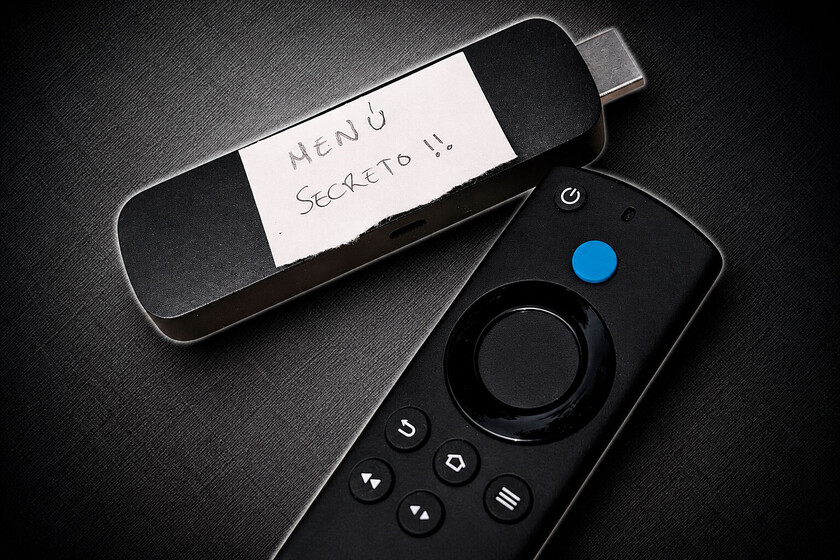
The standard developer options on Fire TV devices, while basic, are the initial gateway to unlocking more profound capabilities. These options are typically accessed by navigating to the "My Fire TV" section within the device settings and repeatedly clicking on the "About" or "Build Number" entry. Once activated, this menu provides a surprisingly succinct set of controls: primarily, the activation of "ADB debugging" and "Apps from Unknown Sources." The former, ADB debugging, is critical for establishing a communication bridge between the Fire TV device and a computer or another Android device, allowing for command-line control and advanced diagnostics. The latter, "Apps from Unknown Sources," is the essential toggle that permits the installation of APK files directly onto the device, circumventing the Amazon Appstore. These seemingly minor settings dramatically expand the utility of the Fire TV, enabling everything from installing alternative streaming apps to remotely controlling the device for tasks like taking screenshots or recording screen activity. However, beyond these basic developer settings lies a more profound, often overlooked "secret" developer menu, offering even more granular control and diagnostic information.
This hidden menu, distinct from the standard developer options, is geared primarily towards developers and advanced users who require deep insights into the device’s performance and content playback. Its existence underscores the Android heritage of Fire OS, as similar hidden menus are common in many Android-based systems for diagnostic purposes. While its name suggests exclusivity for professional developers, its practical applications extend to any user keen on optimizing their streaming experience or troubleshooting complex issues. Accessing this menu typically requires fulfilling certain prerequisites: an Amazon Fire TV device (running Fire OS, crucially), and either its physical remote control or an Android mobile phone connected to the same Wi-Fi network as the Fire TV. The shared network connection is paramount, as the Android Debug Bridge (ADB) protocol, a key method for activating this menu, relies on network communication. For iPhone users or those preferring a direct approach, a specific remote button combination offers an alternative, albeit often more challenging, activation method.
Activating the secret developer menu can be achieved through two primary methods, each with its own advantages. The first method involves a specific sequence of button presses on the Fire TV remote control. While the exact combination can vary slightly between Fire TV models, a common sequence often involves holding down the "Select" (center D-pad button) and "Play/Pause" buttons simultaneously for several seconds. Some variations may also include pressing the "Menu" button (three horizontal lines) in conjunction. This method, while direct and not requiring additional hardware, can be finicky. Users may need to practice the timing and duration of the button presses multiple times before successfully triggering the menu. The Fire TV device typically provides no explicit visual feedback until the menu appears, making it a trial-and-error process for many. Patience and persistence are often key to successfully invoking the menu via this method.
The second, often more reliable and feature-rich, method involves utilizing ADB commands from an Android mobile phone, usually facilitated by a third-party application. This approach leverages the ADB debugging mode that must first be enabled in the standard developer options. The general steps involve:
- Enabling ADB Debugging: As previously mentioned, navigate to Settings > My Fire TV > About and repeatedly click on the "Product Model" or "Build Number" entry until developer options are unlocked. Then, within Developer Options, enable "ADB Debugging" and "Apps from Unknown Sources."
- Identifying the Fire TV’s IP Address: Go to Settings > My Fire TV > About > Network and note down the IP address of your Fire TV device.
- Installing an ADB Tool on an Android Phone: Download and install a dedicated ADB utility application on your Android phone. "Easy Fire Tools" is a highly recommended option due to its user-friendly interface and comprehensive features.
- Connecting via ADB: Open "Easy Fire Tools" (or a similar app) on your Android phone. Enter the Fire TV’s IP address into the app and initiate the connection. The Fire TV will prompt you to authorize the ADB connection; confirm this on your TV screen.
- Executing the Command: Once connected, the application typically provides an interface to send specific ADB commands. A common command to launch the hidden developer menu involves calling an activity or service related to system diagnostics. For "Easy Fire Tools," the functionality to launch this menu is often integrated directly into the app’s interface, simplifying the process for users.
This ADB-based method offers several advantages beyond just activating the hidden menu. Tools like "Easy Fire Tools" often bundle additional functionalities, such as the ability to take screenshots of the Fire TV screen, record video of screen activity, and even remotely install APK files from the smartphone directly onto the Fire TV. This significantly enhances the control and diagnostic capabilities available to the user, making it an indispensable tool for advanced Fire TV management.
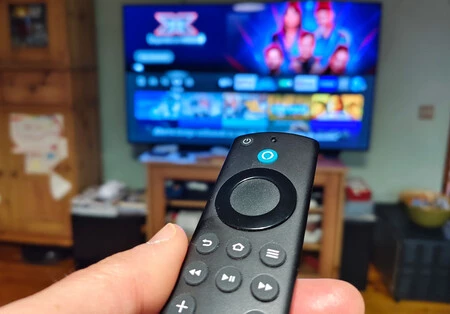
Once activated, the secret developer menu presents a range of advanced options that are invaluable for diagnosing performance issues, network problems, and understanding content characteristics. These options, while technical, provide concrete data points that can help users and developers alike optimize their Fire TV experience. Key functionalities include:
-
Playback Information Display: This is arguably one of the most useful features. When enabled, it overlays real-time information about the currently playing content directly onto the screen. This data typically includes:
- Resolution and Frame Rate: The actual output resolution (e.g., 1920×1080, 3840×2160) and frame rate (e.g., 24fps, 30fps, 60fps) of the video stream. This helps verify if the content is playing at the expected quality.
- Bitrate: The data transfer rate of the video and audio streams. A low bitrate can indicate network congestion or a lower-quality stream.
- Codecs Used: The specific video and audio codecs being employed (e.g., H.264, H.265/HEVC, VP9, Dolby Digital, AAC). This is crucial for understanding compatibility and performance.
- DRM Status: Information regarding Digital Rights Management, confirming if content protection is active and functioning correctly.
- Buffer Status: Details about the video buffer, indicating if the device is pre-loading enough data to prevent stuttering or buffering interruptions.
- Network Statistics: Basic network performance metrics relevant to streaming.
This information is vital for troubleshooting buffering issues, verifying 4K or HDR playback, and ensuring that the streaming platform is delivering content at the optimal quality for the user’s internet connection and display.
-
Proxy Activation: The menu allows for easy configuration and activation of a network proxy server. This functionality is particularly useful for users who wish to:
- Enhance Privacy: Route their internet traffic through a proxy for added anonymity.
- Bypass Geo-restrictions: Access content that may be geographically restricted by routing traffic through a server in a different region.
- Corporate/Educational Network Access: Configure the Fire TV to work within networks that require proxy authentication.
While VPNs offer a more comprehensive solution for many of these use cases, a proxy can be a simpler, lighter-weight alternative for specific scenarios, and its direct activation from this menu streamlines the process.
-
Integrated Speed Test: The secret menu often provides a direct shortcut to launch an integrated network speed test. While many users rely on third-party speed test applications, having a system-level test is beneficial for several reasons:
- Accuracy: It tests the network connection directly from the device itself, providing a more accurate measure of the bandwidth available to the Fire TV.
- Troubleshooting: It quickly helps determine if slow streaming performance is due to an inadequate internet connection or other factors specific to the streaming service or device.
- Convenience: Eliminates the need to download and launch a separate app.
These advanced settings collectively empower users to move beyond simple consumption and delve into the technical underpinnings of their streaming experience. From diagnosing why a 4K stream might be buffering to ensuring privacy through a proxy, the secret developer menu transforms the Fire TV into a more transparent and controllable device.
The broader implications of these hidden features are significant. They underscore the power of an open-source base like Android, which, even when heavily customized, retains avenues for advanced user intervention. For the average user, these capabilities might seem overly technical, but for enthusiasts, network administrators, or individuals facing persistent streaming issues, they represent an invaluable toolkit. They offer a level of control and transparency that is often missing in consumer electronics, allowing users to verify claims about content quality, troubleshoot network bottlenecks, and even bypass certain restrictions. In an era where many devices are increasingly locked down, the enduring flexibility of Fire OS (and its Android roots) stands out.
However, it is imperative to reiterate the critical distinction between Fire OS and the newer Vega OS. All the advanced functionalities discussed, including the ability to sideload APKs, access the standard developer options, and unlock the secret developer menu, are strictly applicable to Fire TV devices running Fire OS. Amazon’s strategic pivot to Vega OS for newer models, such as the Fire TV Stick 4K Select, fundamentally alters this landscape. Devices operating on Vega OS are designed to be more self-contained and less open, signaling an end to Android-specific flexibilities for those models. This means that future purchasers of Fire TV devices will need to be aware of the underlying operating system, as it directly dictates the level of customization and diagnostic access they will have. The move to Vega OS, while potentially offering performance benefits and a more tightly controlled ecosystem for Amazon, will likely lead to a divergence in the user experience, particularly for the power users and developers who have historically leveraged Fire OS’s Android foundation.
In conclusion, for those who own Amazon Fire TV devices powered by Fire OS, the existence of a hidden developer menu represents a powerful opportunity to gain deeper insights and control over their streaming experience. From meticulous playback diagnostics to convenient proxy activation and integrated speed testing, these advanced options transform the Fire TV from a simple media player into a robust diagnostic and customization hub. While the landscape is evolving with the introduction of Vega OS, the legacy of Fire OS devices continues to offer a rich, flexible, and powerful platform for those willing to explore its deeper functionalities. Understanding these distinctions is crucial for users navigating Amazon’s expanding streaming ecosystem and making informed decisions about their entertainment technology.
