
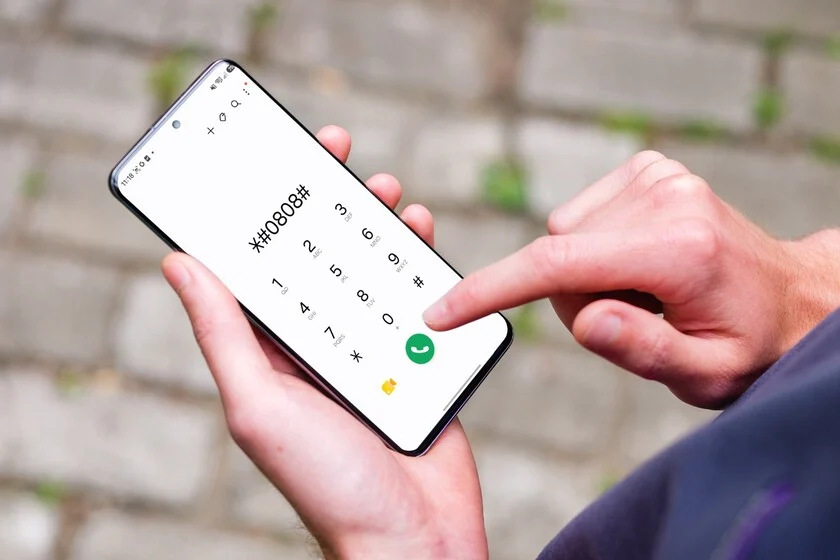

For years, dedicated Samsung Galaxy users have instinctively navigated the labyrinthine "Settings" menu whenever a technical issue arose, or curiosity piqued about their device’s internal workings. From checking battery health to delving into developer options, the path to detailed information is often circuitous, requiring multiple taps and sometimes even the activation of hidden switches. However, a lesser-known, yet significantly more direct, avenue exists within the very application most users only open to make a call: the phone dialer. This underutilized interface harbors a suite of secret codes, often referred to as MMI (Man-Machine Interface) or USSD (Unstructured Supplementary Service Data) codes, that bypass the standard menu structure, offering immediate access to critical device information, diagnostic tools, and maintenance functions.
The Legacy of Secret Codes in Mobile Technology
The concept of "secret codes" is not new to the mobile world; it predates smartphones, tracing its roots back to feature phones where such codes were essential for accessing advanced settings or service menus. These alphanumeric sequences, typically starting and ending with asterisks (*) or hash symbols (#), transmit specific commands to the phone’s operating system, triggering immediate actions or displaying hidden information. Unlike standard app interactions that are governed by a graphical user interface, MMI codes directly interface with the device’s firmware, offering a raw, unmediated connection to its core functionalities. Samsung, like many other manufacturers, has integrated a robust set of these codes into its Galaxy lineup, serving both internal diagnostics during manufacturing and repair, as well as providing powerful shortcuts for power users and technicians. The primary reason these codes remain "hidden" is to prevent accidental activation by novice users, which could potentially alter critical system settings or reveal sensitive data without proper understanding.
Unveiling Device Identity and Firmware Information
Among the most universally recognized and critical secret codes is *#06#. Dialing this sequence instantly displays the International Mobile Equipment Identity (IMEI) number of the device. The IMEI is a 15-digit unique identifier for every mobile phone, acting much like a fingerprint. Its importance cannot be overstated, particularly in scenarios involving device theft, insurance claims, or network unlocking. Traditionally, retrieving the IMEI involves navigating to "Settings," then "About phone," and finally locating the "Status" or "IMEI information" section—a process that can feel cumbersome, especially under duress. The instant access provided by *#06# eliminates this protracted search, offering peace of mind and efficiency when time is of the essence. This code is a global standard and works on most mobile phones, not just Samsung.
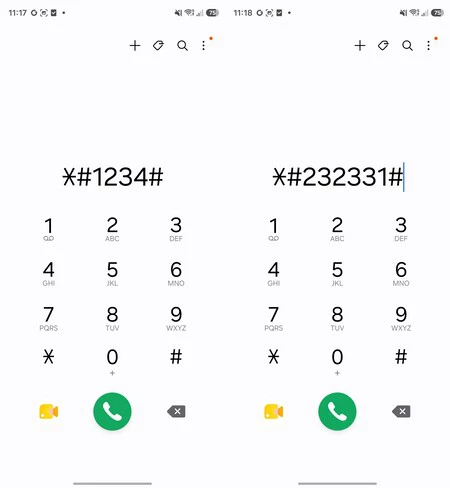
Similarly vital for troubleshooting and system understanding is the code *#1234#. This command provides an immediate overview of the exact firmware version installed on the device. Users can quickly ascertain the One UI version, the baseband version, and the kernel version—all crucial components of the device’s operating system. The One UI version indicates the specific iteration of Samsung’s custom Android skin, influencing user experience and feature availability. The baseband version refers to the firmware of the modem chip, which manages cellular communication; its version can be critical for resolving network connectivity issues. The kernel version, the core of the Android operating system, dictates how the software interacts with the hardware. Accessing this information typically requires navigating through "Settings" to "Software information" and then delving into various sub-menus. For users who frequently flash custom ROMs, troubleshoot software glitches, or simply wish to confirm their device’s exact software configuration without the usual navigation, *#1234# offers unparalleled convenience.
Connectivity at a Glance: Network and MAC Address Details
In a world increasingly reliant on seamless connectivity, detailed network information is frequently required, especially during router configuration or network troubleshooting. The code *#232331# offers a direct pathway to displaying the network name and, more critically, the Wi-Fi MAC (Media Access Control) address. The MAC address is a unique identifier assigned to network interfaces for communications on a physical network segment. It’s often requested when setting up MAC address filtering on a home router—a security measure that restricts network access to only authorized devices. Manually locating the MAC address typically involves navigating through "Settings," "Connections," "Wi-Fi," tapping on the connected network, and then accessing "Advanced" or "View more" options. For network administrators or users managing their home networks, this code streamlines the process, eliminating the need to delve deep into connectivity settings. It’s a prime example of how these hidden codes cater to specific, often technical, user needs.
Deep Dive into Hardware Diagnostics: Ensuring Device Integrity
Perhaps one of the most powerful and insightful diagnostic tools available via the dialer is accessed through the code *#0*#. This command opens a comprehensive hardware test menu, colloquially known as the "Service Mode" or "Engineer Mode." Within this unified interface, users can meticulously test various hardware components of their Samsung Galaxy device, including the display (for dead pixels, color accuracy, and touch responsiveness), sensors (accelerometer, gyroscope, proximity sensor), speaker functionality, vibration motor, and camera modules (front and rear).
This menu is invaluable for several practical scenarios:
- Pre-purchase inspection: When buying a used Samsung Galaxy, this menu allows a thorough check of all critical components to ensure functionality and detect potential defects.
- Post-repair verification: After a device has undergone repair, especially for screen or battery replacement, this menu can confirm that all hardware elements are functioning correctly.
- Self-diagnosis of issues: If a user suspects a problem with their screen’s touch sensitivity, a sensor malfunction, or speaker distortion, this mode offers a controlled environment to isolate and test the component, often before resorting to a service center visit.
- Calibration: Some sensors might require calibration, and this menu often provides options for it.
Instead of downloading multiple third-party diagnostic applications, each potentially requiring invasive permissions or displaying intrusive ads, *#0*# provides a native, secure, and comprehensive suite of tests. This capability highlights Samsung’s commitment to providing robust internal tools, even if they are not overtly advertised to the general public.
Mastering Battery Health and Usage Statistics
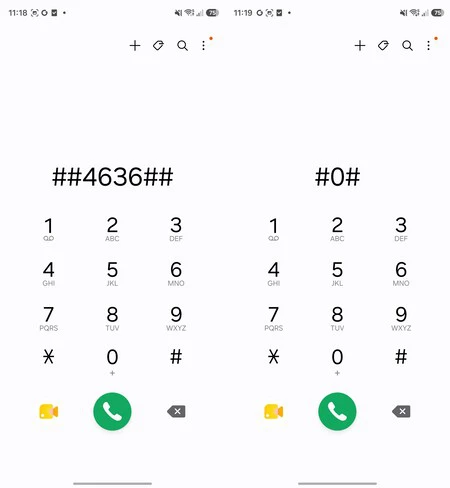
Battery performance is a perpetual concern for smartphone users. While Android and One UI offer detailed battery usage statistics, they are often scattered across different sections of the "Settings" menu. The code *#*#4636#*#* (note the double hash at the beginning and end, which is crucial for some devices/regions) consolidates much of this information into a single, comprehensive view. This menu typically displays detailed battery statistics, including its current health status, temperature, voltage, and sometimes even the number of charge cycles. Furthermore, it provides insights into phone usage statistics, breaking down screen-on time, application-specific power consumption, and overall device usage patterns.
This centralized view offers several advantages:
- Holistic battery assessment: Quickly ascertain the overall health of the battery, which can inform decisions about battery replacement or optimization strategies.
- Identifying power hogs: Pinpoint applications that are excessively draining battery life, enabling users to take corrective action such as restricting background activity or uninstalling problematic apps.
- Understanding usage patterns: Gain a clearer picture of how the device is being used throughout the day, which can help in managing screen time and digital well-being.
While Samsung’s "Device Care" section in One UI provides excellent battery management tools, this hidden code offers a more granular and condensed perspective, making it a valuable resource for those seeking deeper insights into their device’s power consumption.
Streamlining Device Management: USB Modes and System Maintenance
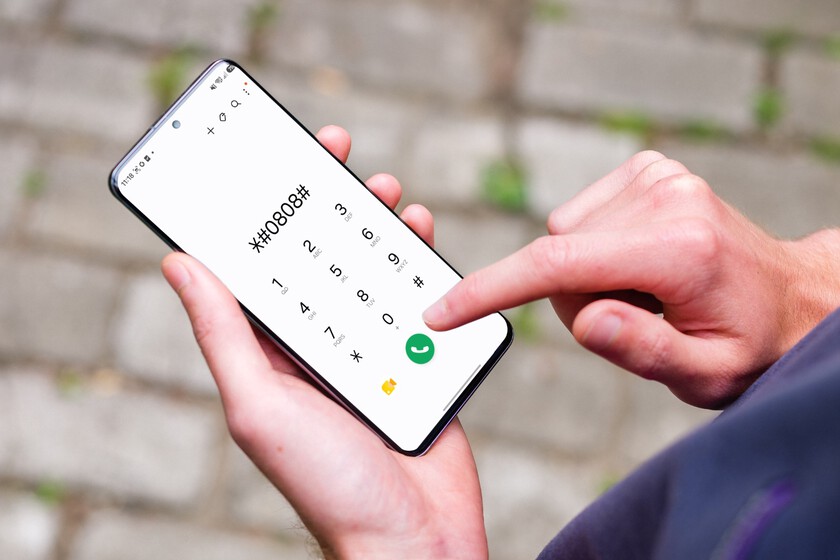
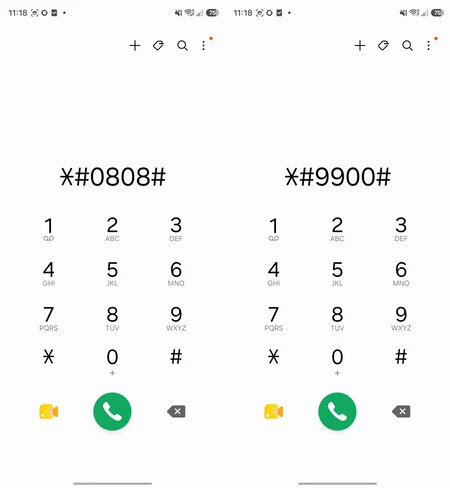
Connectivity options, particularly for USB, are crucial for interactions with computers and other peripherals. The code *#0808# provides direct access to the USB connection mode configuration. This menu allows users to quickly switch between various USB modes such as:
- MTP (Media Transfer Protocol): For transferring files between the device and a computer.
- PTP (Picture Transfer Protocol): Primarily for transferring photos.
- Charging only: To simply charge the device without data transfer.
- MIDI (Musical Instrument Digital Interface): For connecting to musical instruments or MIDI controllers.
- Debugging mode: Essential for developers using ADB (Android Debug Bridge) for advanced troubleshooting and app development.
Ordinarily, accessing these options requires enabling "Developer options" within the "Settings" menu (which itself is a hidden feature requiring multiple taps on the build number) and then navigating to the USB configuration settings. This code streamlines the process, particularly for developers or power users who frequently switch USB modes, bypassing the need to repeatedly enable/disable developer options.
Finally, for general system maintenance, the code *#9900# leads to the "Sysdump" mode. This utility is designed to help clean temporary files that accumulate over time and can sometimes assist in calibrating the battery. While it doesn’t replace a thorough system cleanup or a factory reset for severe performance issues, it offers a quick, native way to clear system logs and cache, potentially freeing up storage and improving responsiveness. Crucially, it provides a Samsung-sanctioned method for basic optimization without resorting to third-party "cleaner" apps. Many such third-party applications often come with intrusive ads, aggressive background processes, or even questionable privacy practices, making the native Sysdump mode a safer and more reliable alternative for quick maintenance tasks. This reinforces the idea that Samsung provides robust internal tools, reducing reliance on external solutions that might compromise user experience or security.
The Security Layer: Understanding and Managing the Automatic Blocker
Despite the undeniable utility of these secret codes, some users might find that certain codes do not function as expected on their newer Samsung Galaxy devices. This is typically due to a security feature introduced with One UI 6 (and maintained in subsequent versions) called "Automatic Blocker." This advanced security function is designed to protect the device from various threats, particularly in cases of theft or unauthorized physical access.
The Automatic Blocker actively restricts certain system-level operations, including:
- Execution of MMI codes from the dialer: This prevents potential malicious code execution or unauthorized configuration changes via secret codes.
- Blocking USB debugging: A crucial measure against unauthorized data extraction or system manipulation via a wired connection.
- Installation of apps from unauthorized sources: Enhances protection against malware.
While the Automatic Blocker significantly enhances device security, it can inadvertently prevent legitimate power users from accessing the aforementioned diagnostic and maintenance codes. To utilize these codes, users must temporarily disable the Automatic Blocker. This process involves navigating to Settings > Security and privacy > Automatic Blocker and toggling the option off.
It is paramount to understand the implications of disabling this feature. While it enables access to the hidden codes, it also temporarily lowers the device’s security posture. Therefore, it is strongly recommended that users re-activate the Automatic Blocker immediately after completing their diagnostic or maintenance tasks. This ensures that the device remains protected against potential vulnerabilities and unauthorized tampering. Samsung’s implementation of the Automatic Blocker reflects a careful balance between providing advanced user tools and maintaining robust device security in an increasingly complex threat landscape.
Samsung’s Design Philosophy: Balancing Accessibility and Advanced Tools
The existence of these hidden codes within Samsung Galaxy devices underscores a nuanced design philosophy. On one hand, Samsung strives to create an intuitive and user-friendly experience for the vast majority of its users through the One UI interface, abstracting away complex system details. On the other hand, it acknowledges the needs of power users, developers, and service technicians who require direct, unfettered access to underlying system information and diagnostic capabilities. By embedding these tools within the dialer app, Samsung provides a powerful, yet discreet, backdoor to advanced functionalities without cluttering the main settings menu or overwhelming average users.
This approach offers significant benefits for the broader ecosystem:
- User Empowerment: Advanced users gain a deeper understanding and control over their devices, fostering self-sufficiency in troubleshooting and maintenance.
- Efficiency for Technicians: Repair and service centers can quickly diagnose issues, reducing service times and improving efficiency.
- System Integrity: By providing native diagnostic tools, Samsung reduces the need for users to rely on potentially unsafe third-party applications.
Broader Implications: The Future of Hidden Features
The continued presence and evolution of these secret codes highlight a fascinating aspect of modern technology: the enduring relevance of "hidden" functionalities. In an era where user interfaces are increasingly simplified and curated, these codes serve as a reminder that a deeper layer of interaction often exists, catering to those who seek more profound control and understanding of their devices. As smartphones become more complex and integrated into every aspect of daily life, the ability to quickly access critical information and perform basic diagnostics without extensive menu navigation will likely remain a valuable asset. The challenge for manufacturers like Samsung will be to continue balancing robust security measures, such as the Automatic Blocker, with the provision of powerful, yet safe, tools for their most engaged user base. The secret codes of the Samsung Galaxy are more than just technical curiosities; they are a testament to the layers of engineering and design that power our everyday devices, waiting to be discovered by the curious and the capable.
